




The educator journey · 2027

Your own website and app. A few clicks, not a project.

An academy app used to mean an agency, a developer and a long wait. Now you name your academy, connect your domain, add a course and start selling, all by yourself. Try it below and build your own, in 6 steps.

  1. Build yours nowtry
  2. Own branding00
  3. Set up01
  4. Create02
  5. Teach03
  6. Sell04
  7. Run05
7 days free, no card needed500+ educators
Your turn · 6 steps · about 2 minutes

Build your academy right now.

Type your academy's name and follow the steps. Your website and your app take shape as you go, in the same design students see on AllCoaching. Each step also shows the real studio screen where you do it.

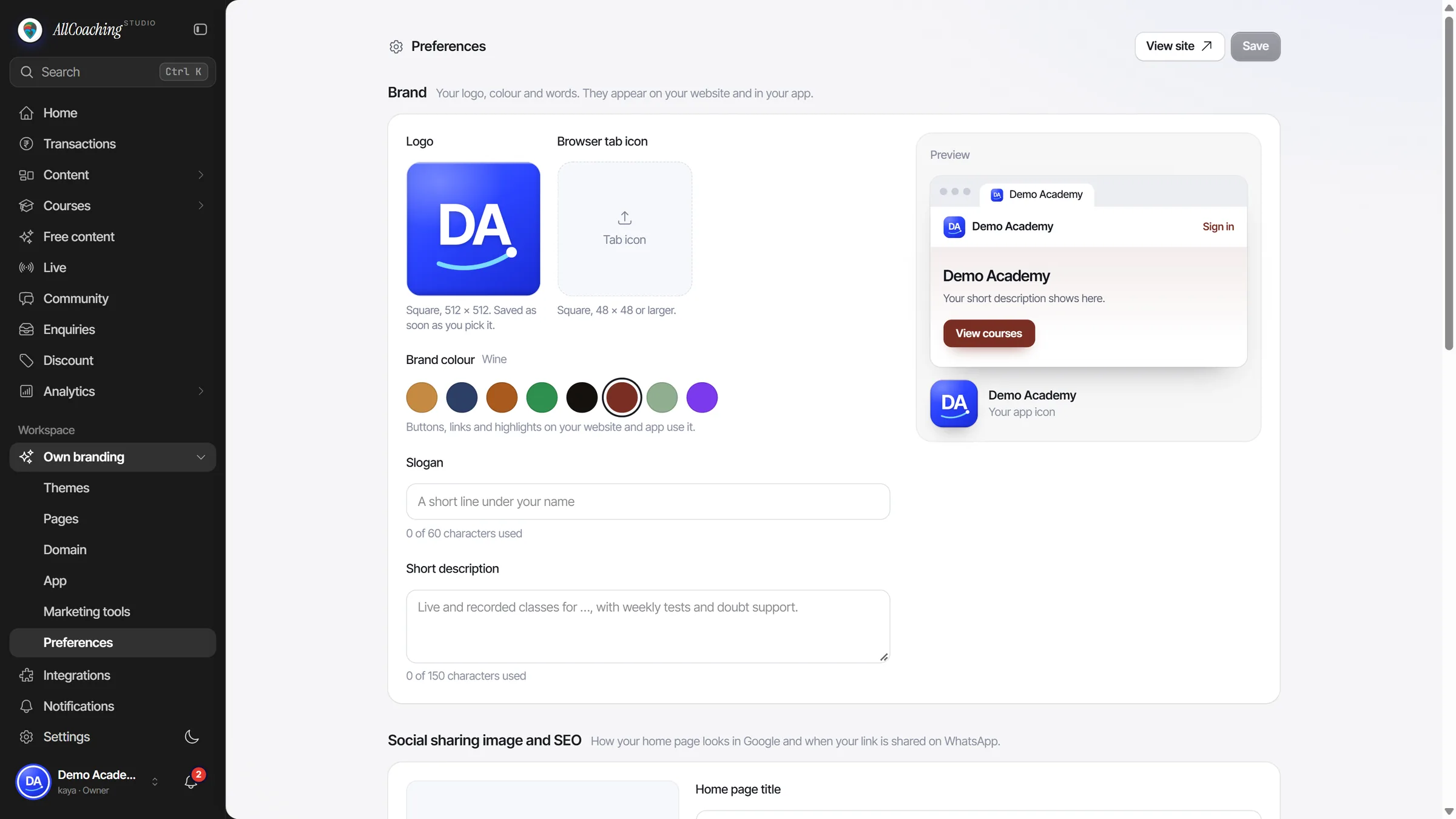
  1. The real studio screen: Own branding, Preferences
    In your studio: Own branding · Preferences
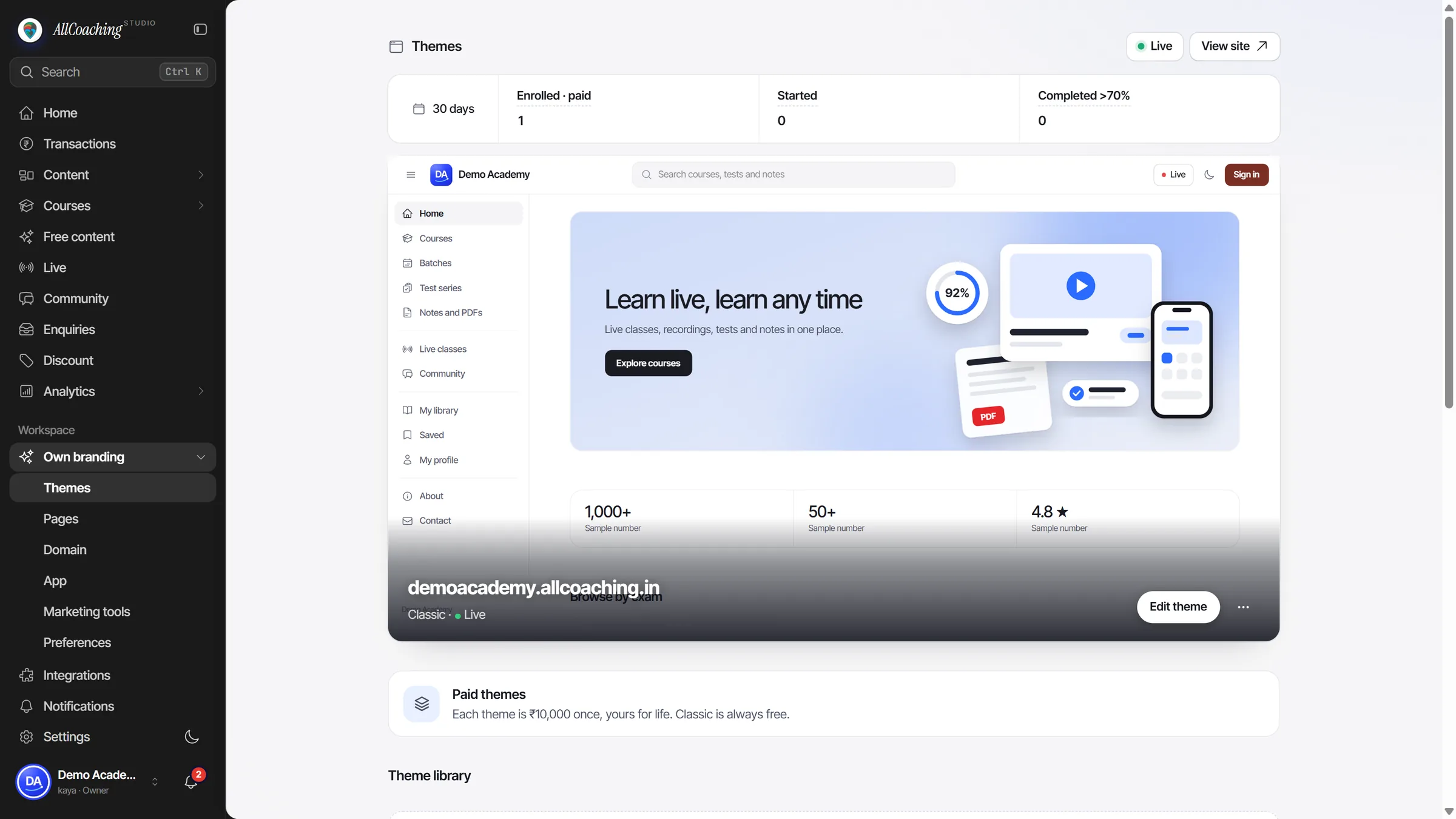
  2. Your website is already live on a free address, in the Classic theme. Students can open it today.

    The real studio screen: Own branding, Themes
    In your studio: Own branding · Themes
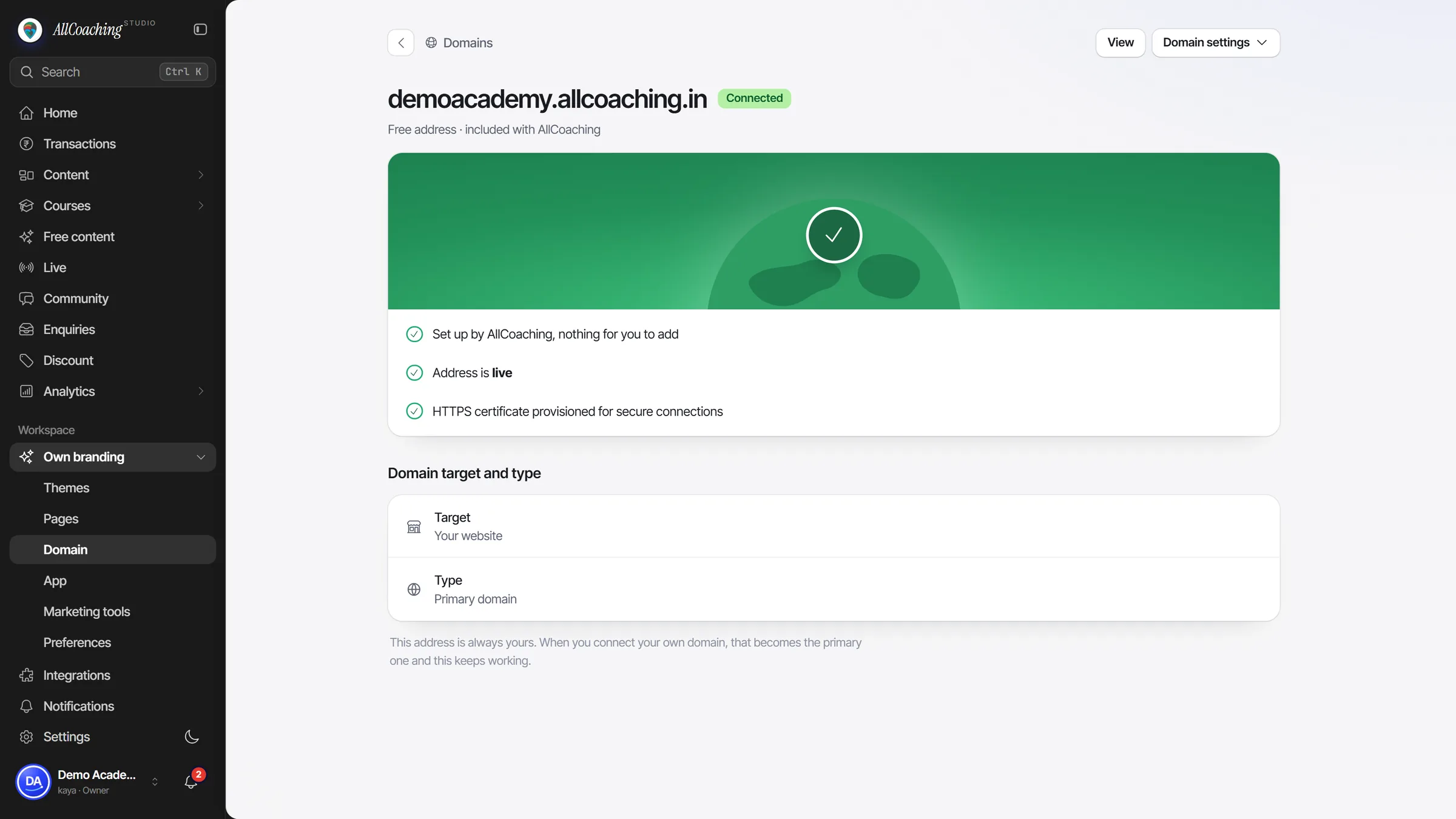
  3. .in

    Buy the name from any registrar, then connect it in the studio. Connecting is free on every plan.

    The real studio screen: a domain connected, with HTTPS
    In your studio: Own branding · Domain
  4. ₹
    The real studio screen: New course
    In your studio: Courses · New course
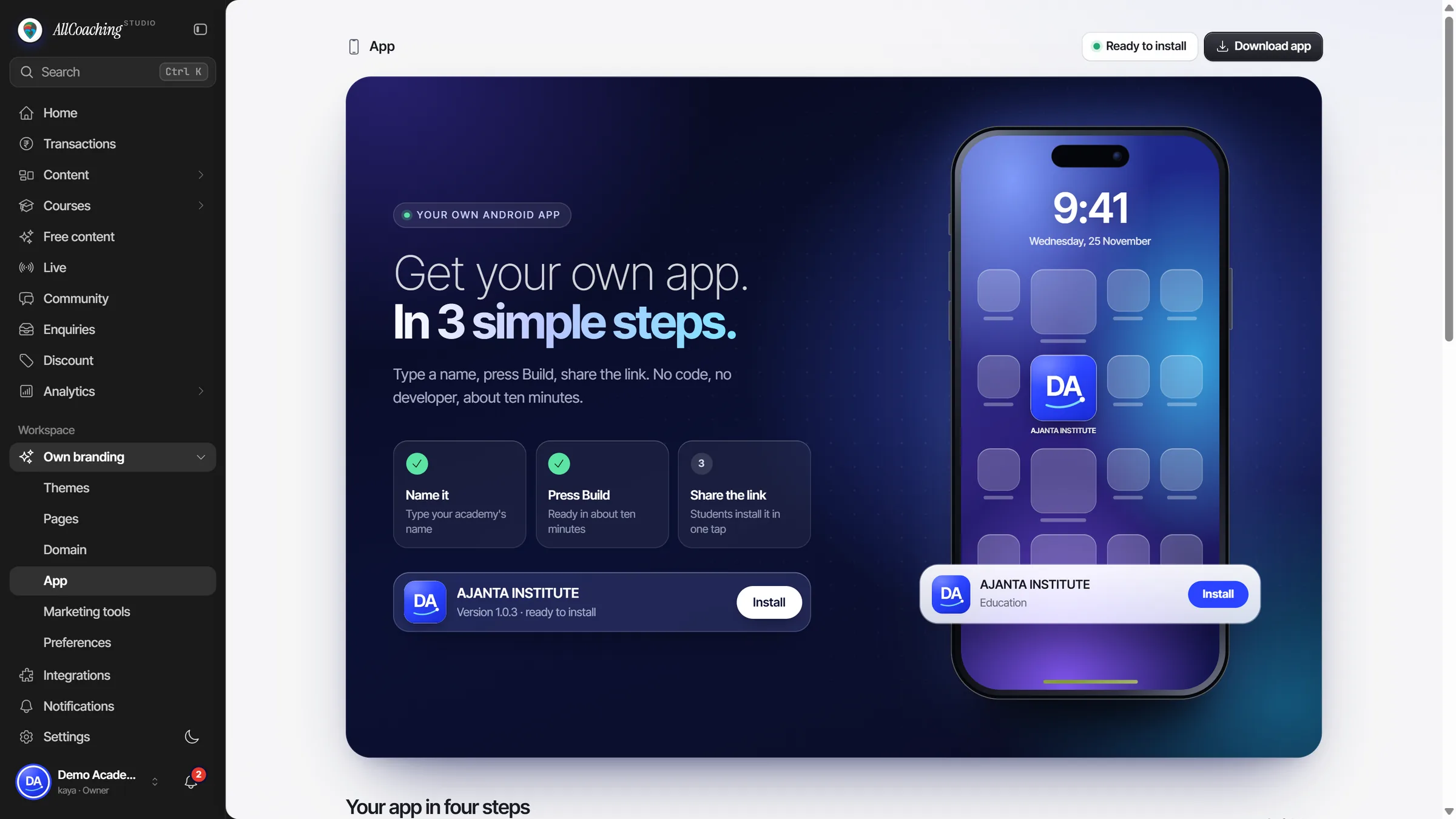
  5. Your app carries your name and icon, published on your own Google Play account. iOS on Growth and Pro, after 30 days.

    The real studio screen: Own branding, App
    In your studio: Own branding · App
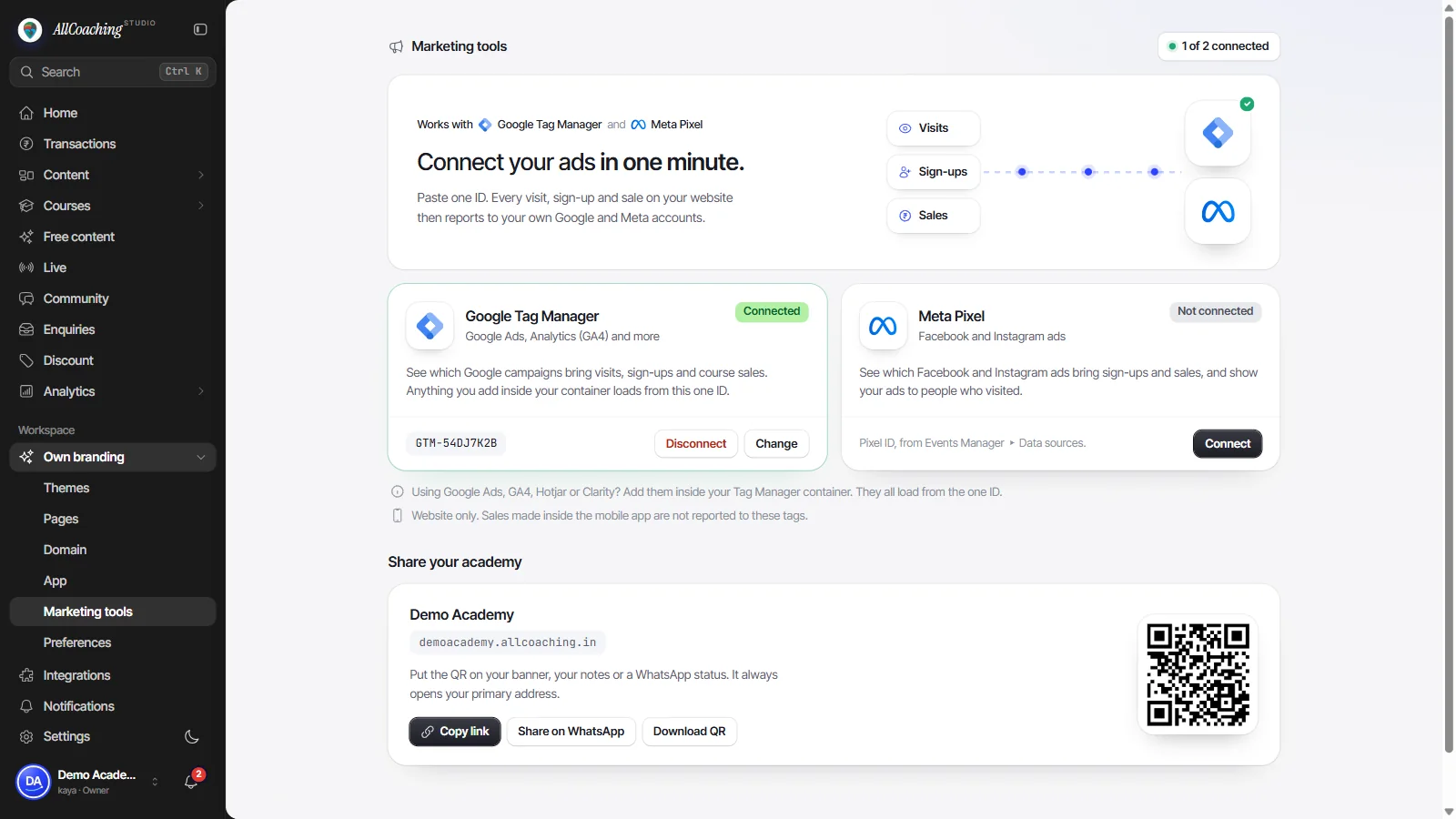
  6. Share your link on WhatsApp. Students pay by UPI on your own Razorpay checkout, and the course opens for them on its own.

    The real studio screen: Marketing tools, share your academy
    In your studio: Own branding · Marketing tools
youracademy.allcoaching.inConnected
Your AcademySearch courses, tests and notesLiveSign in

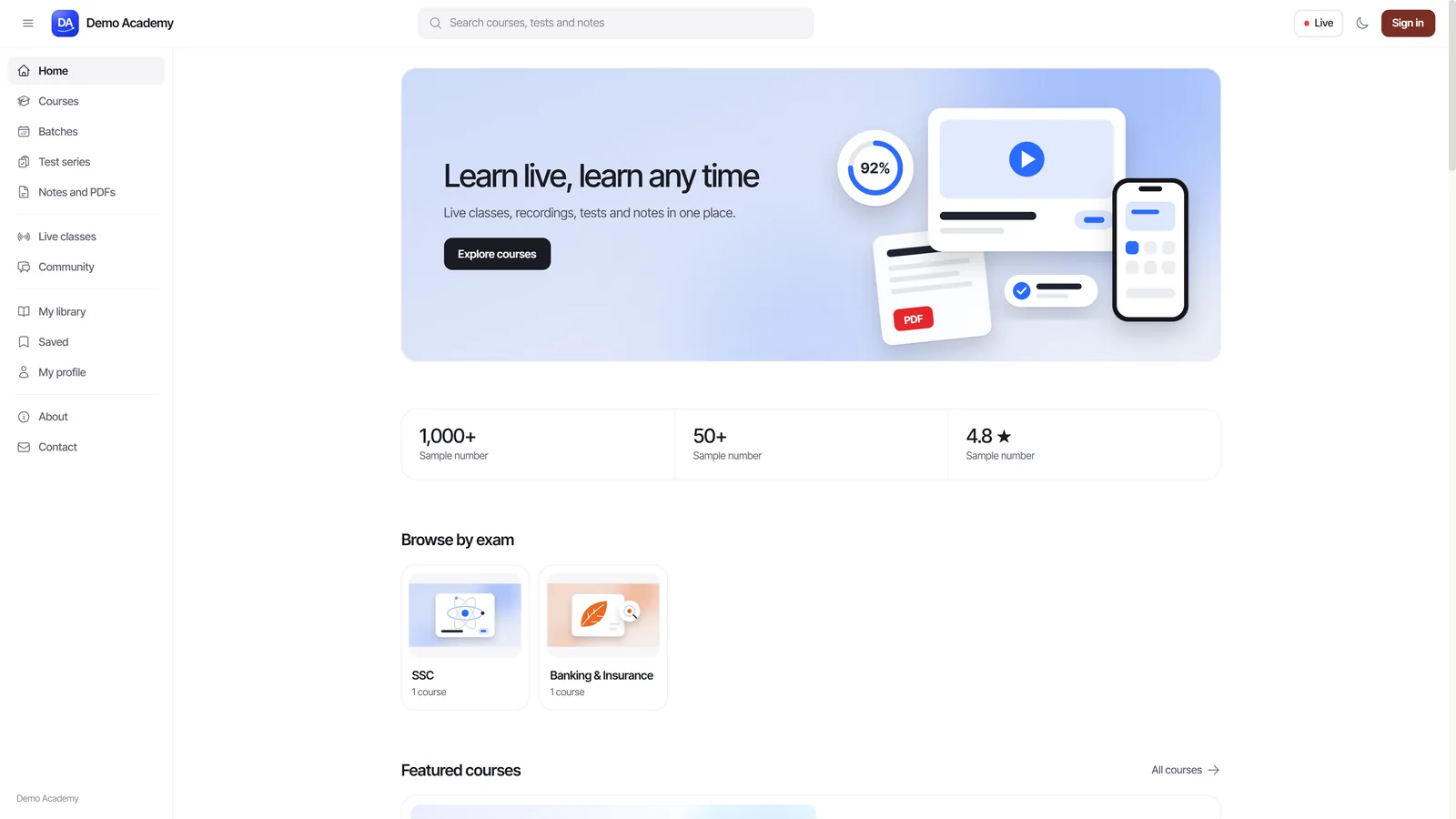
Learn live, learn any time

Live classes, recordings, tests and notes in one place, from Your Academy.

Explore courses
Browse by subject
Your subject0 courses

Free lessonsComing soon
Featured courses
Your AcademyYour first course
Your first courseVideos · Notes · Tests · Live
₹1,999Enroll now
9:41
Your AcademySign in
Learn live, learn any timeExplore courses
Your first course
₹1,999Enroll
HomeCoursesTestsLibraryYou
9:41Thursday, 26 November
Your Academy
Your AcademyInstalling…
Class 10 Parentsgroup

New course from Your Academy: Your first course. Join here 👇

youracademy.in/courses10:42 ✓✓
Paid by UPI · ₹1,999Example sale · course opened
1Your website2Your app
Before step 01 · what "own branding" means

Your own website. Your own app.

Own branding means students see your academy, not ours. Your website on your own domain and your app on their phone both carry your name, your logo and your colours. AllCoaching stays in the background and runs the technology.

A shared coaching appTheir name, their logo, your course inside
Own branding on AllCoachingYour name, your logo, your domain, your app

Your own web address.

Start on a free .allcoaching.in address, then connect a domain you buy from any registrar, like youracademy.in. Connecting is free on every plan.

  • Your own domain, registered in your name
  • Course pages and checkout built for you
  • Drag-and-drop page builder for your own pages

Your icon on their phone.

Publish your own Android app from your Google Play Console account. Your own iOS app comes with Growth and Pro, after 30 days on the plan.

  • Your app name, icon and colours
  • Published on your own store account
  • Courses, tests and live classes inside

Your name on everything.

Set your logo, cover, display name and handle once in the studio. They appear on your website, your app, your course pages and your certificates.

  • Your logo and colours, not ours
  • Your academy name at the top of every screen
  • Certificates carry your branding

Your logo on every lesson.

Switch on the video watermark and your logo becomes part of every video you upload. Each student also sees their own name on screen while they watch.

  • Logo watermark, placed where you want it
  • Student-name watermark while watching
  • DRM-protected player on every plan

Your look, your pages.

The Classic theme is free on every plan and fully customizable, with ready-made landing pages. Premium themes are ₹10,000 each, one-time.

  • Classic theme free on every plan
  • Ready-made landing pages
  • Blog for Google, up to 300 posts
your brand
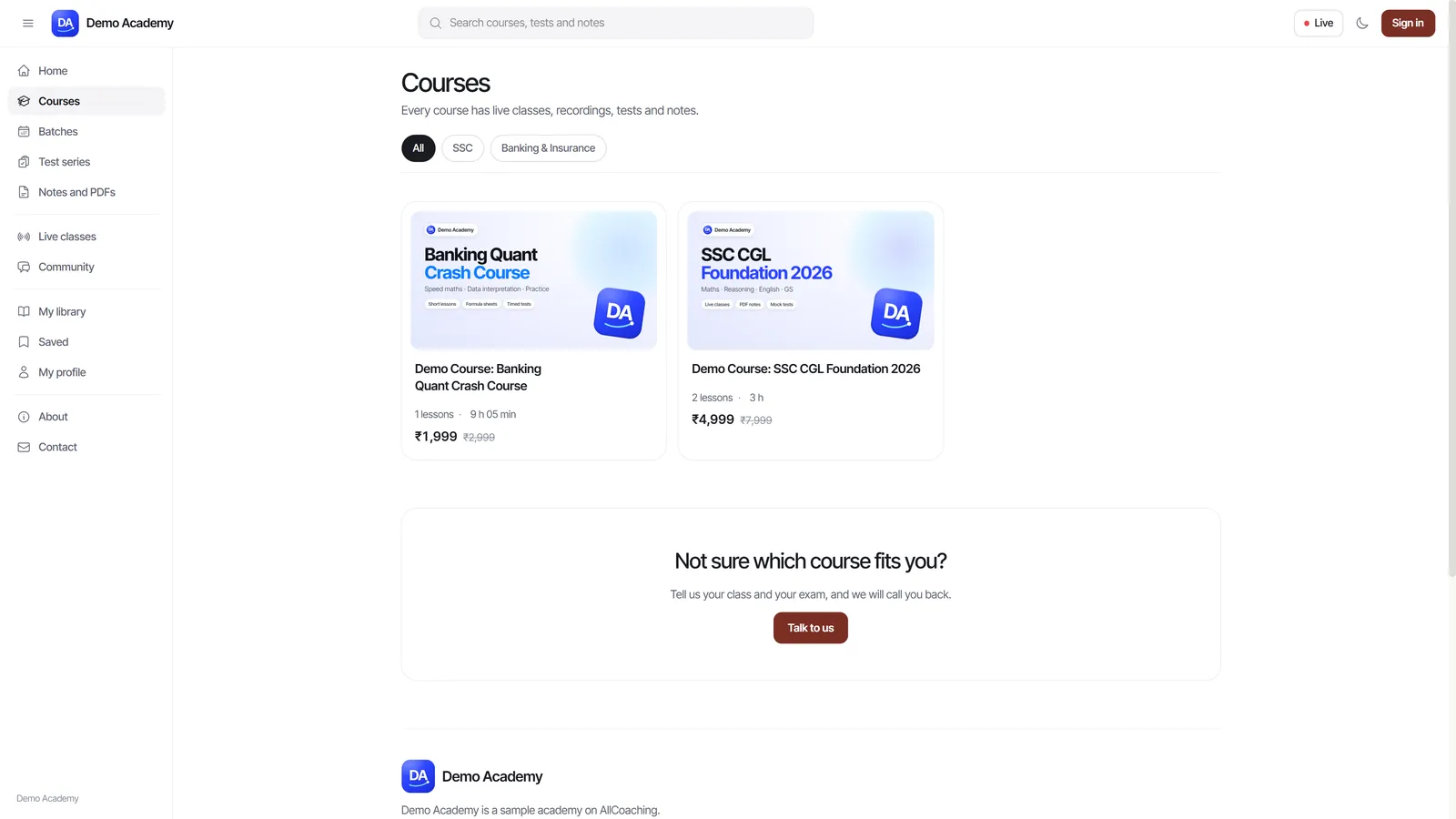
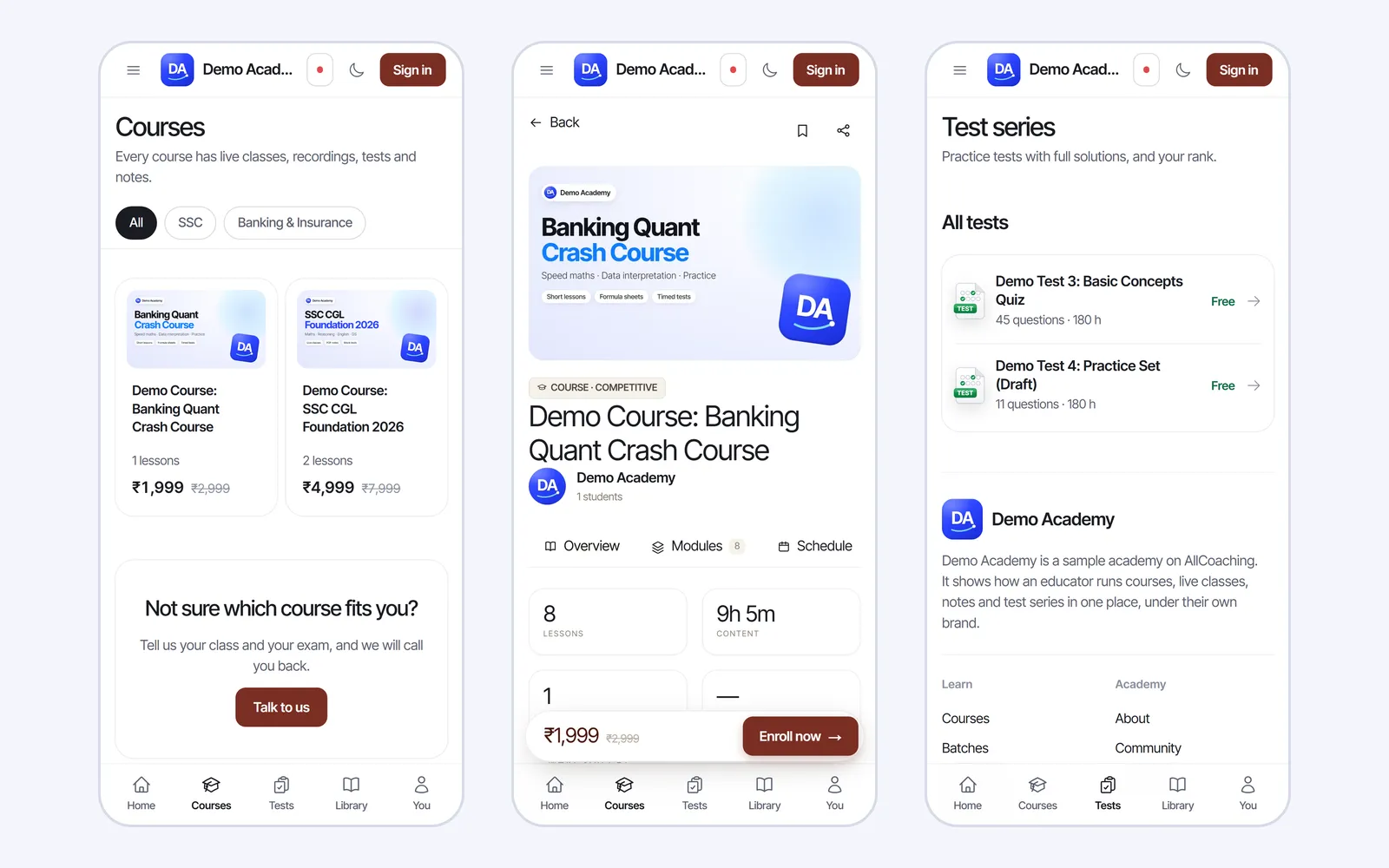
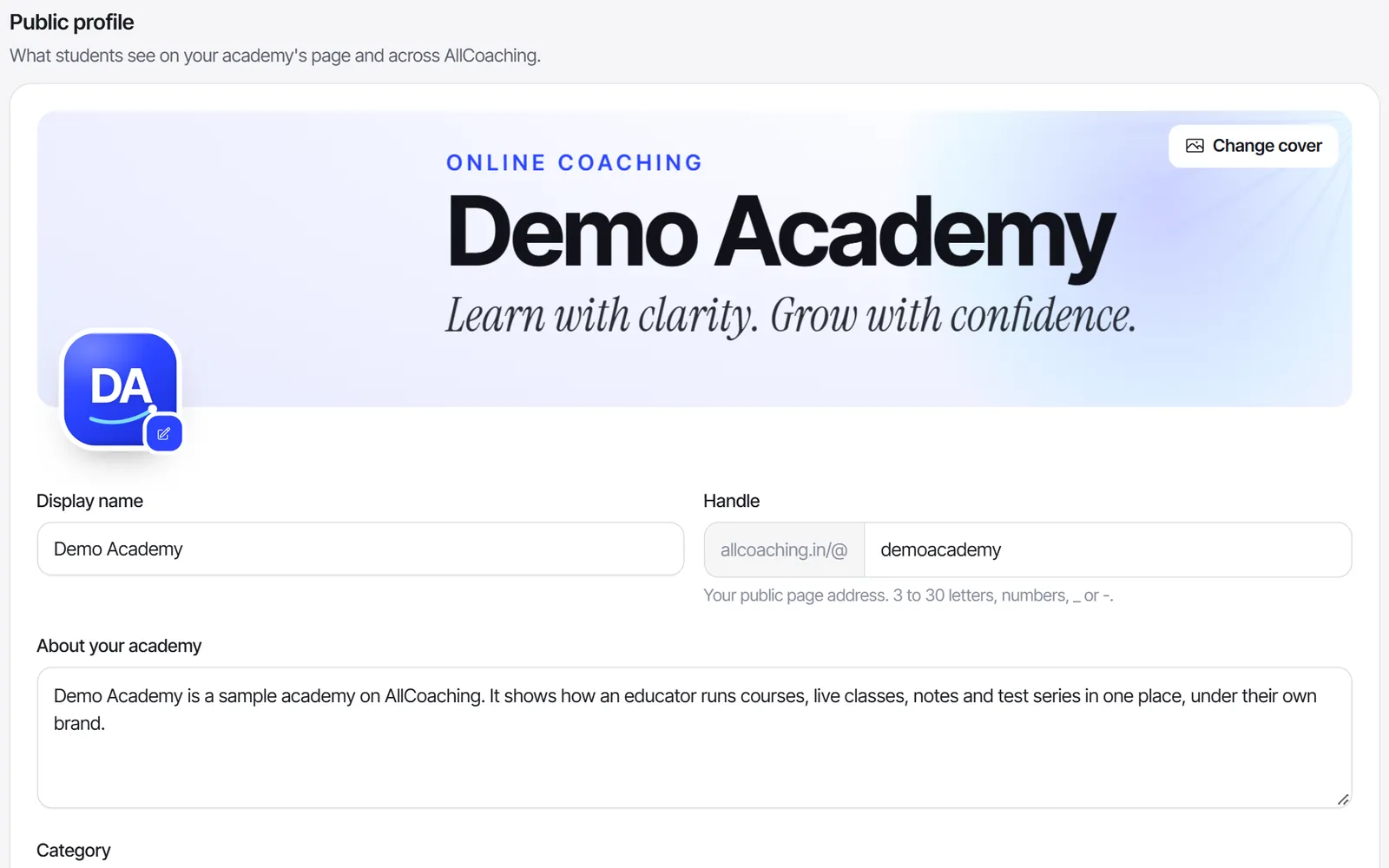
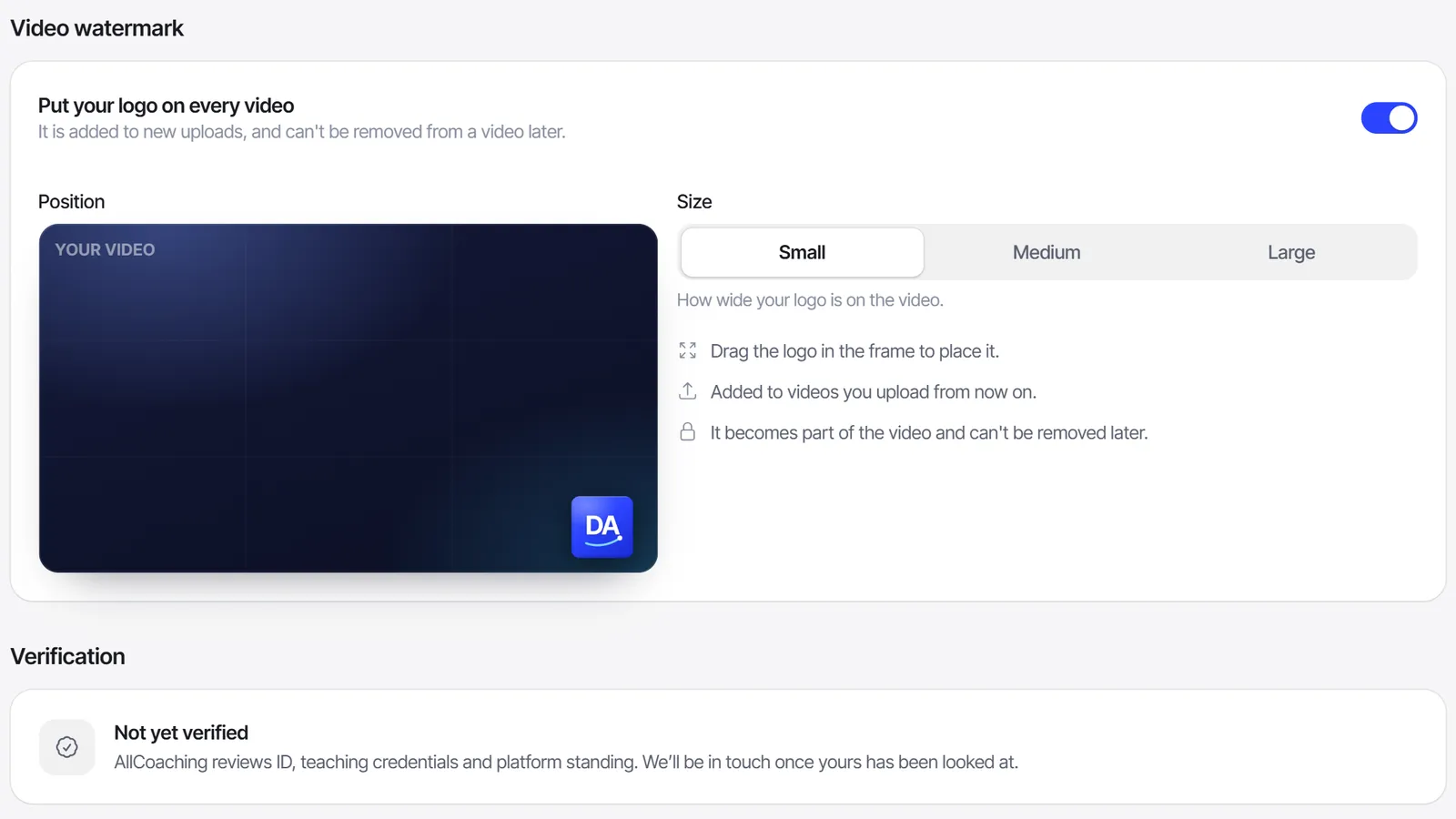
An academy website built on AllCoaching showing its courses pageThree phone screens of an academy app: courses, a course page and test seriesEducator Profile in the studio with the academy cover, logo, display name and handleVideo watermark settings with a logo placed in the video frameThe home page of an academy website in the Classic theme
Stage 01 / 05

Set up

Your name, your website and your own app.

Step 01 / 14

Academy website

Your brand, your website and your own domain, set up from one profile in the studio.

One profile. Your whole identity.

Educator Profile is where your academy’s identity is set. Your cover, logo and display name show to students on your academy page and across AllCoaching, and your handle becomes your public page address.

  • Change cover and upload a new logo in a click
  • Display name shown everywhere students see you
  • Handle checked for availability as you type
  • A few lines about what you teach, and for whom

A website students can browse and buy from.

Your academy website lists your courses, batches, test series and notes under your name and logo. Every academy gets a free .allcoaching.in address, and you can connect your own domain on every plan.

  • Free .allcoaching.in web address
  • Connect a domain you buy from any registrar; connecting is free
  • Drag-and-drop page builder for your own pages
  • Courses filtered by the categories you teach

Your logo, on every video.

Turn on the video watermark and your logo is added to every video you upload from then on. Drag it to the spot you want in the frame and pick small, medium or large.

  • Drag the logo to place it in the frame
  • Small, medium or large
  • Added to new uploads automatically
  • It becomes part of the video and can’t be removed later
studio.allcoaching.in
Educator Profile in the studio with the Demo Academy cover, logo, display name and handleThe Demo Academy website showing its courses page with category filters and two course cardsVideo watermark settings with the switch on, a logo placed in the video frame and size options
Step 02 / 14

Your own app

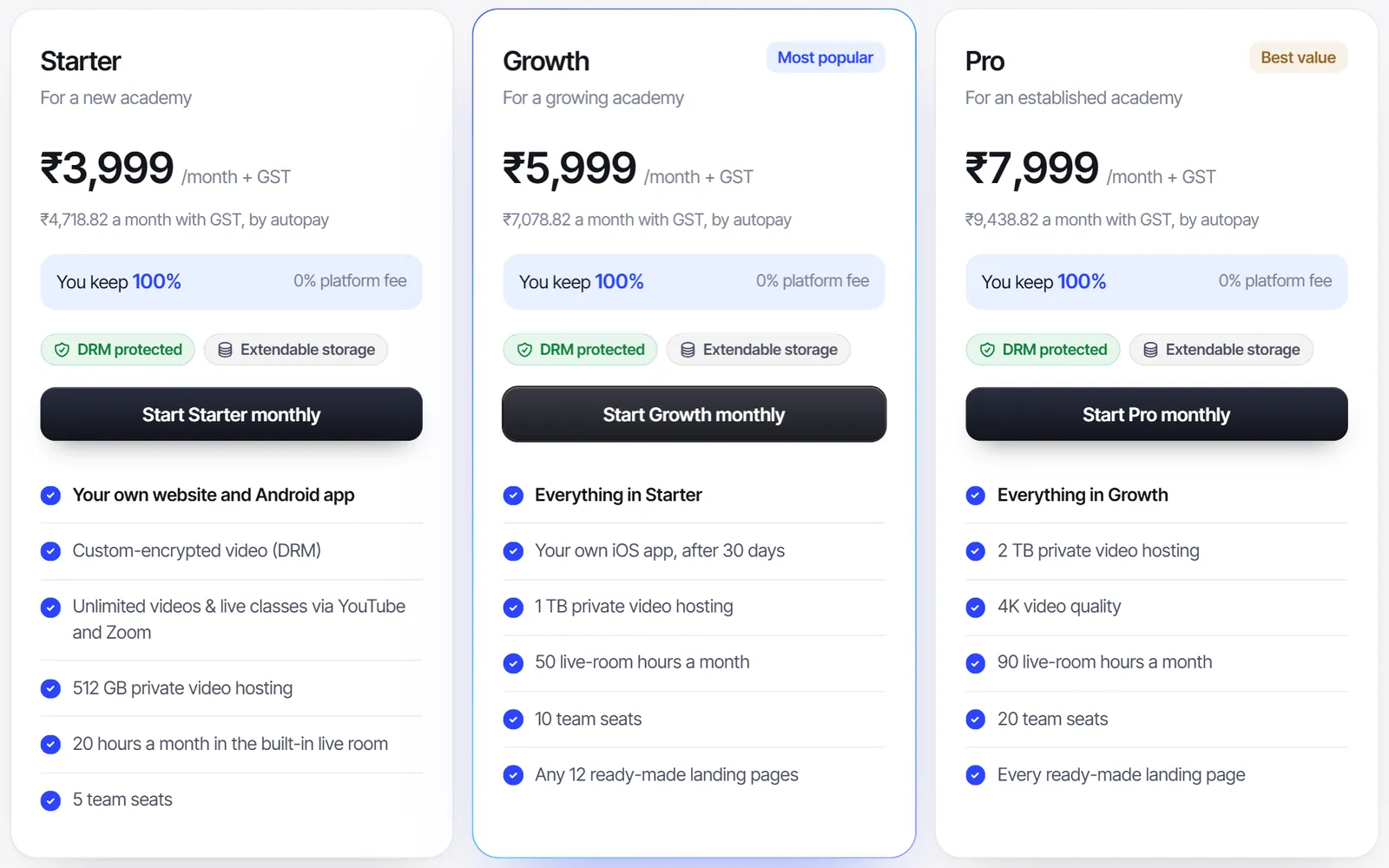
Your own Android app on every plan, and iOS on Growth and Pro after 30 days.

Android on every plan. iOS on Growth and Pro.

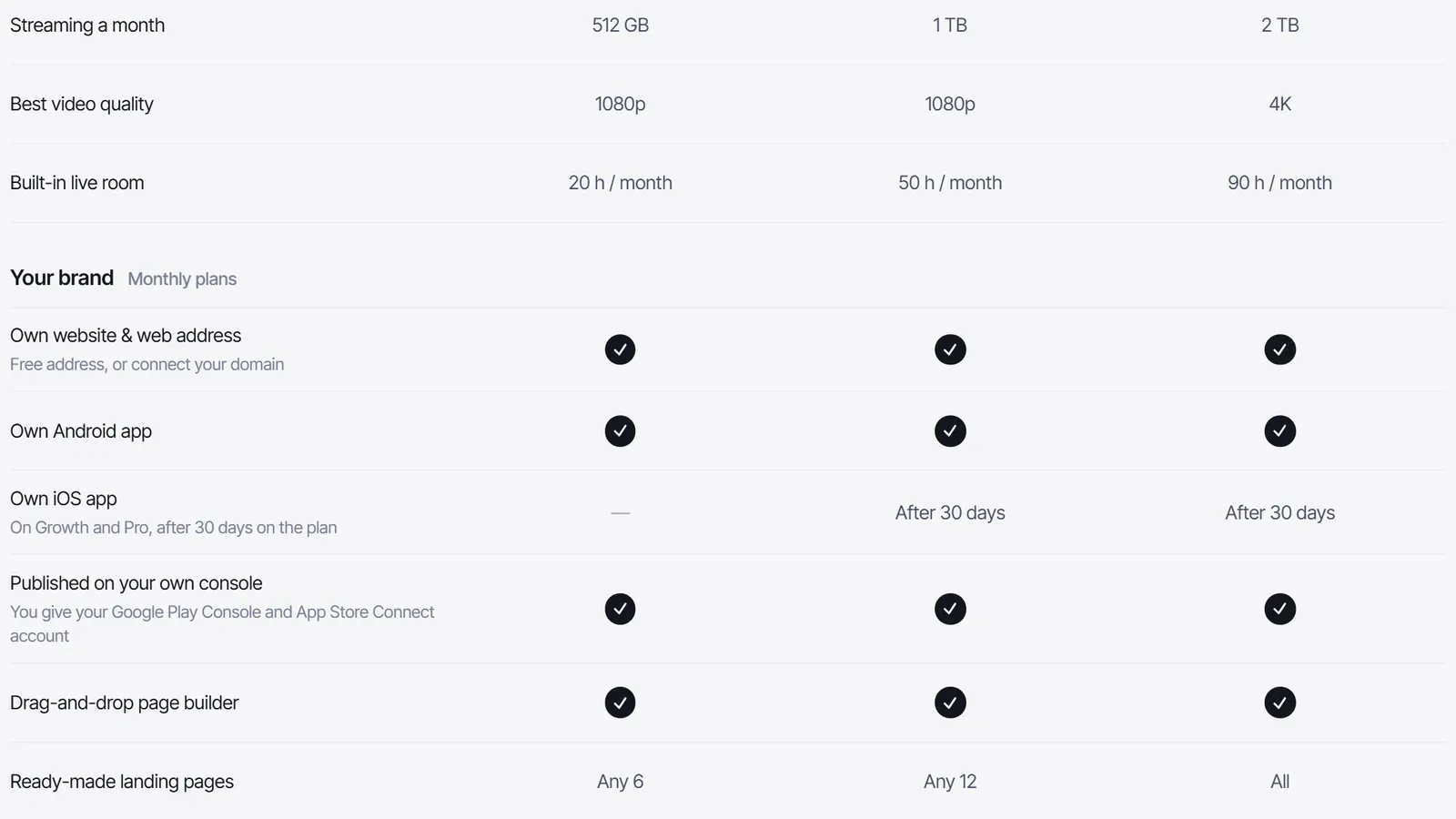
Every plan is the full studio, including your own website and Android app. Growth and Pro add your own iOS app after 30 days on the plan, along with more storage and live-room hours.

  • Monthly: Starter ₹3,999, Growth ₹5,999, Pro ₹7,999 a month + GST, 0% commission
  • Yearly: ₹6,999, ₹12,999 or ₹24,999 a year + GST, with a 10%, 7.5% or 5% fee per sale + GST
  • iOS app on Growth and Pro, after 30 days on the plan
  • Storage can be extended on any plan

Your app, on your own console.

Apps are published only on your own accounts: Google Play Console for Android and App Store Connect for iOS. Google and Apple review each app, and the listing sits under your name.

  • Own Android app on Starter, Growth and Pro
  • Own iOS app on Growth and Pro, after 30 days
  • You give your Google Play Console and App Store Connect account
  • Free web address or your own domain alongside the app

Your academy, in your students’ pocket.

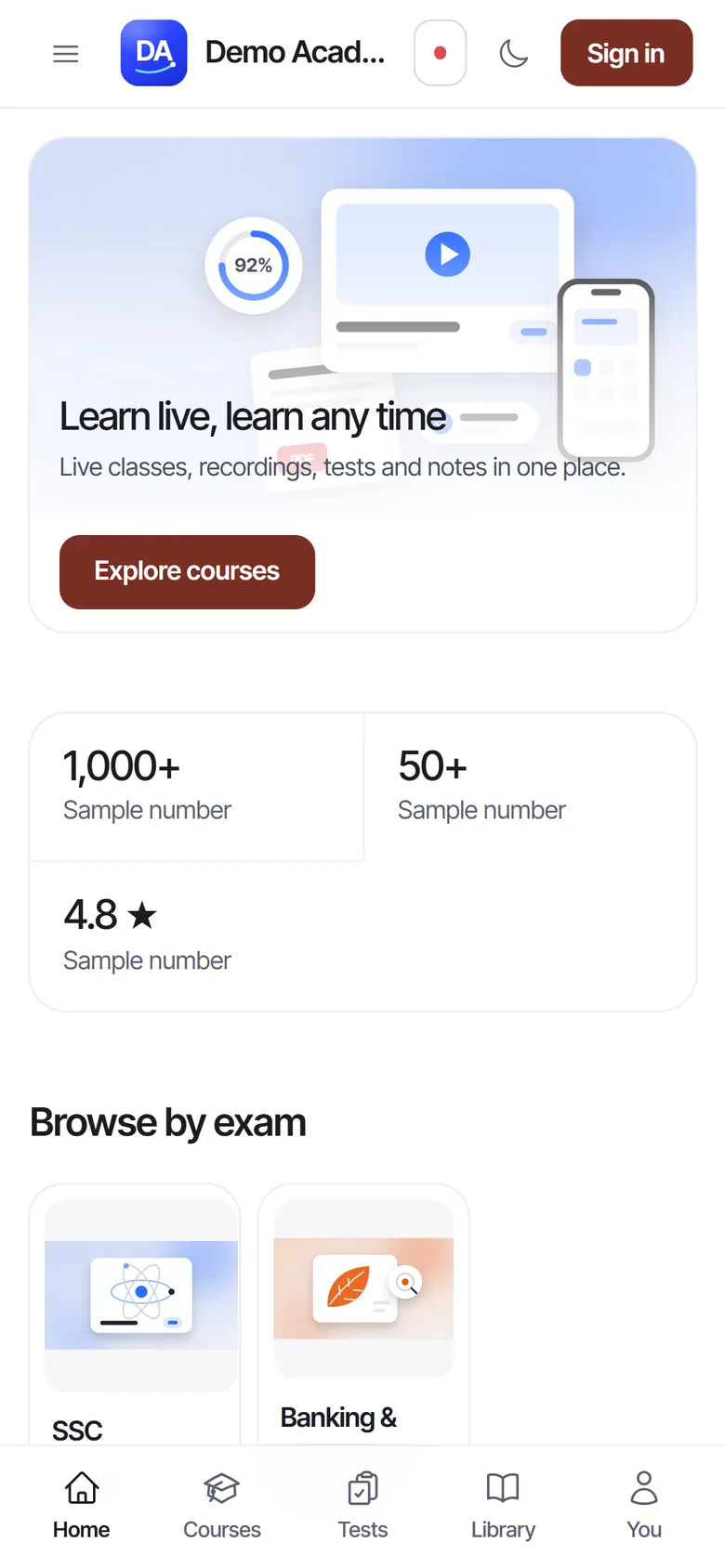
On a phone, students browse your courses, open a course page and enrol, and take your test series, all under your logo and name. Courses, tests, library and profile sit in one bar at the bottom.

  • Courses with category filters
  • Course pages with price and Enroll now
  • Test series with free tests marked
  • Your logo and academy name at the top of every screen
studio.allcoaching.in
Change your plan screen in the studio showing Starter, Growth and Pro monthly plans and what each includesCompare plans table with rows for own website, own Android app, own iOS app and publishing on your own consoleThree phone screens of Demo Academy: the courses list, a course page with Enroll now, and test series
Next stageCreate
Stage 02 / 05

Create

Courses, notes and tests, built once and sold again and again.

Step 03 / 14

Courses

Courses with modules, protected video and completion certificates, built in one studio.

Details, price, and a page that builds itself.

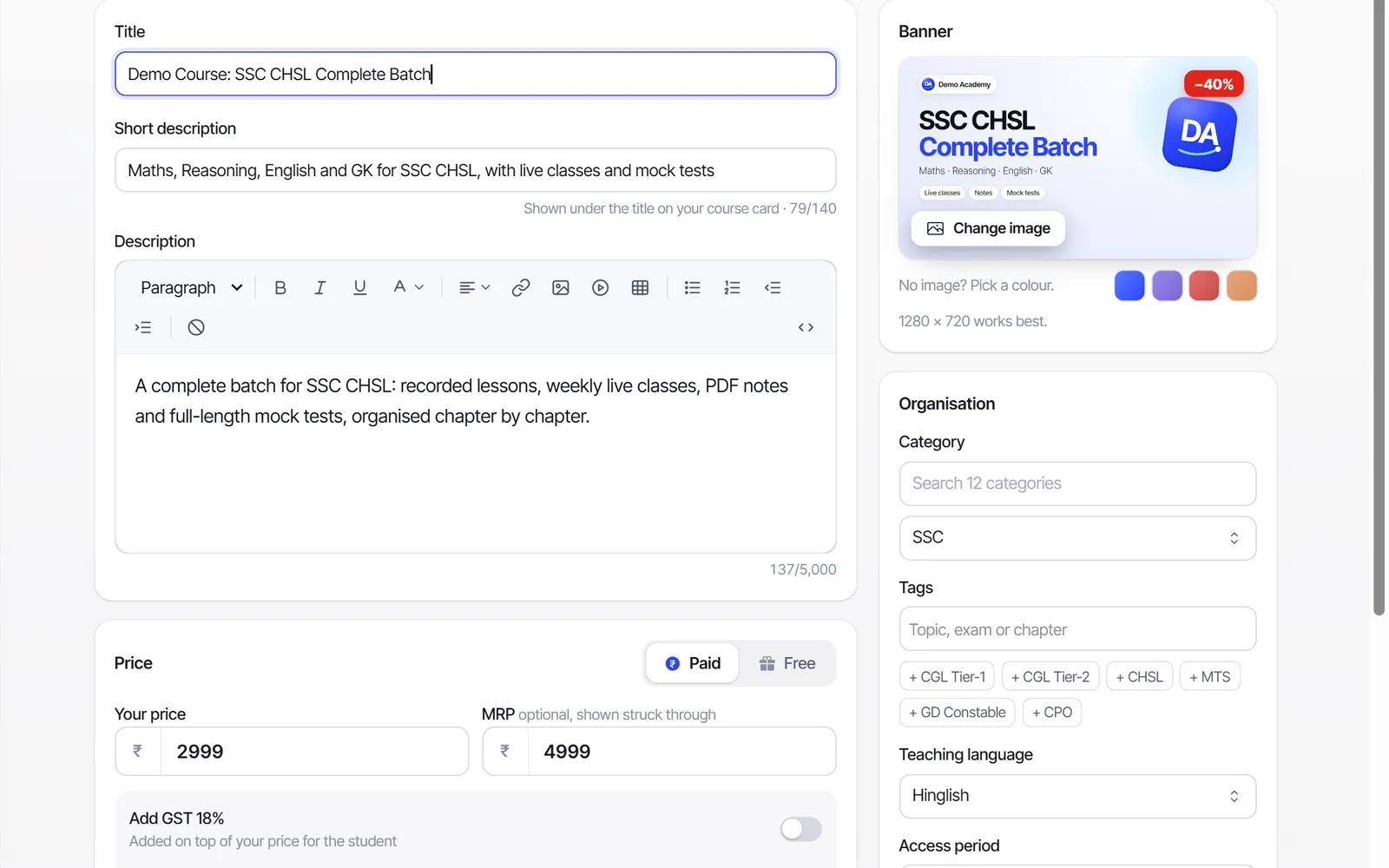
Start with a title students would search for, a one-line short description and a clear description of who the course is for. Set your price, and the course page, its web address and checkout are created for you.

  • Paid or free, with an optional MRP shown struck through
  • Optional 18% GST added on top for the student
  • Banner image at 1280 × 720, or just pick a colour
  • Categories and suggested tags from your profile

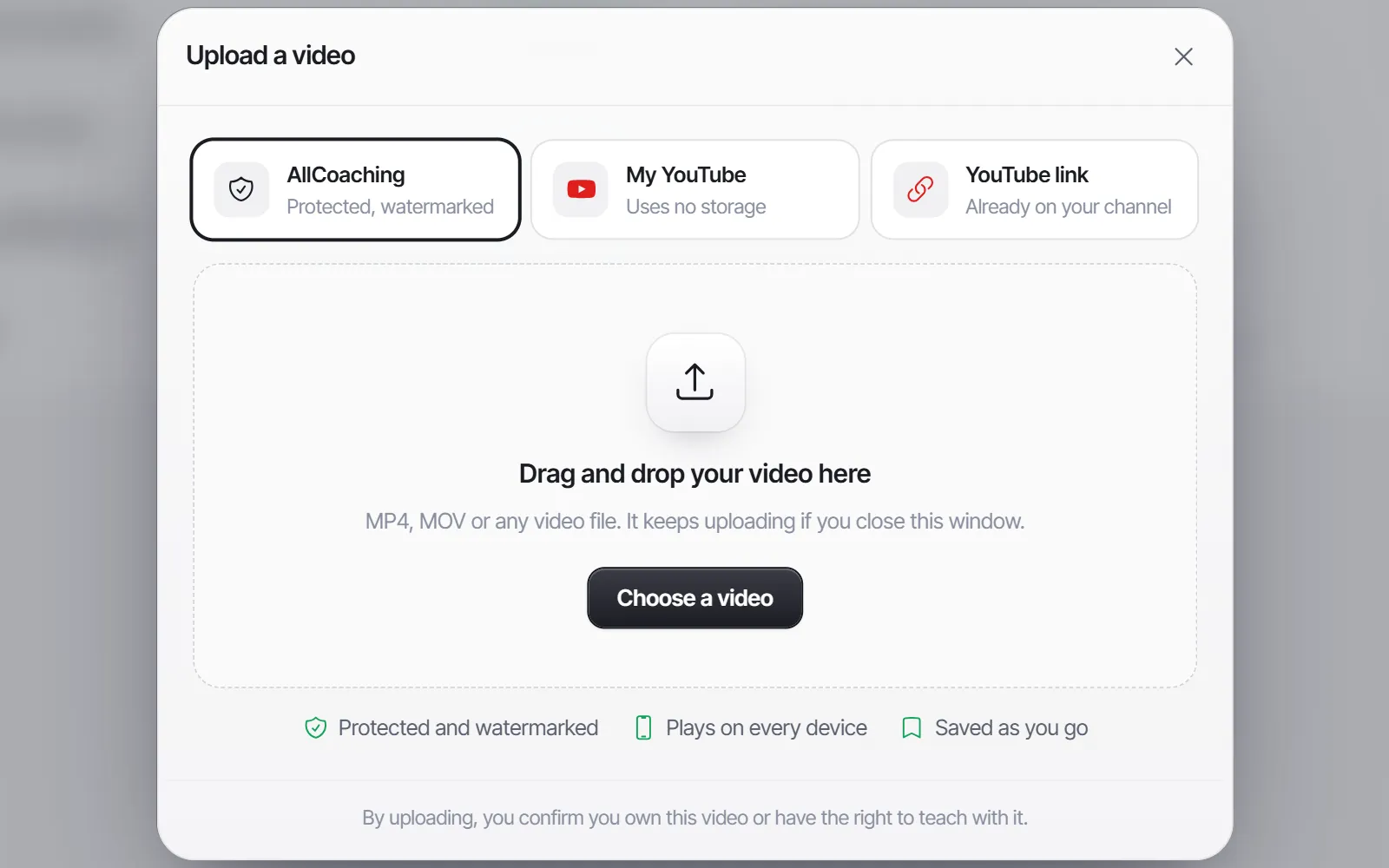
Upload your videos. Keep them yours.

Upload a video to AllCoaching and it stays encrypted and watermarked, and plays on every device. You can also send videos to your own YouTube channel as unlisted, or add a link to one already there.

  • DRM-protected player with automatic quality
  • Each student’s name as a watermark while they watch
  • Your logo watermark on every upload
  • Choose whether students can comment or download

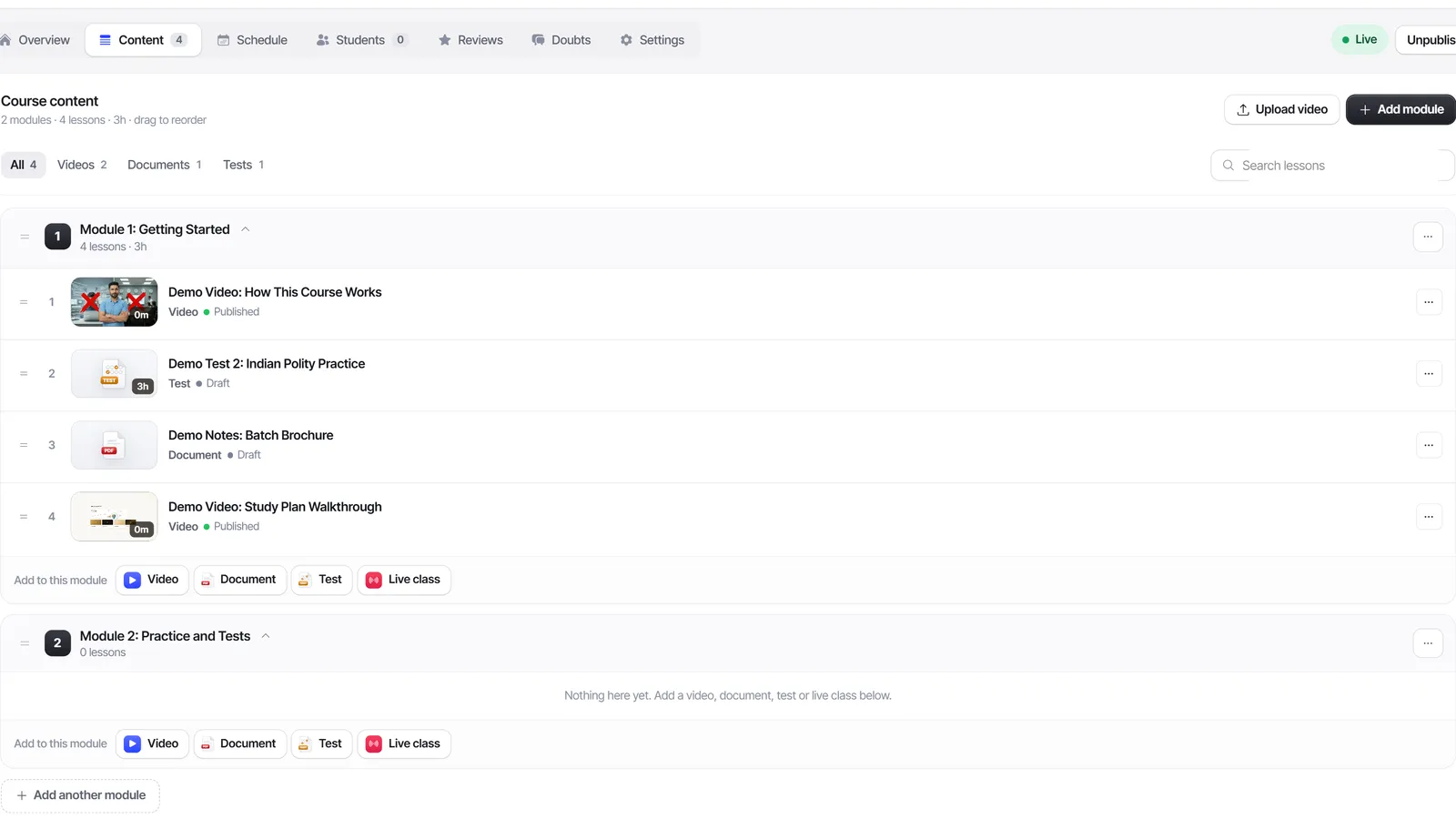
Module by module, then a certificate.

Students work through your course one module at a time, with videos, PDFs, tests and live classes inside. When they complete it, they get a certificate with your branding.

  • Certificates issued automatically on completion
  • Your logo and the student’s name, with a unique certificate ID
  • Students can download and share it
  • Modules can open a set number of days after a student enrols
studio.allcoaching.in
New course form with title, short description, description, price, MRP, banner and categoryUpload a video window with three options: AllCoaching, My YouTube and YouTube linkA course’s Content tab in the studio with two modules and video, test and document lessons
Step 04 / 14

Notes and PDFs

PDF notes with your logo and each student’s name on every page, plus download tracking.

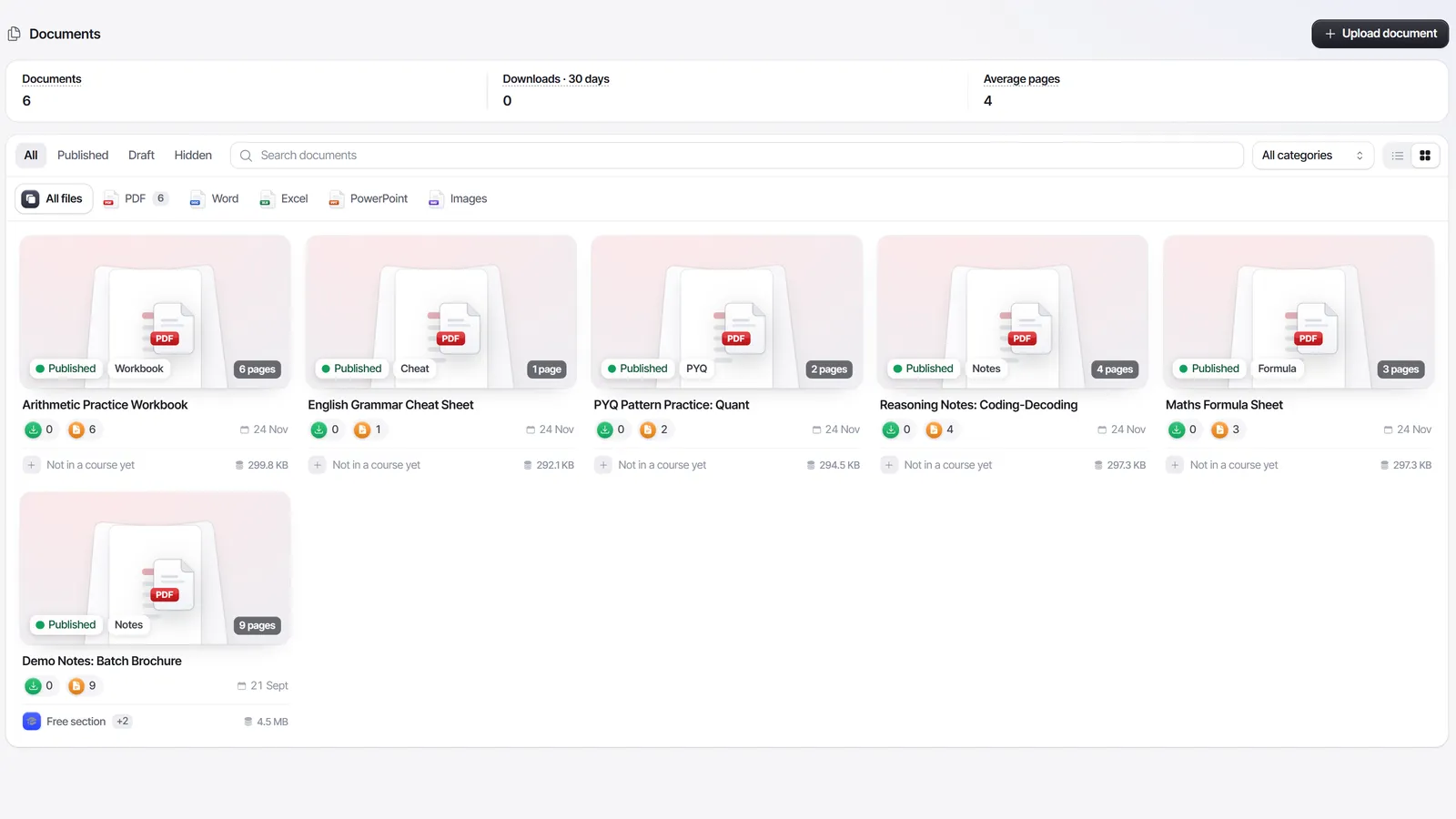
Every document, in one place.

Documents shows how many you have, downloads in the last 30 days and average pages. Filter by status, category or file type, and see each document as a card or in a list.

  • Published, Draft and Hidden filters
  • Categories such as notes, formula sheet, PYQ, cheat sheet and workbook
  • Pages, downloads and file size on every card
  • Edit, copy link or delete from the card menu

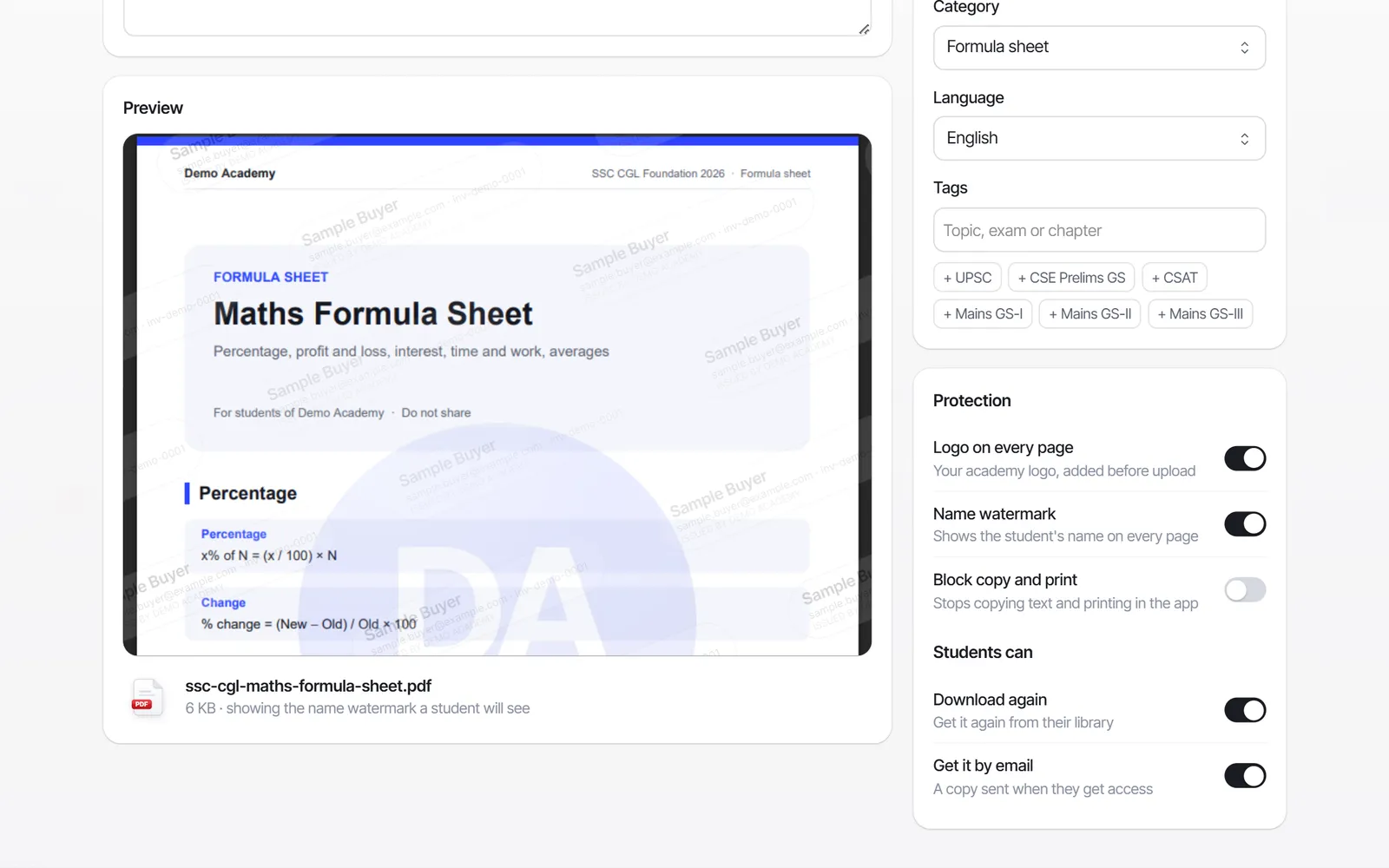
What you preview is what the student sees.

Pick a file and the form opens with a live preview. Your logo is on every page and the student’s name runs across it as a watermark, so if a PDF travels, that student’s name goes with it.

  • Logo on every page, added before upload
  • Name watermark with the student’s name on every page
  • Block copy and print stops copying text and printing in the app
  • Let students download again or get a copy by email

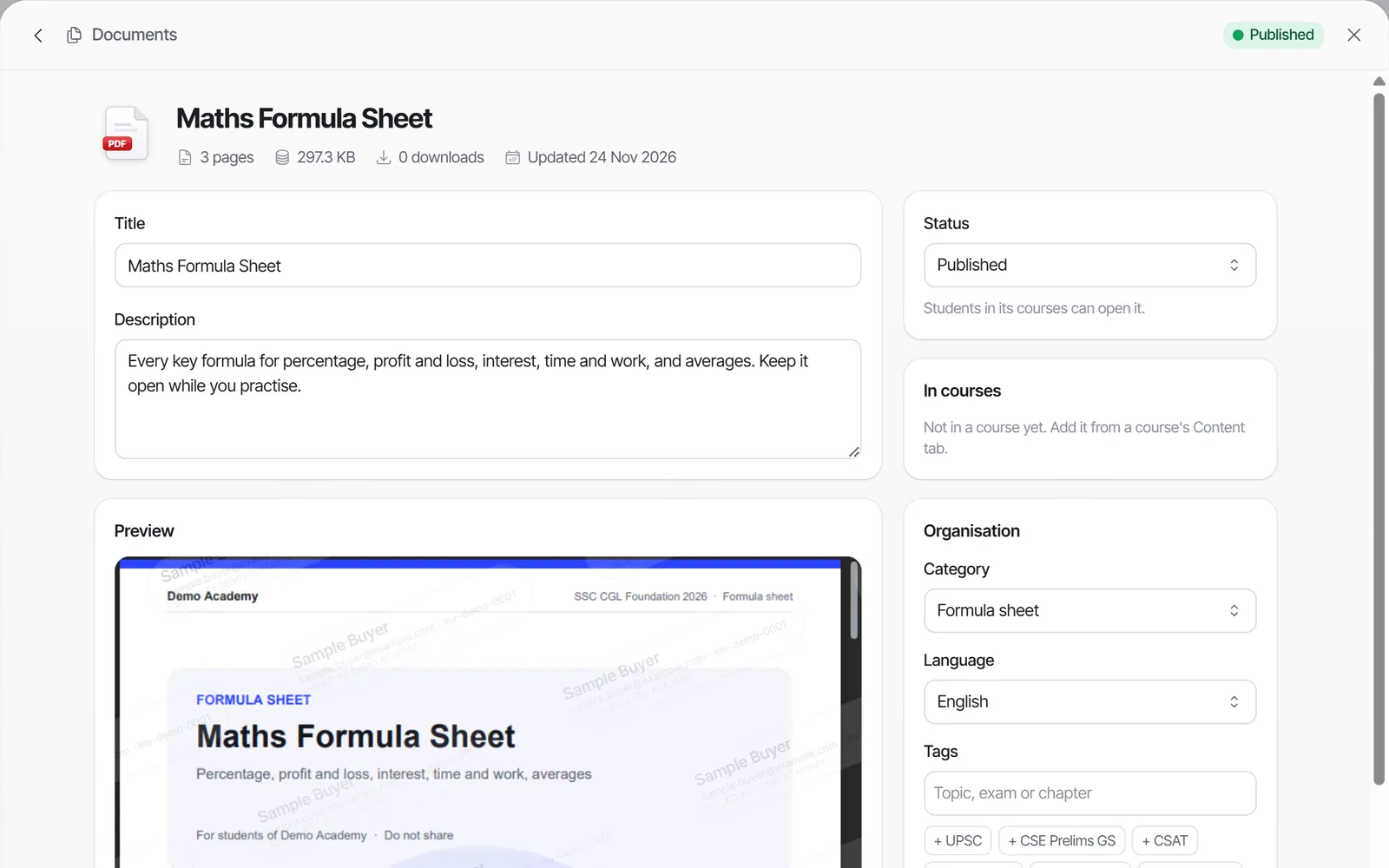
Edit any time. Add it to any course.

Press Edit on any card to change the same settings, with pages, size and downloads at the top. Add the document to any module from a course’s Content tab, and see downloads over the last 14 days in a graph.

  • Status: Published, Draft or Hidden
  • In courses shows where the document is used
  • Category, language and tags for organising
  • Downloads graph for the last 14 days
studio.allcoaching.in
Documents library in the studio with six PDF cards, status and file-type filters and download statsAdd document form with a watermarked PDF preview and Protection switches for logo, name watermark and copy and printEdit drawer for Maths Formula Sheet showing pages, size, downloads, status, courses and organisation
Step 05 / 14

Test series

Exam-pattern tests from your Word or CSV paper, with rank and percentile.

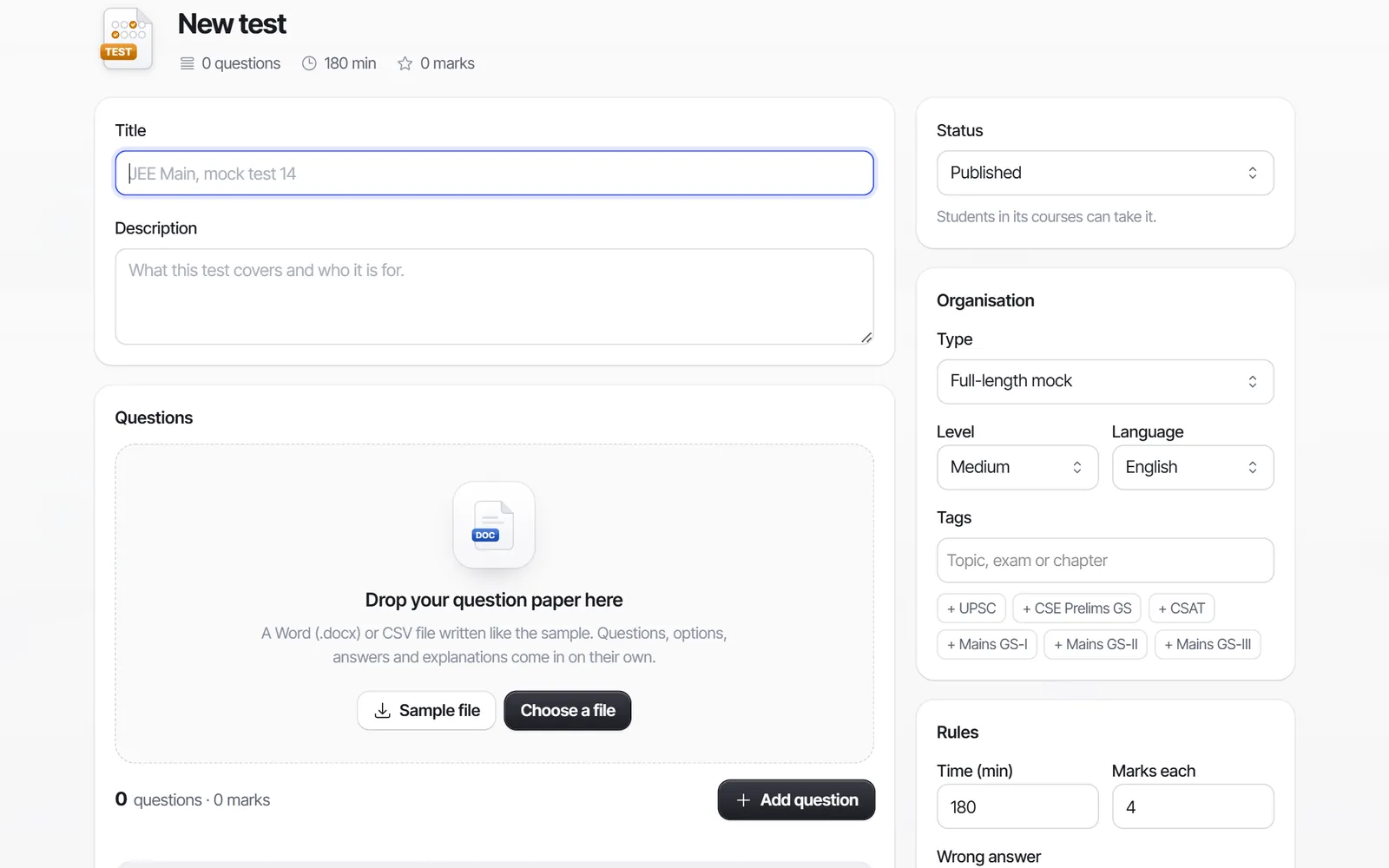
Start from the paper you already have.

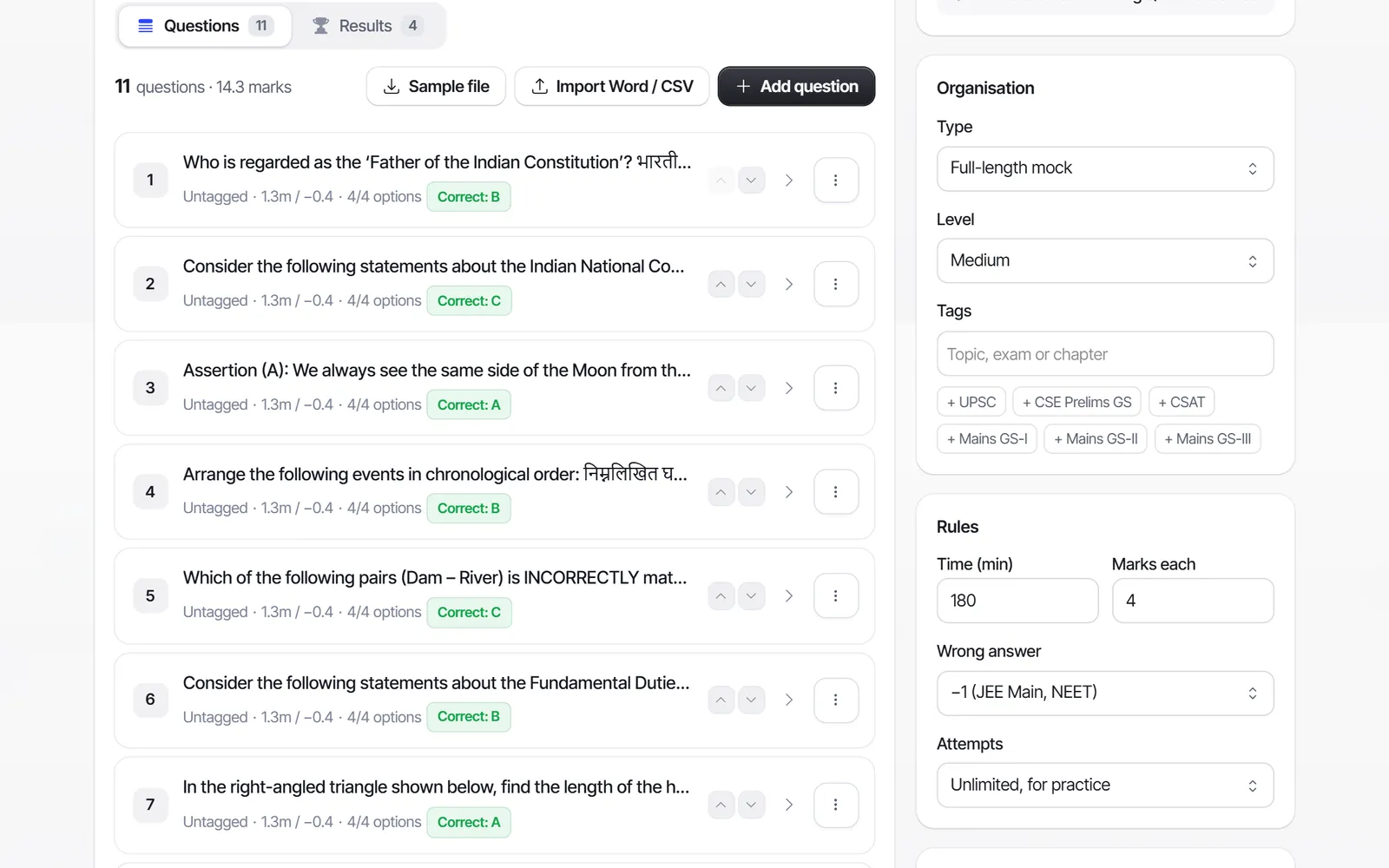
Press Build test, give it a title, and drop in your question paper. A Word or CSV file written like the sample brings in the questions, options, answers and explanations on its own. You can also add questions one by one.

  • Word (.docx) or CSV import, with a sample file to copy the format
  • Add or edit any question by hand
  • Type: full-length mock, chapter test, sprint or olympiad
  • Level, language and tags for each test

Set the exam pattern. Marks, minus marks, time.

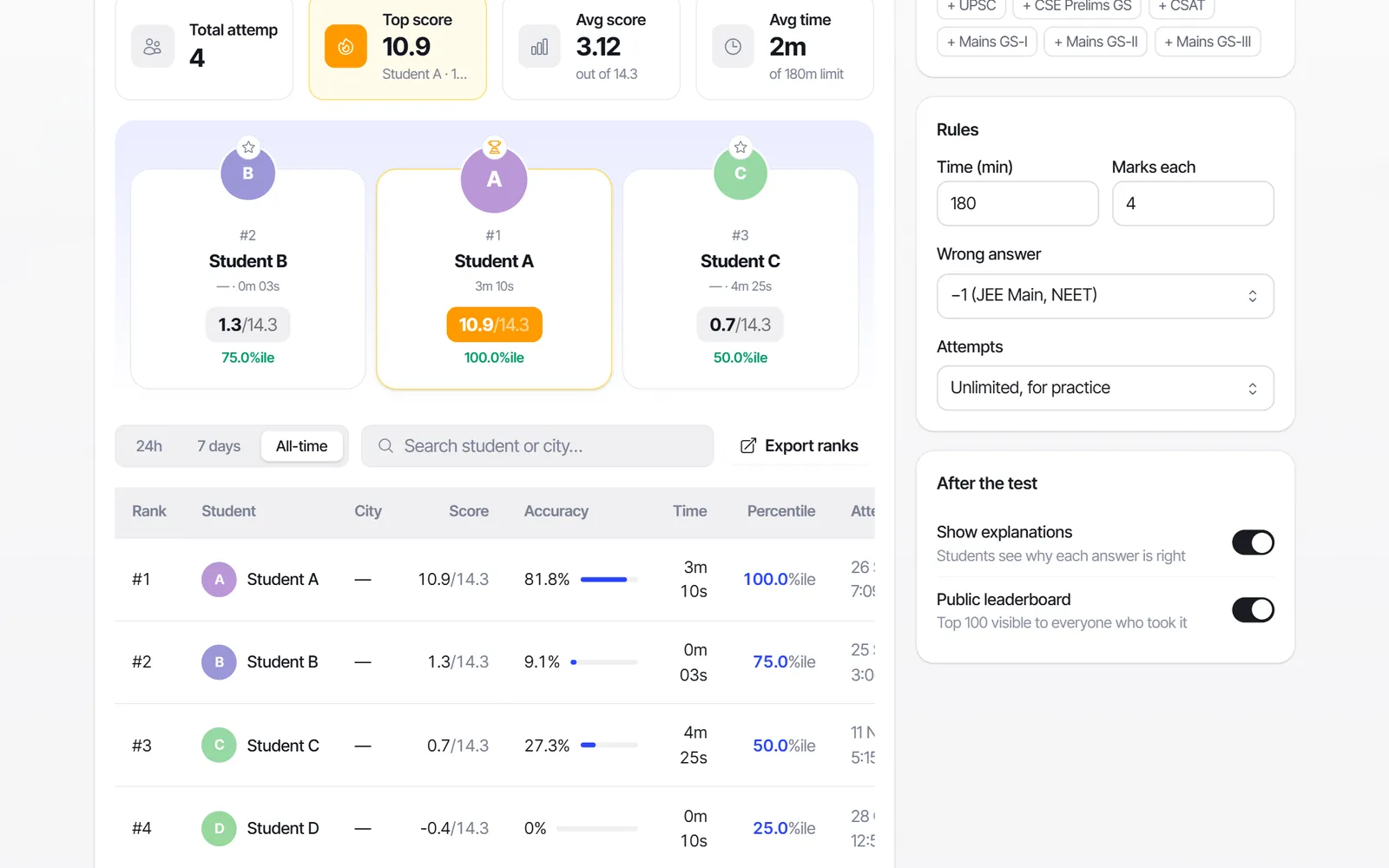
Choose the time limit, marks for each question and what a wrong answer costs, such as the minus one used in JEE Main and NEET. Decide how many times a student can attempt it, whether explanations show after the test, and whether the leaderboard is public.

  • Timer, marks each and negative marking per test
  • Set how many attempts, or unlimited for practice
  • Explanations shown after the test, on or off
  • Correct answer visible for each question, and the order easy to change

Every attempt scored. Every student ranked.

Results show attempts, the average score and the top score, with a graph of the last 14 days. Below, the leaderboard lists the top three and then every student with rank, score, accuracy, time and percentile, so a mock feels like the real exam.

  • All-India rank and percentile on the leaderboard
  • Filter by 24 hours, 7 days or all time, and export ranks
  • Full-screen anti-cheat lock while the test is running
  • Questions in random order for each student
studio.allcoaching.in
The New test screen in the AllCoaching studio with title, a question paper drop zone, status, organisation and rulesAn edited test showing its question list with the correct answer for each question, beside the organisation and rules panelsTest leaderboard with the top three students and a ranked table of score, accuracy, time and percentile
Next stageTeach
Stage 03 / 05

Teach

Live classes, batches and a feed your students open every day.

Step 06 / 14

Live classes

Live classes on YouTube, Zoom or your own private classroom, from one screen.

Three places to teach. One studio screen.

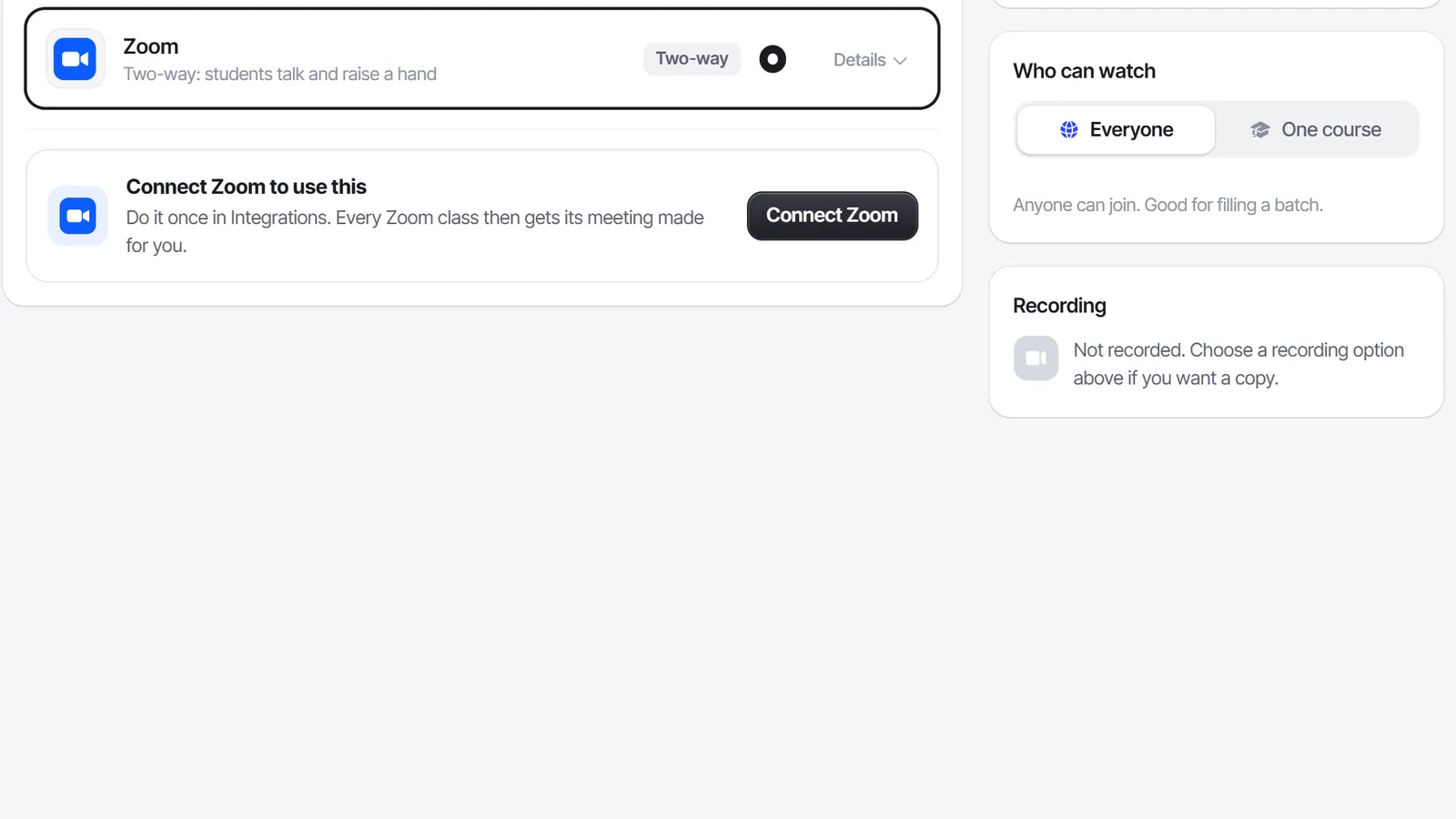
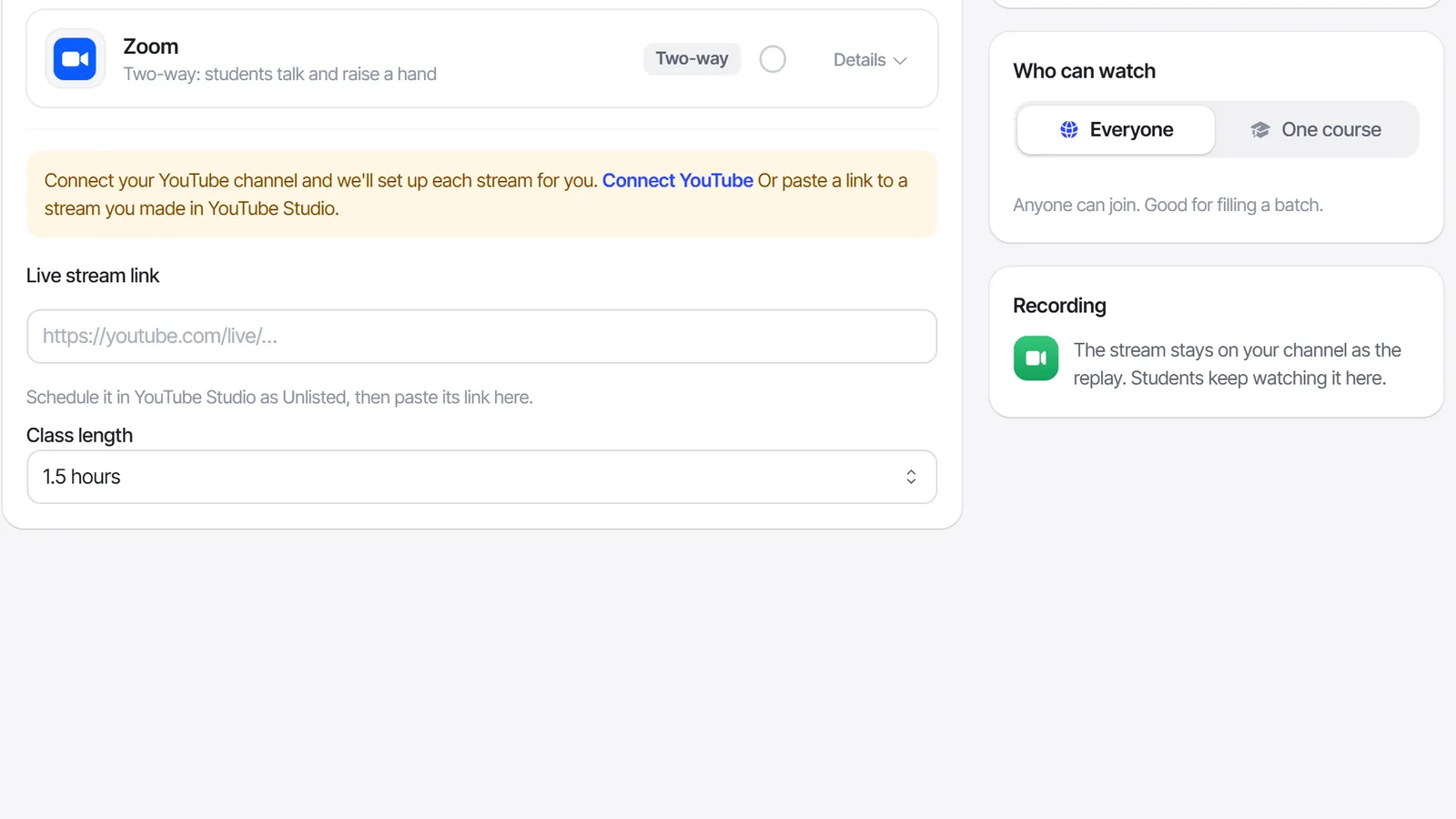
YouTube streams to your own channel with no viewer limit, and the replay stays on your channel. The AllCoaching classroom is private to your students and records the class on its own. Zoom gives a two-way class where students can speak and raise a hand.

  • Unlimited live classes on YouTube Live or Zoom on every plan
  • Connect Zoom once in Integrations; each class gets its meeting made for you
  • AllCoaching classroom: private, recorded and saved with the class
  • Thumbnail made from your title, or upload your own

Your laptop, your phone, or your studio setup.

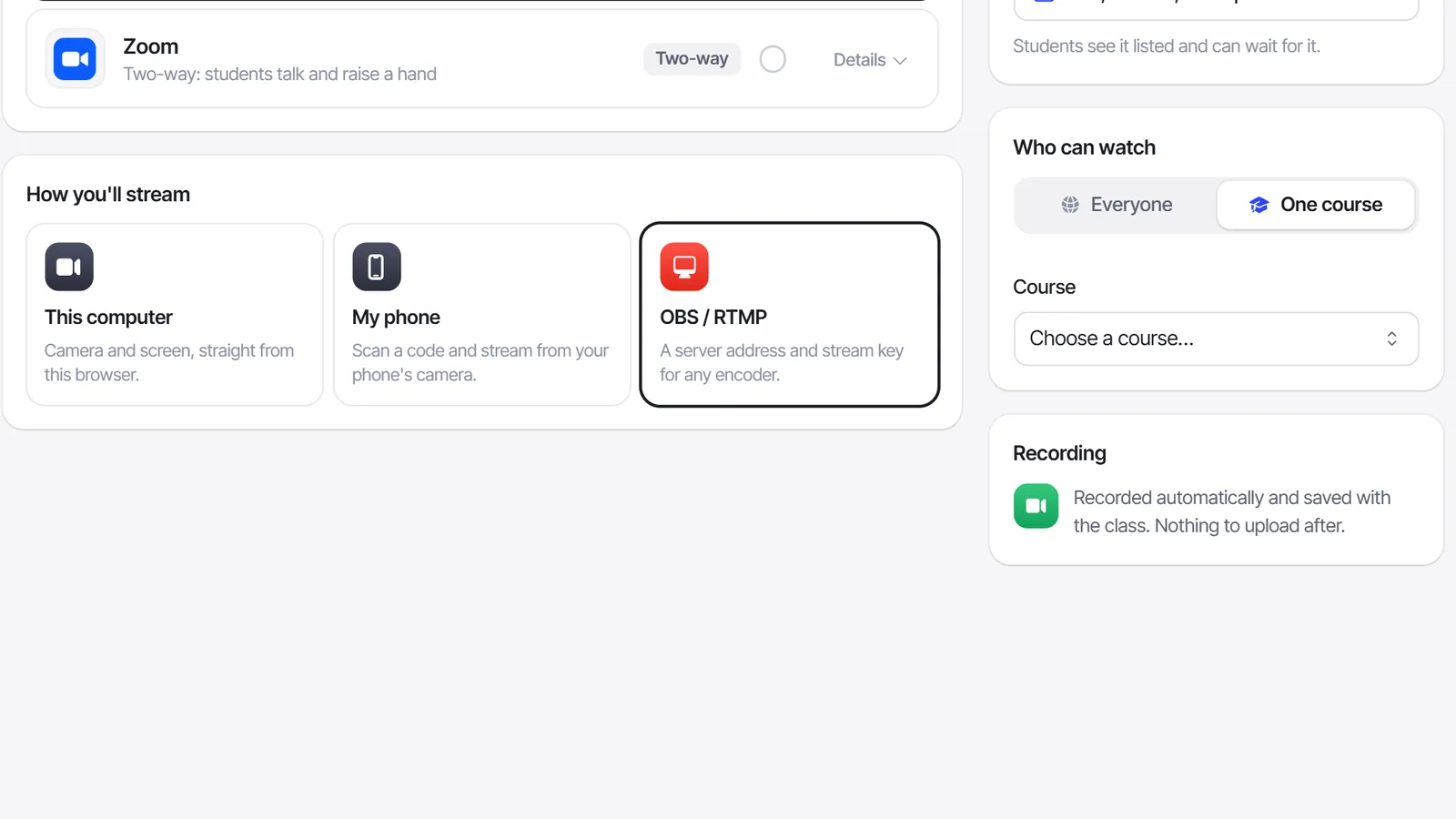
Into the AllCoaching classroom you can stream three ways: straight from this computer with camera and screen, from your phone by scanning a code, or from OBS or any encoder with a server address and stream key.

  • This computer: camera and screen, straight from the browser
  • My phone: scan a code and stream from its camera
  • OBS or RTMP: server address and stream key for any encoder
  • Recorded automatically, nothing to upload after

Go live now, or schedule it ahead.

Start now to go straight to the camera, or pick a date and time so students see the class listed and waiting. Open it to everyone, which suits filling a new batch, or only to the students of one course.

  • Start now, or Later with a date and time
  • Everyone, or one course only
  • YouTube: connect your channel or paste a stream link from YouTube Studio
  • Set the class length before you go live
studio.allcoaching.in
New live class screen with Zoom selected as a two-way class, the Connect Zoom prompt, and who can watch and recording optionsHow you'll stream options: this computer, my phone and OBS or RTMP, with the class open to one courseYouTube live class setup with the connect channel prompt, a live stream link field, class length and recording note
Step 07 / 14

Students and batches

Morning, evening and weekend batches of one course, with timetable and attendance.

Every batch belongs to one course.

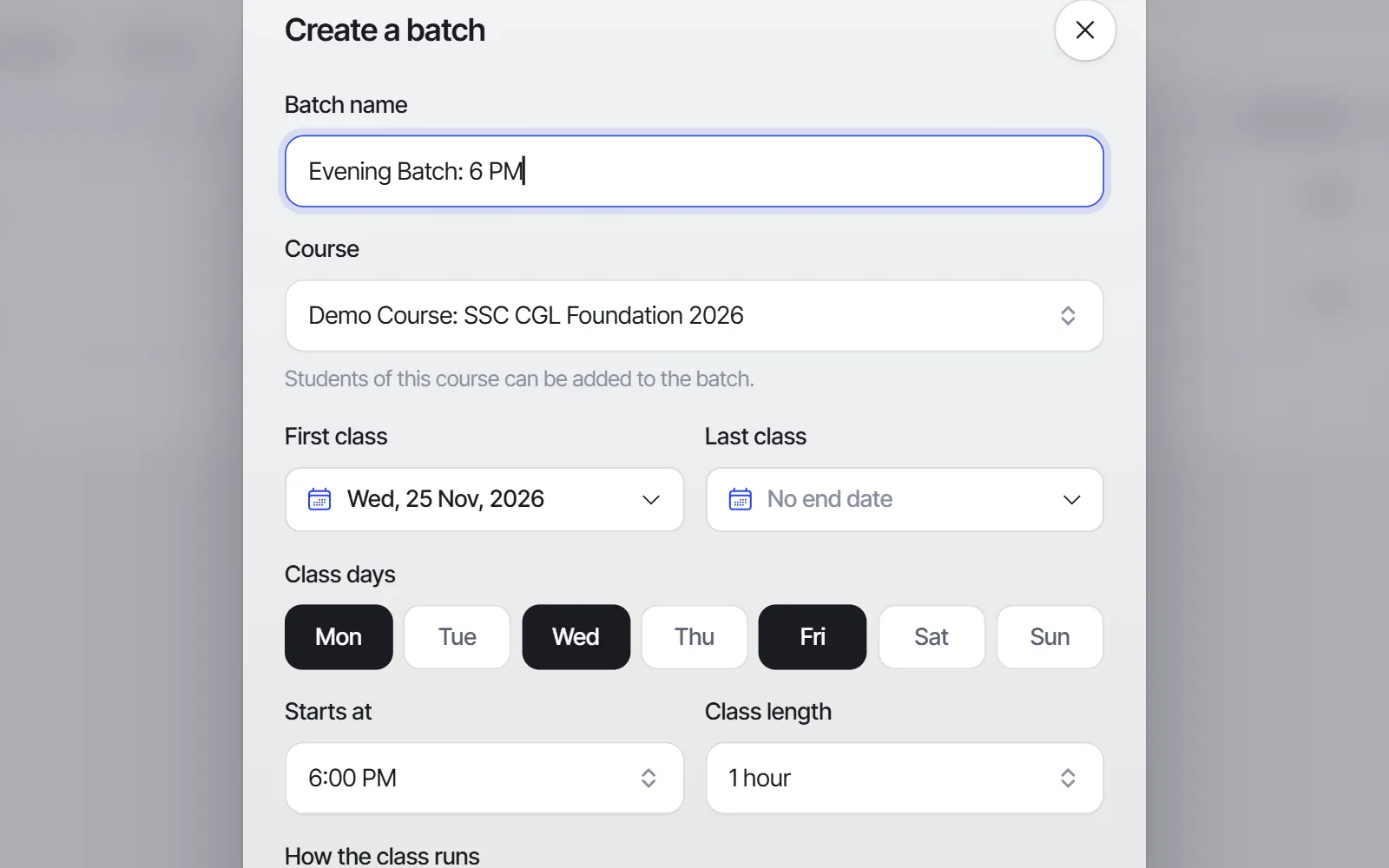
When you create a batch, the Course field is what links it to a course, and only that course's students can be added to it. Once the batch is made, its course cannot be changed. One course can have many batches, such as Morning, Evening and Weekend.

  • Name, course, first and last class, class days and time
  • Online, in a classroom, or both; teacher and seats
  • The timetable is made for you when you press Create batch
  • Add students lists only those enrolled in the course and not yet in the batch

Take the register in one click.

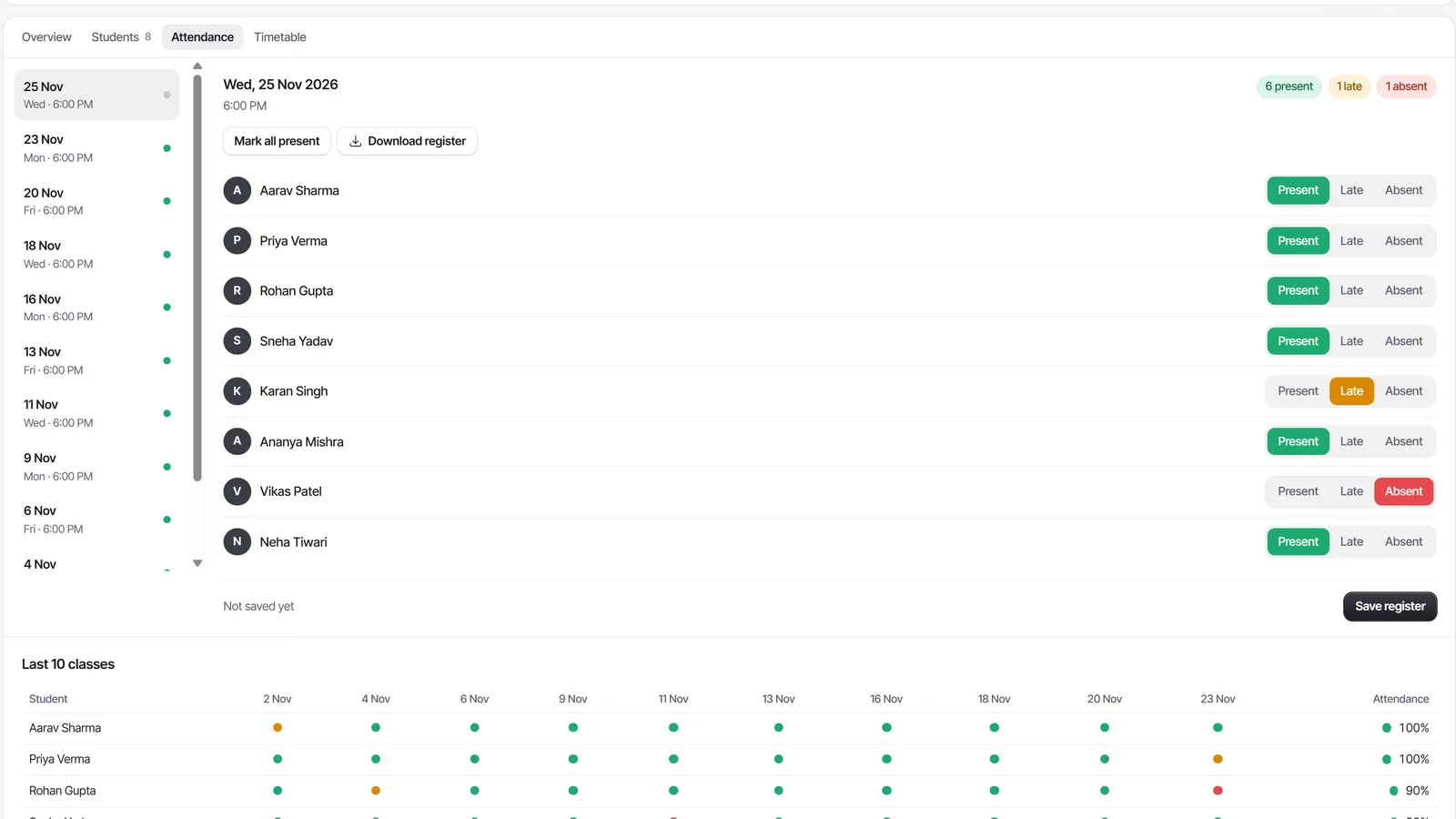
On the day of the class, press Take attendance, mark everyone present in one click, change whoever was late or absent, and save the register. Attendance comes from the batch and progress comes from the course, and you see both side by side.

  • Present, late or absent for each student
  • Download the register, and see the last ten classes at a glance
  • Students tab: attendance beside lessons finished and last active
  • Timetable: add a topic, cancel a class or add an extra class

Remove from a batch. The course stays.

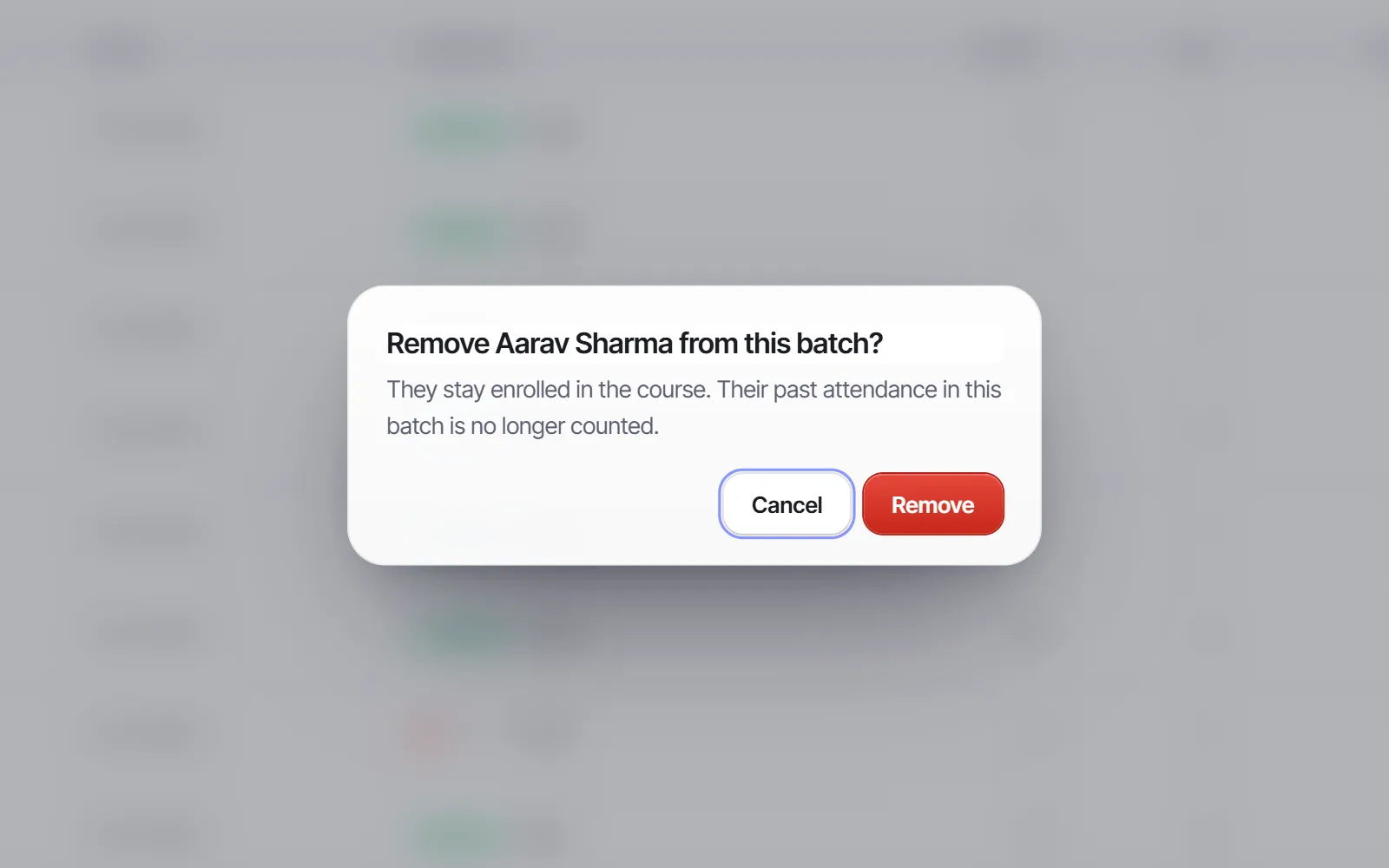
Remove a student from a batch, or delete the whole batch, and the student is not removed from the course. Their course carries on exactly as before; only that batch's attendance stops counting. The order is always the same: a student takes the course first, then you place them in a batch.

  • Removing a student keeps them enrolled in the course
  • Deleting a batch never touches course enrolments
  • Fixed batch dates in a course's Settings are only the course's own dates, not a batch
  • Timetable, students and attendance all live in Batches
studio.allcoaching.in
Create a batch dialog with the batch name, the linked course, class dates, class days and start timeBatch attendance register with present, late and absent for each student, and the last ten classes belowConfirmation to remove a student from a batch, stating they stay enrolled in the course
Step 08 / 14

Community

Updates, notes, shorts, polls and quizzes in your students' app feed.

Six kinds of post. One simple composer.

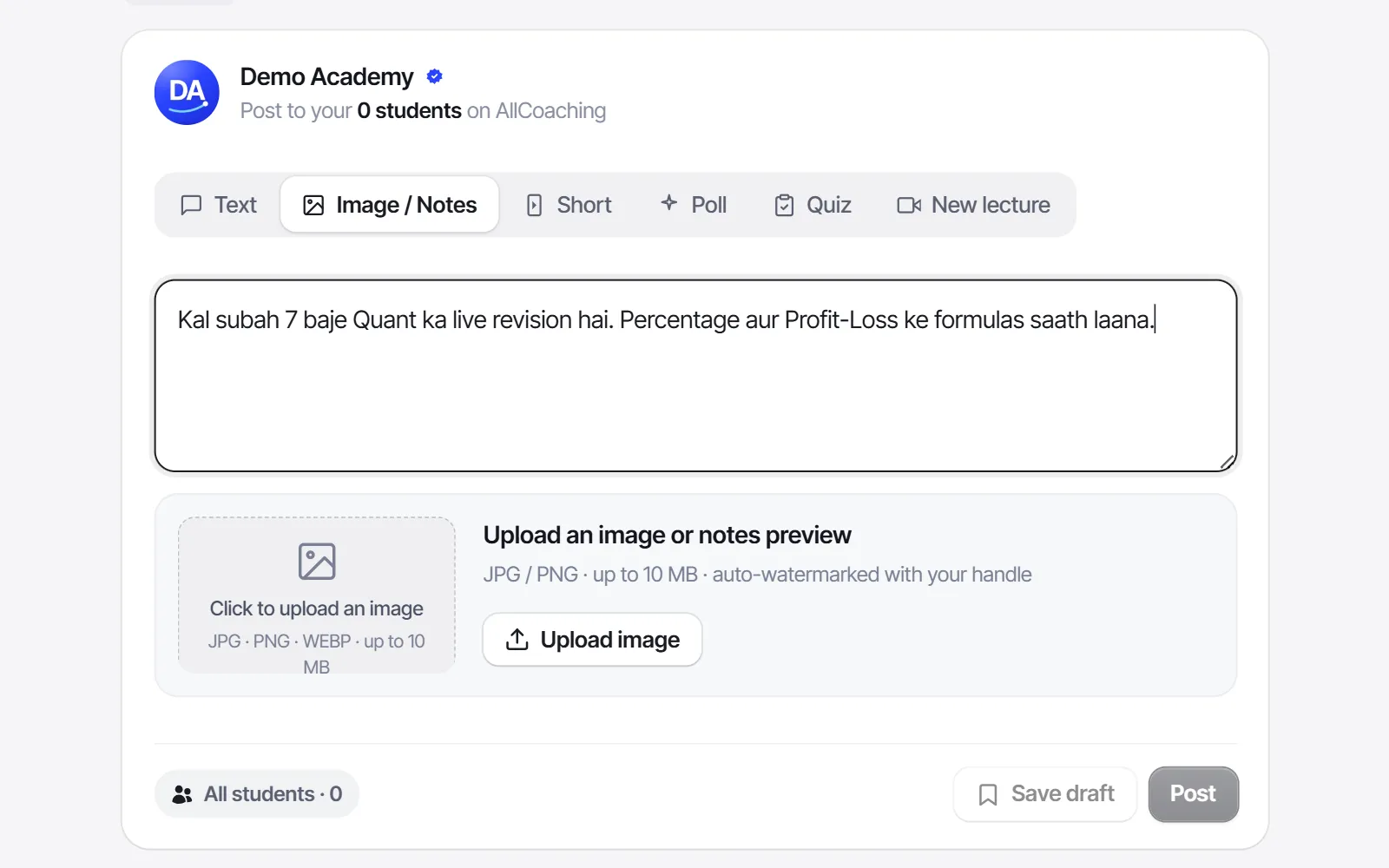
Write a text update, such as tomorrow's revision time. Share an image or a page of notes, and your handle is watermarked on it on its own. Add a short vertical video of up to 60 seconds, or announce a new lecture so a preview card reaches your students' feed.

  • Text: any update or class plan
  • Image or notes: JPG or PNG, watermarked with your handle
  • Short: a 9:16 clip up to 60 seconds, from your library or a new upload
  • New lecture: pick from your library and post a preview card

Ask your class. Let the votes decide.

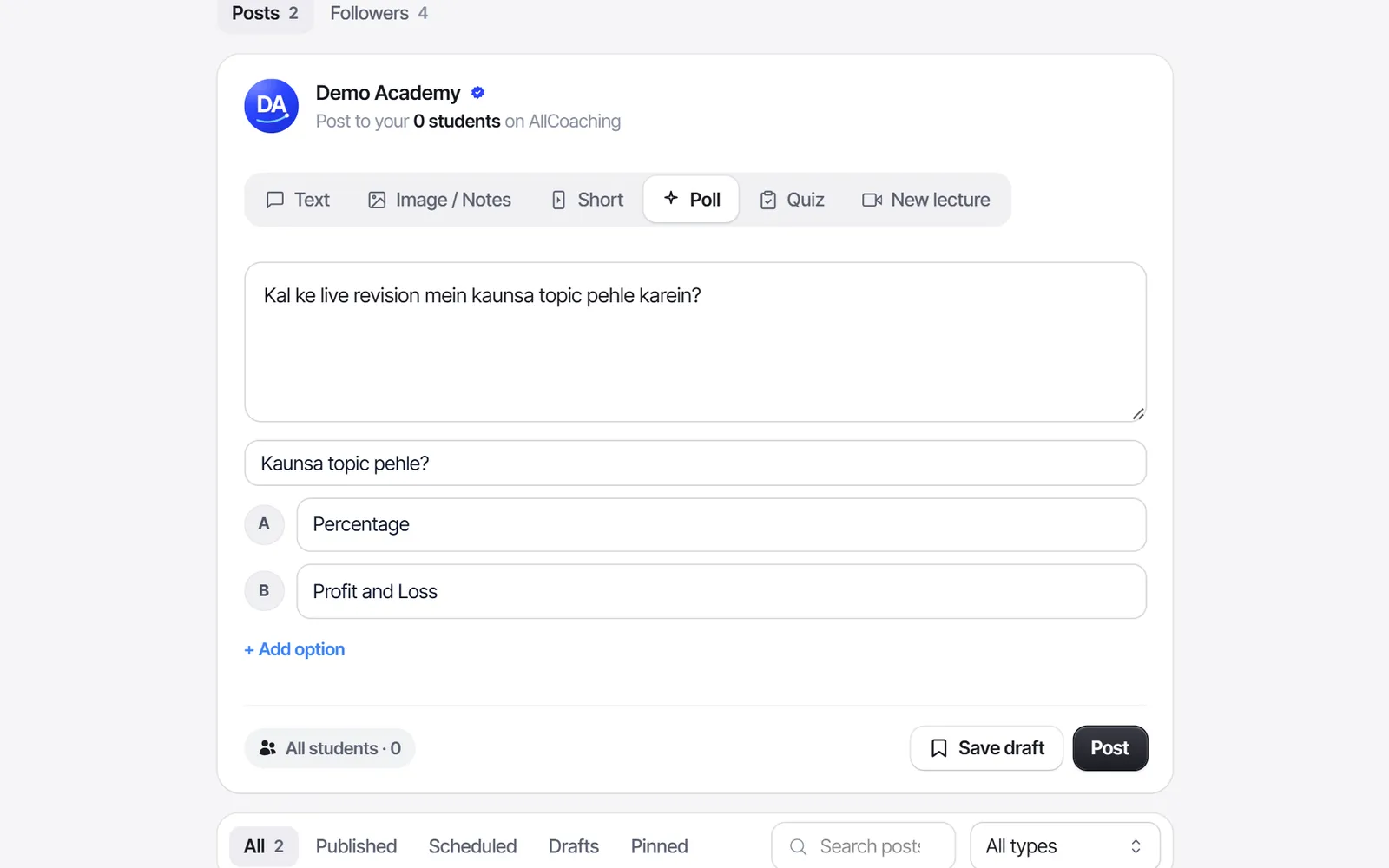
Ask a question straight to your students, such as which topic to revise first. They vote, and you know what the class needs before you plan the next session.

  • Add as many options as you need
  • Choose who sees the post
  • Post now, or save it as a draft
  • Filter posts by Published, Scheduled, Drafts and Pinned, or by type
One question a day. The answer after the vote.

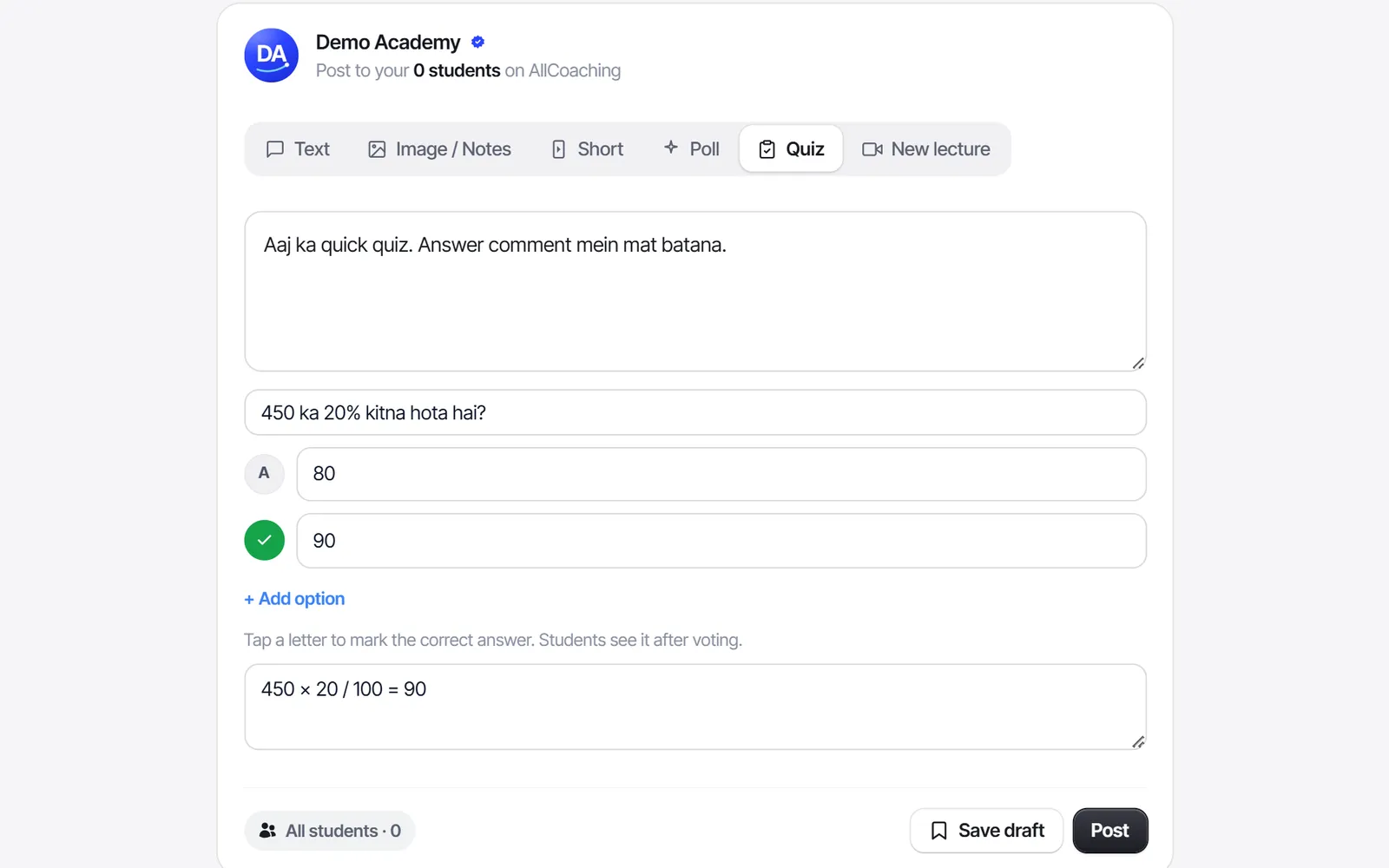
Post a quick question with options and tick the correct answer. After students vote, they see the right answer and your explanation, which keeps practice going outside class.

  • Mark the correct option with a tap
  • Add an explanation students see after voting
  • Followers list shows when each person joined, courses taken and amount spent
studio.allcoaching.in
Community composer with the Image or Notes post type, a text update and an image upload areaCommunity poll asking students which topic to revise first, with two optionsCommunity quiz with a percentage question, the correct option ticked and a worked explanation
Next stageSell
Stage 04 / 05

Sell

Your own checkout, offers that bring students in, and free lessons that convert.

Step 09 / 14

Checkout and payments

Razorpay checkout by UPI or card, automatic access, and a clear line for every rupee.

Two ways to get paid. Set it up once.

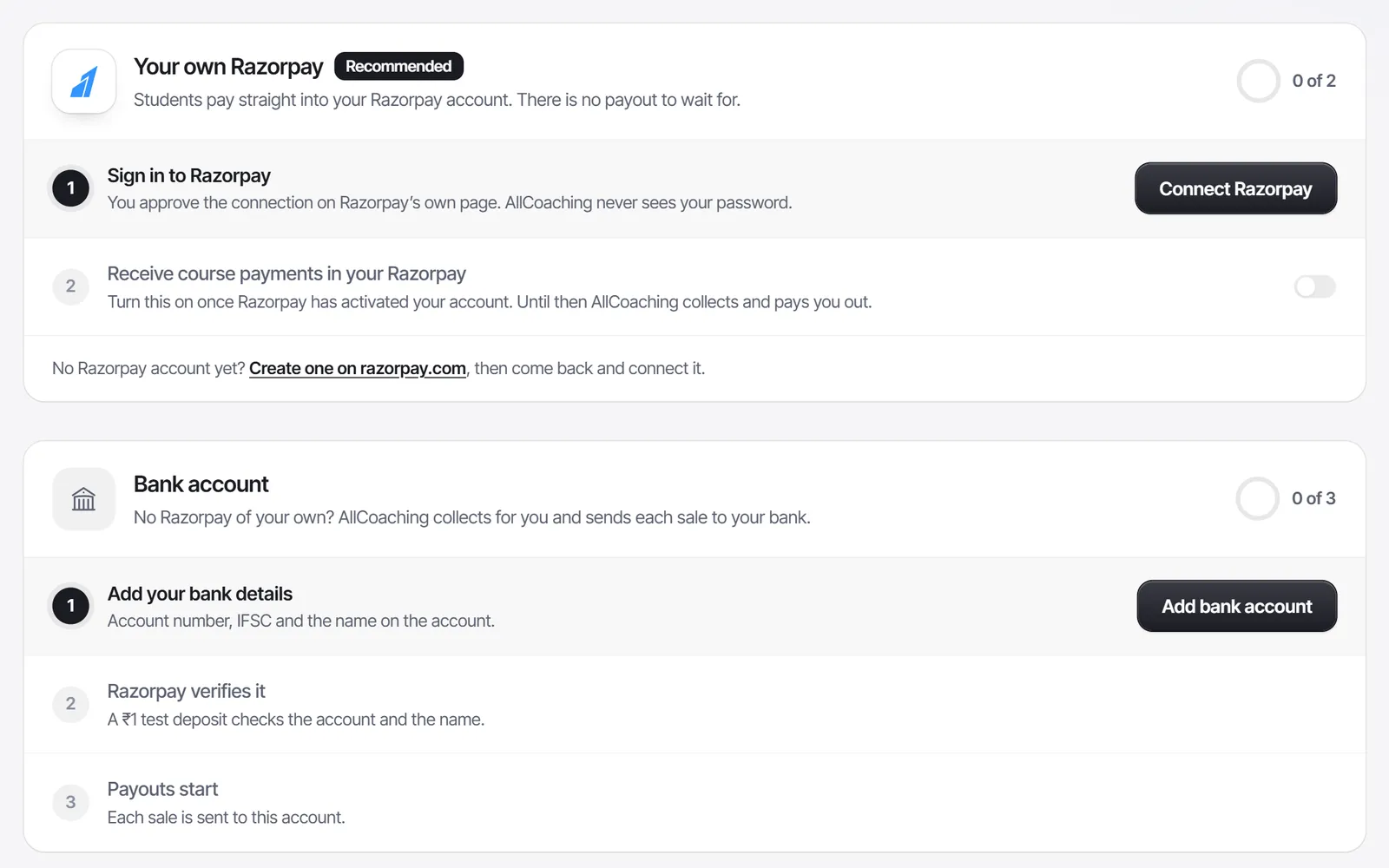
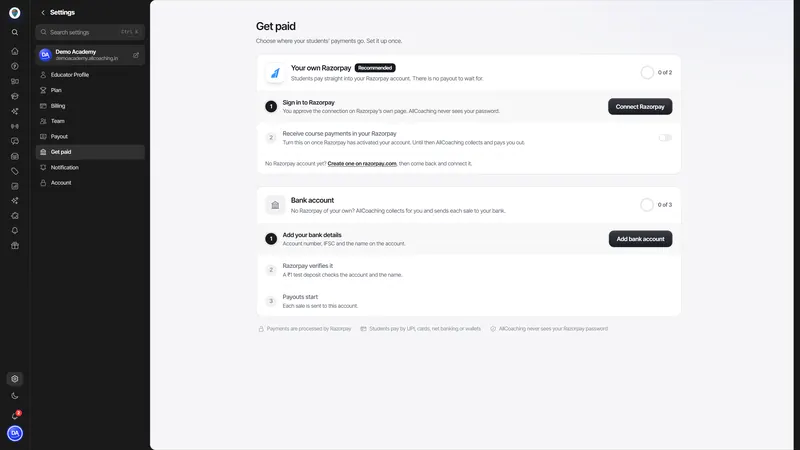
In Settings, Get paid shows two set-ups. Connect your own Razorpay and students pay straight into your Razorpay account, with no payout to wait for. No Razorpay of your own? Add your bank account: AllCoaching collects for you and sends each sale to your bank.

  • Your own Razorpay: you approve the connection on Razorpay’s own page, and AllCoaching never sees your password
  • Until Razorpay has activated your account, AllCoaching collects and pays you out
  • Bank account: add the account number, IFSC and the name on the account
  • Razorpay checks the account with a ₹1 test deposit, then payouts start

Click any order. See where each rupee went.

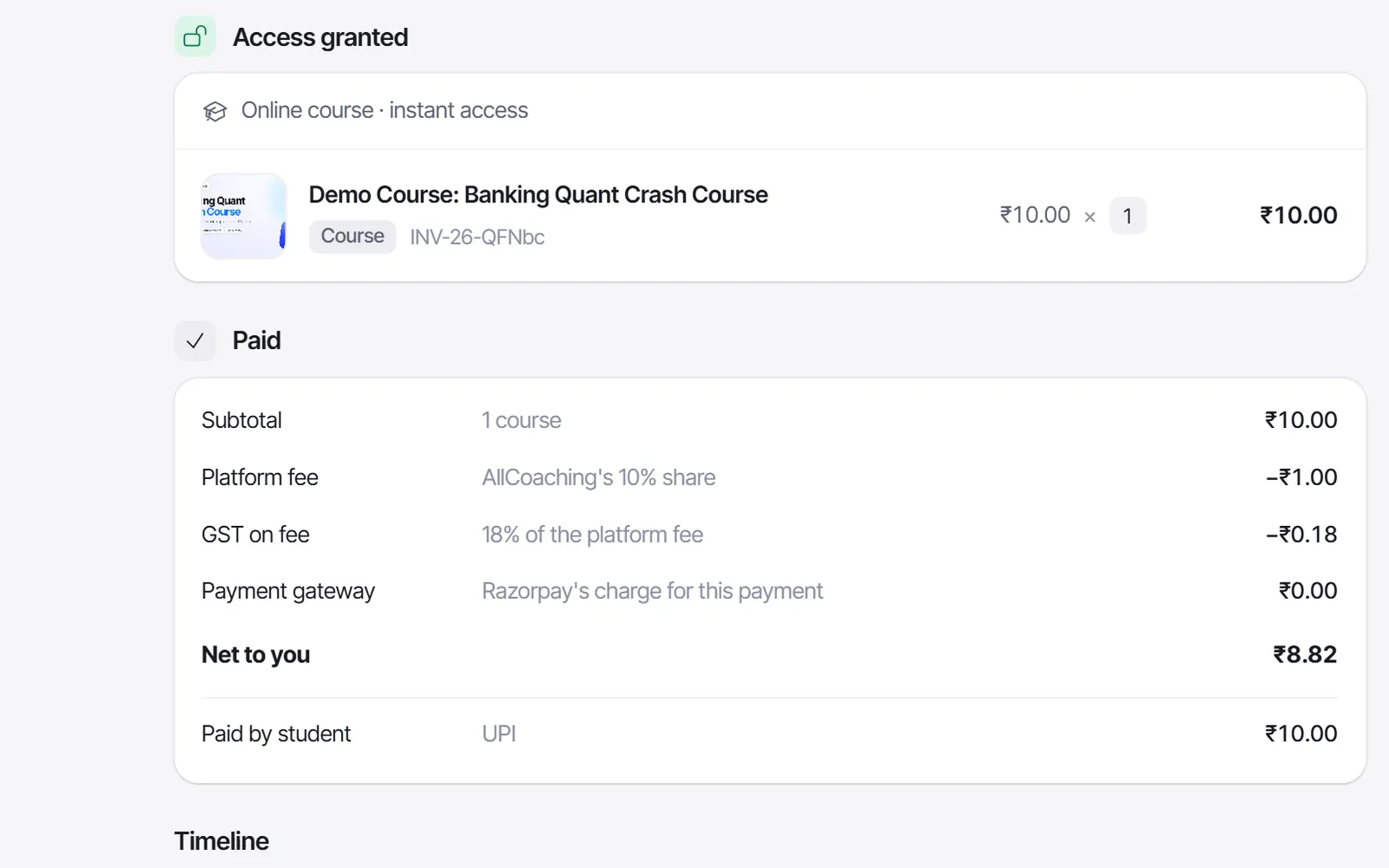
Transactions lists every order: the student, the course, how they paid and whether access was given. Open one and the full breakdown appears, from what the student paid down to Net to you, with a timeline, the payment ID and the invoice.

  • Subtotal, platform fee, GST on the fee and the payment gateway charge, line by line
  • Course access is given to the student automatically after payment
  • A timeline from order placed to payment received, access given and payout status
  • Payment ID and invoice number on every order

What is on the way, and what has arrived.

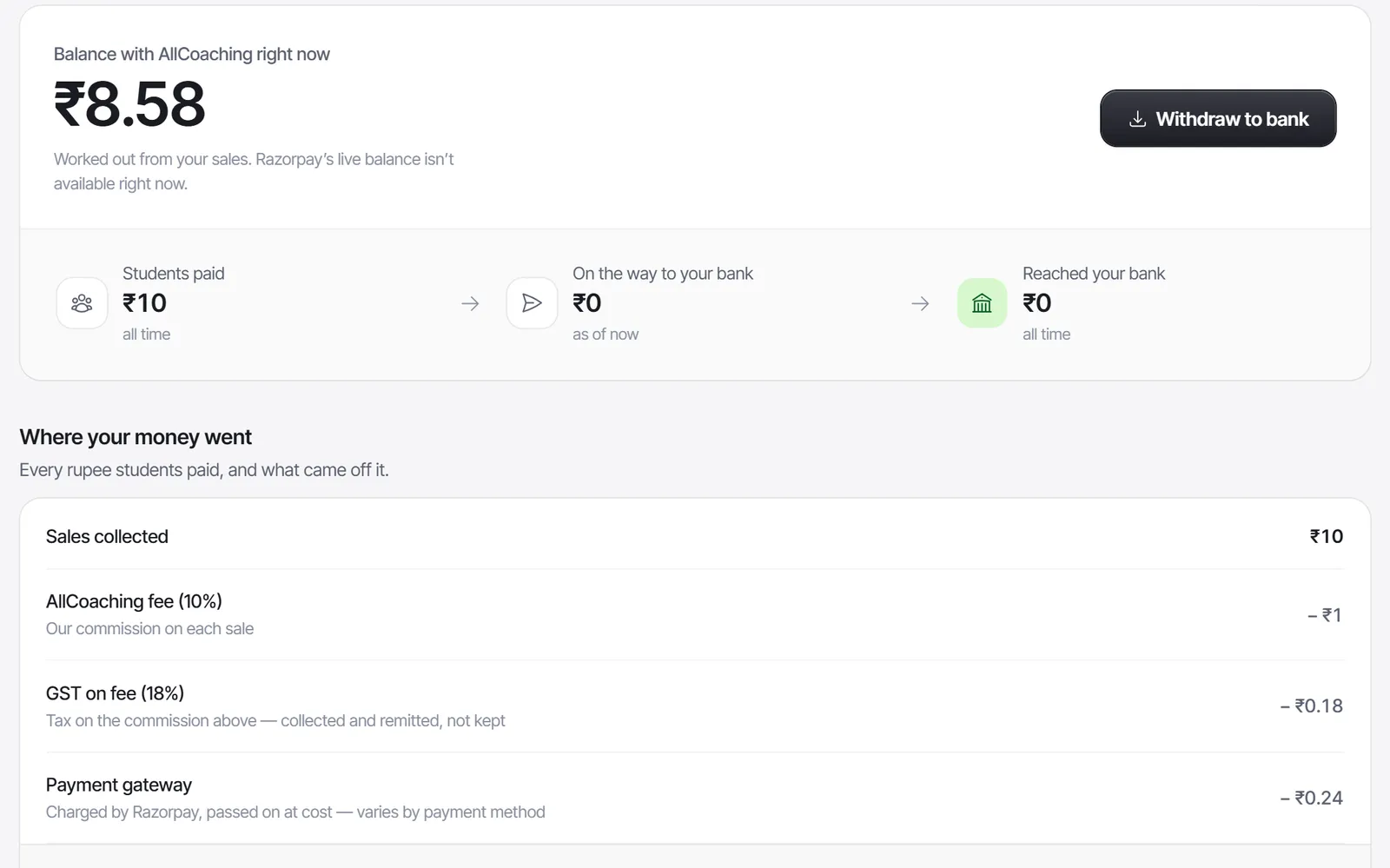
Payouts shows your balance and three steps: what students paid, what is on the way to your bank, and what has reached it. Payouts follow Razorpay settlement, usually T+2 days, and instant settlement is available. Withdraw your balance to your bank whenever you like.

  • Where your money went: sales, fee, GST on the fee and gateway charge
  • A list of every payout sent to you
  • Tax details for your PAN and GSTIN
  • Daily, weekly or monthly statements in one PDF for your CA
studio.allcoaching.in
Get paid screen in the AllCoaching studio with two set-ups: your own Razorpay, or a bank account where AllCoaching collects and pays outOrder detail in the studio: access granted for a demo course and the fee breakdown down to Net to you (demo order on a yearly plan with a 10% fee)Payouts screen with the balance, the three payout steps and a where-your-money-went breakdown (demo academy data)
Step 10 / 14

Discount codes

Percent or flat coupon codes with use limits, end dates and automatic discounts.

Type a code, see the new price.

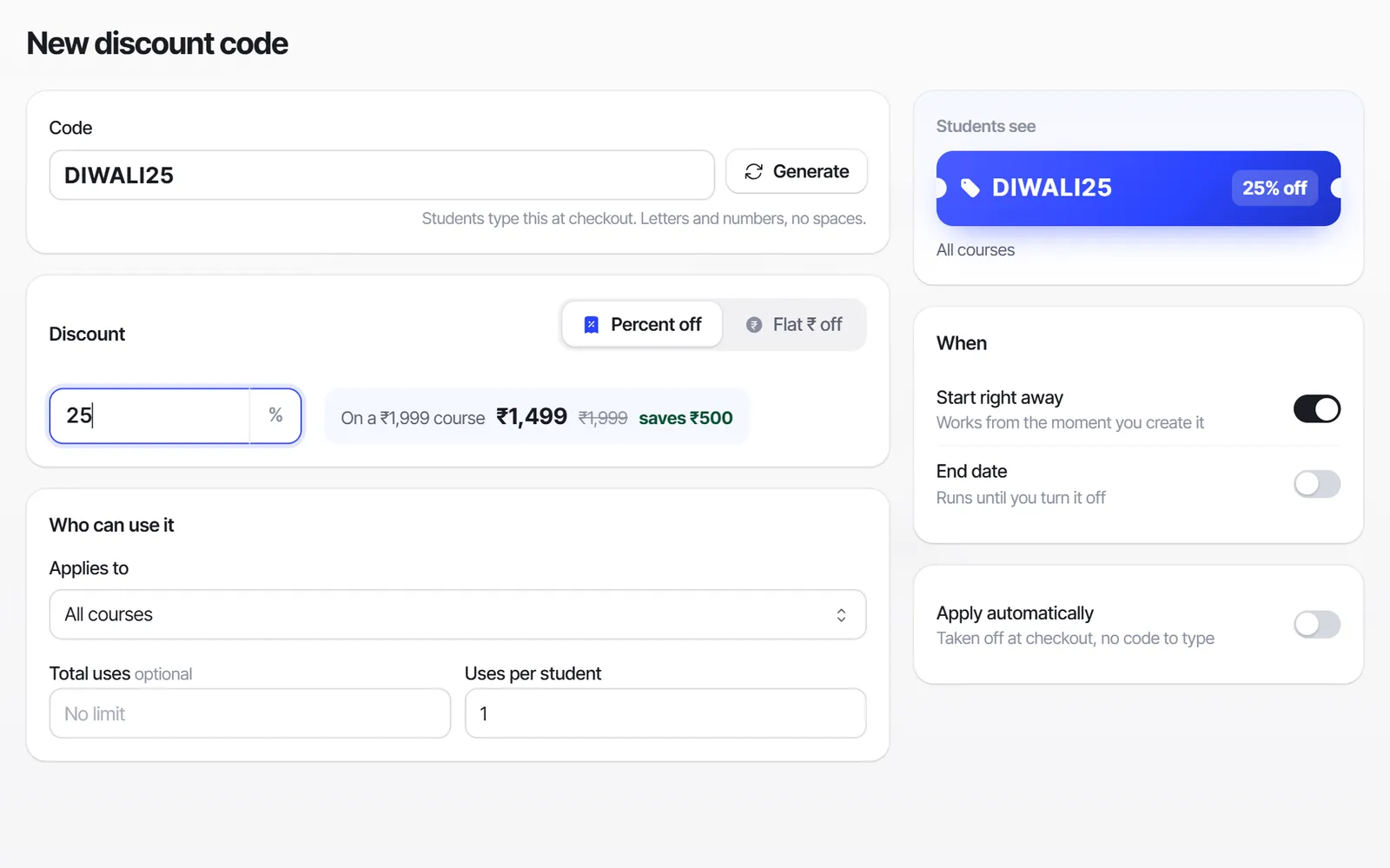
Press Create code and the form opens. Type the word a student enters at checkout, like DIWALI25, or press Generate for a random one. Pick Percent off or Flat ₹ off, and the preview shows what a course now costs and what the student saves.

  • Letters and numbers, no spaces
  • Percent off or Flat ₹ off
  • Live price preview, for example ₹1,999 down to ₹1,499 (illustrative)
  • Students see shows the code the way your students will

Decide who can use it, and until when.

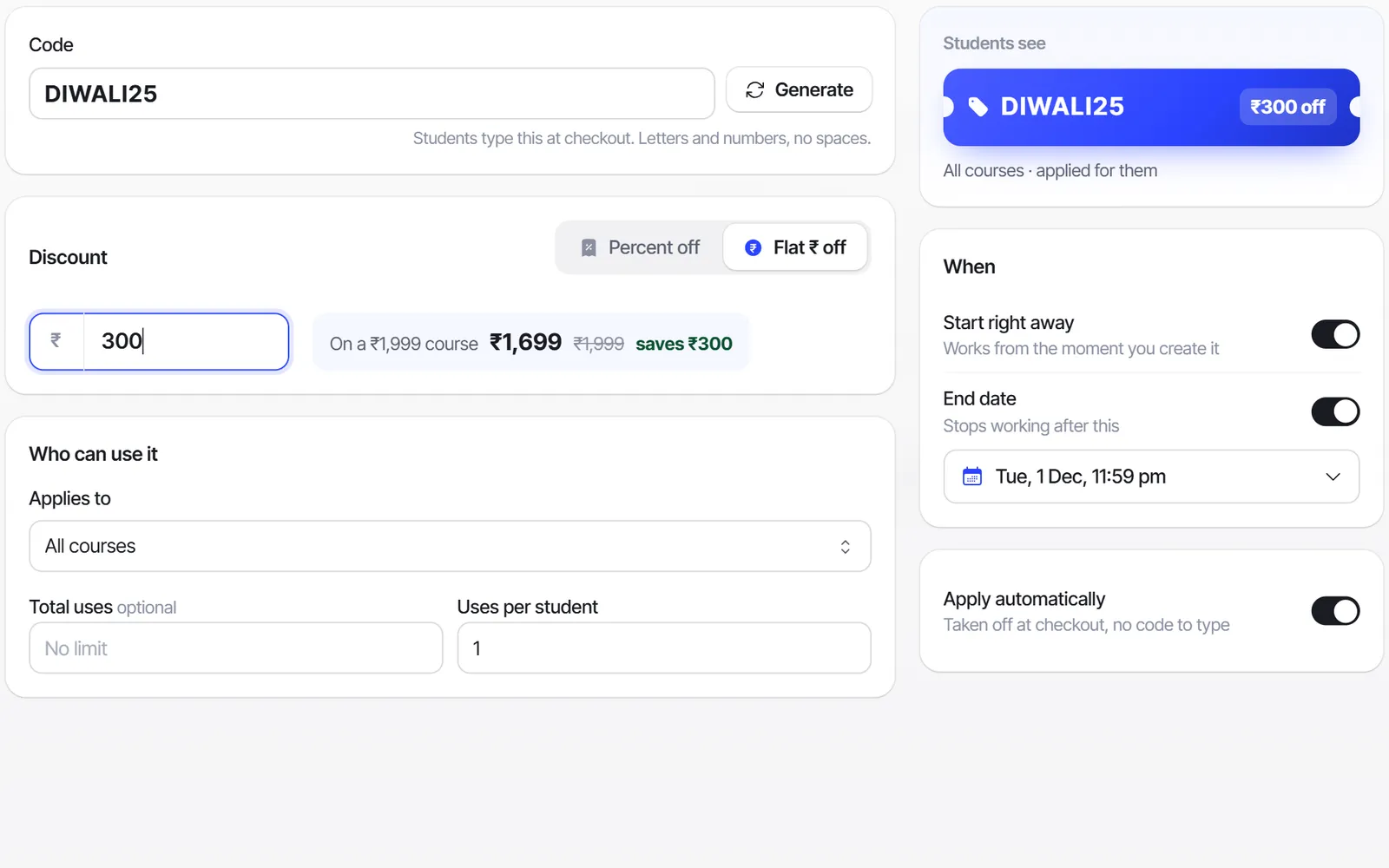
Choose what the code works on and how many times it can be used. In When, the code can start right away, and an end date stops it on its own. Turn on Apply automatically and students do not type a code at all: the discount comes off at checkout.

  • Applies to all courses, first-time buyers only, all tests, all documents, or one course
  • Total uses and uses per student
  • Start right away, with an optional end date
  • Apply automatically at checkout

Every code, in one place.

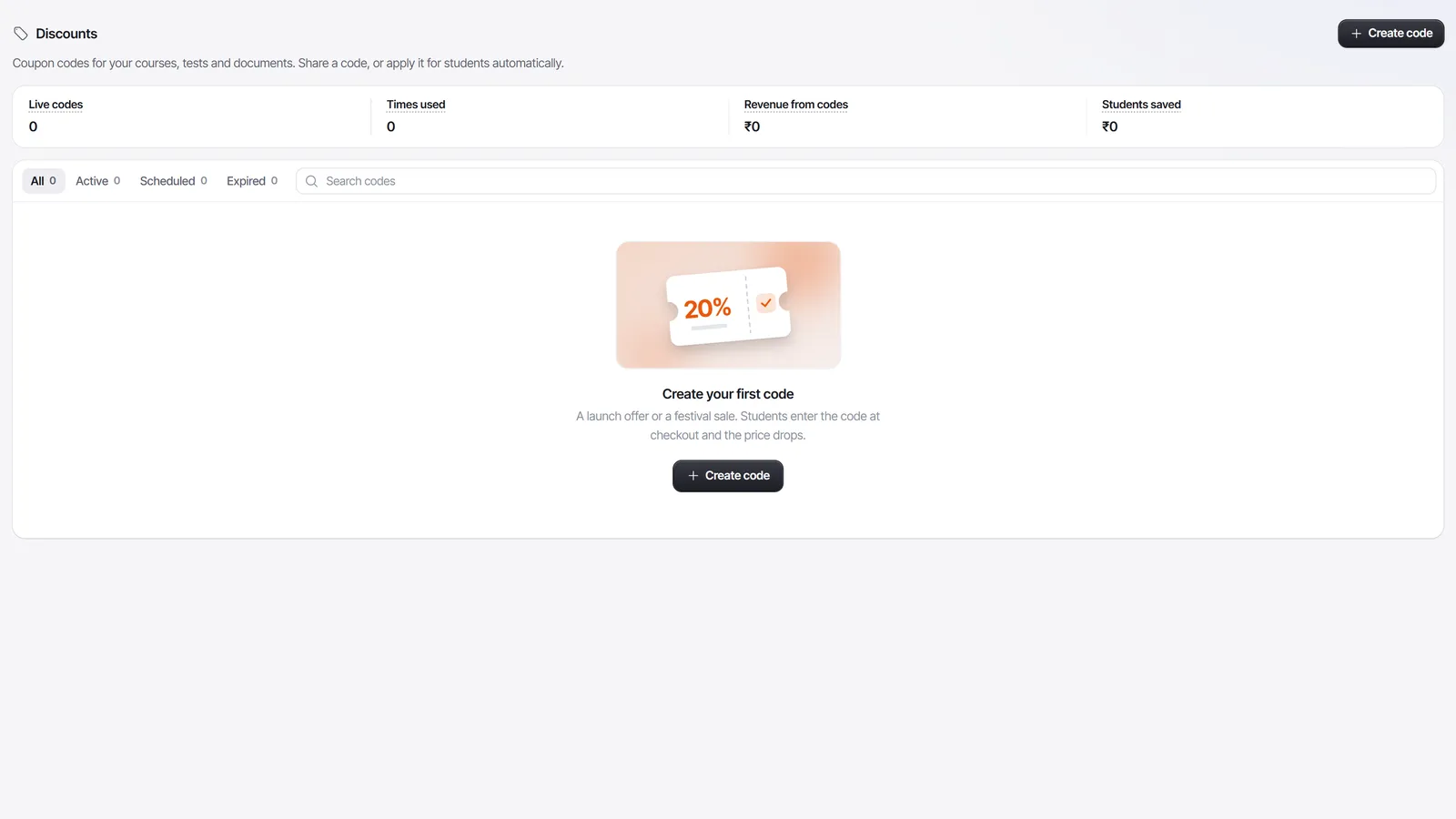
The Discount page shows four numbers at the top: live codes, times used, revenue from codes and what students saved. Below, your codes are kept apart as Active, Scheduled and Expired, with a search.

  • Live codes and times used
  • Revenue from codes and students saved
  • Active, Scheduled and Expired filters
  • Create a code now, or save it as a draft
studio.allcoaching.in
New discount code form with the code DIWALI25, 25 percent off and a live price previewDiscount code form with ₹300 flat off, all courses, an end date and Apply automatically turned onDiscounts page in the studio with code stats and Active, Scheduled and Expired filters, before the first code
Step 11 / 14

Free content

Free videos, notes and sample tests on your website and app, with who went on to buy.

Know what free brings back.

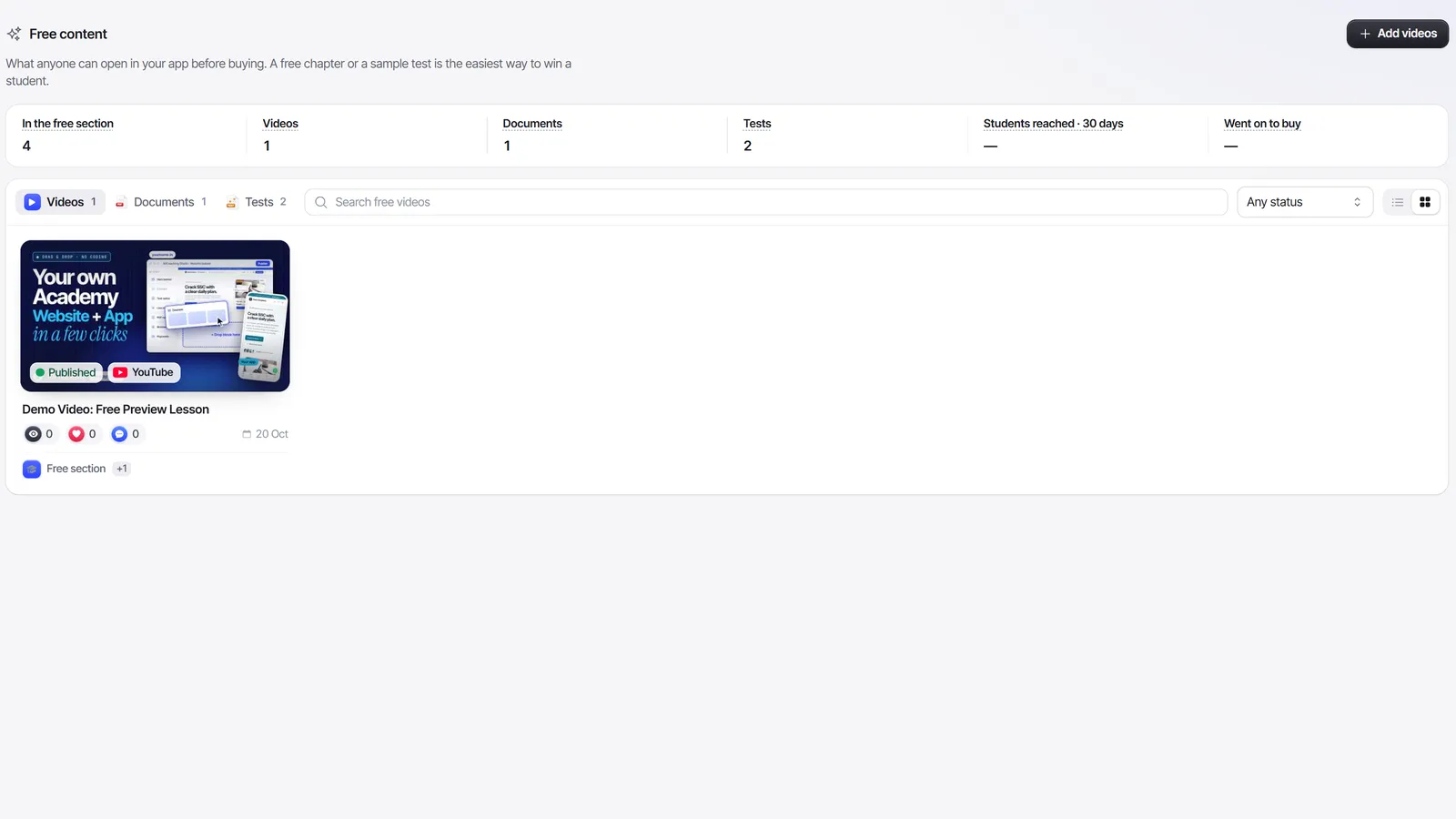
Free content is everything anyone can open in your app and on your website without buying. At the top, the studio counts what is in your free section and, over the last 30 days, how many students it reached and how many went on to buy.

  • Count of videos, documents and tests in the free section
  • Students reached in the last 30 days
  • Went on to buy, for the same students
  • Separate tabs for videos, documents and tests

Pick from your library. No new uploads needed.

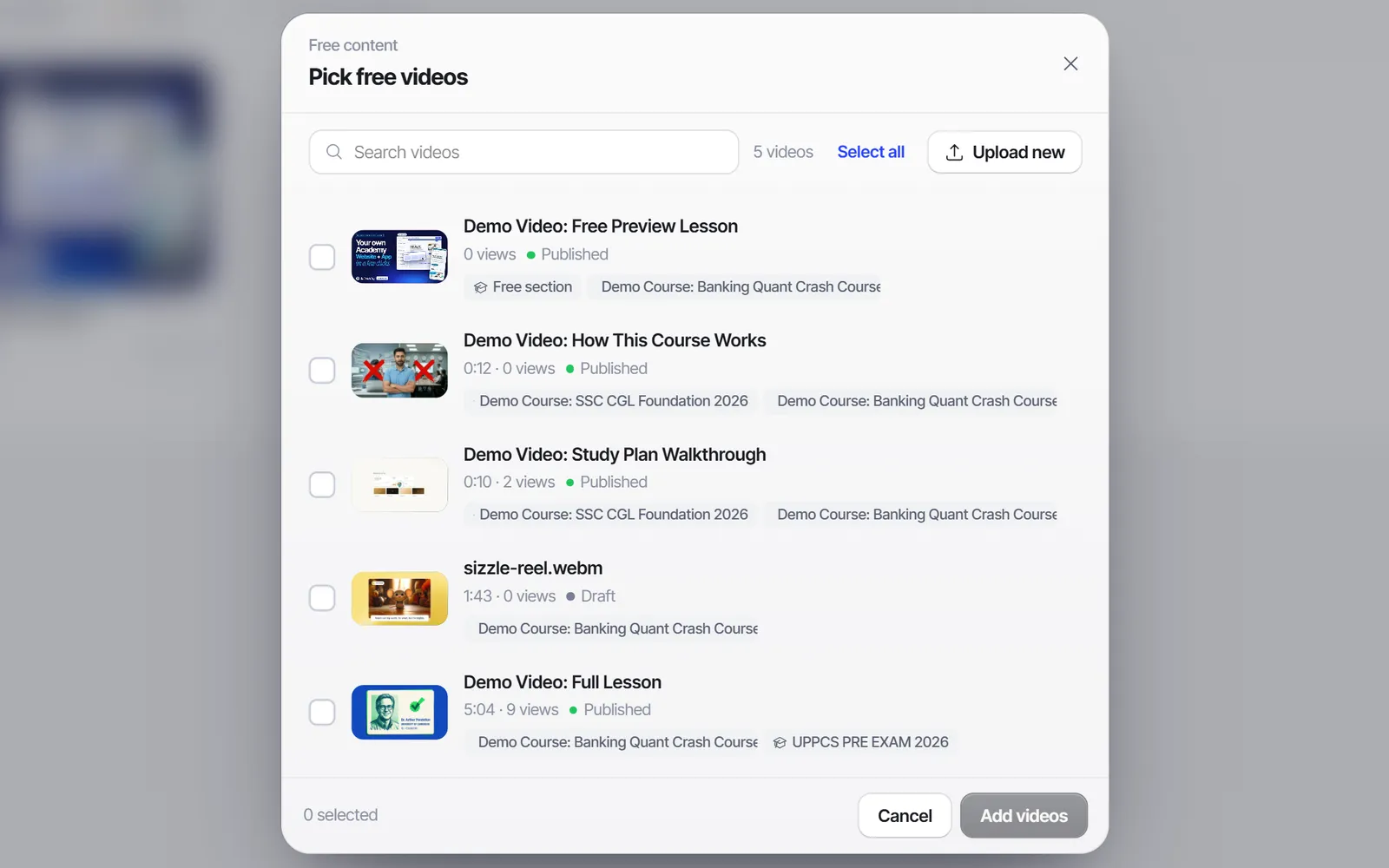
Press Add and your library opens. Tick what you want to give away and add it, or upload something new straight from the same window.

  • Free videos, such as a preview lesson
  • Free notes from your documents
  • Free sample tests
  • Upload new from the picker

Marked Free, open to anyone.

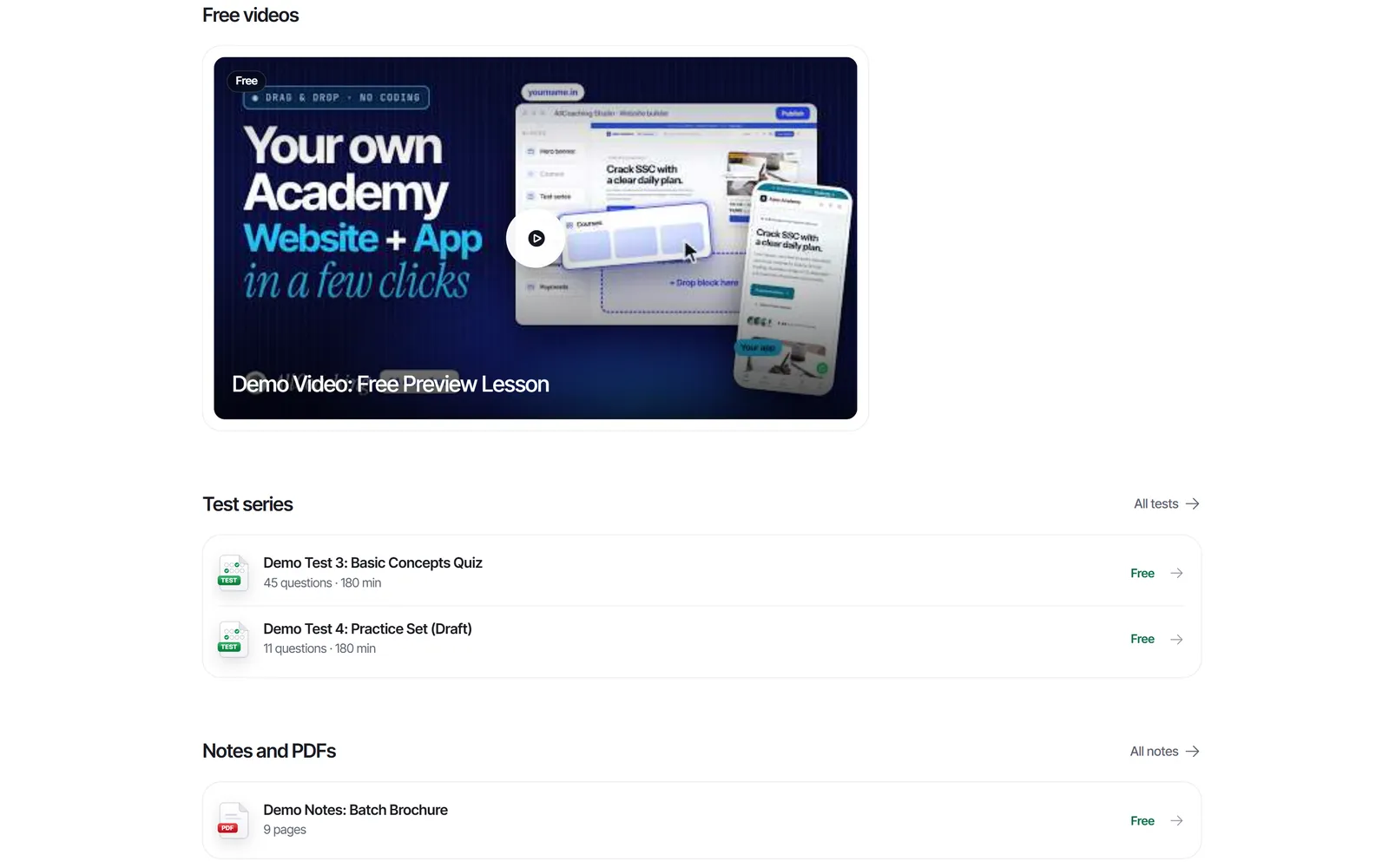
Free content shows on your own academy website under free videos, test series and notes, each marked Free, and the same free content appears in your app. Any student can open it without buying.

  • Free videos with a Free label
  • Free tests and notes marked Free
  • The same free content in your app
  • Tip: turn off Only for enrolled students to make a course module a free preview
studio.allcoaching.in
Free content in the studio with counts for videos, documents and tests, students reached and went on to buyPick free videos window listing videos from the library with checkboxes and an Upload new buttonDemo Academy website showing a free preview video, free test series and free notes, each marked Free
Next stageRun
Stage 05 / 05

Run

Your numbers, your team and the tools you already use.

Step 12 / 14

Analytics

Sales, earnings, growth and learning in one view, with every order in Transactions.

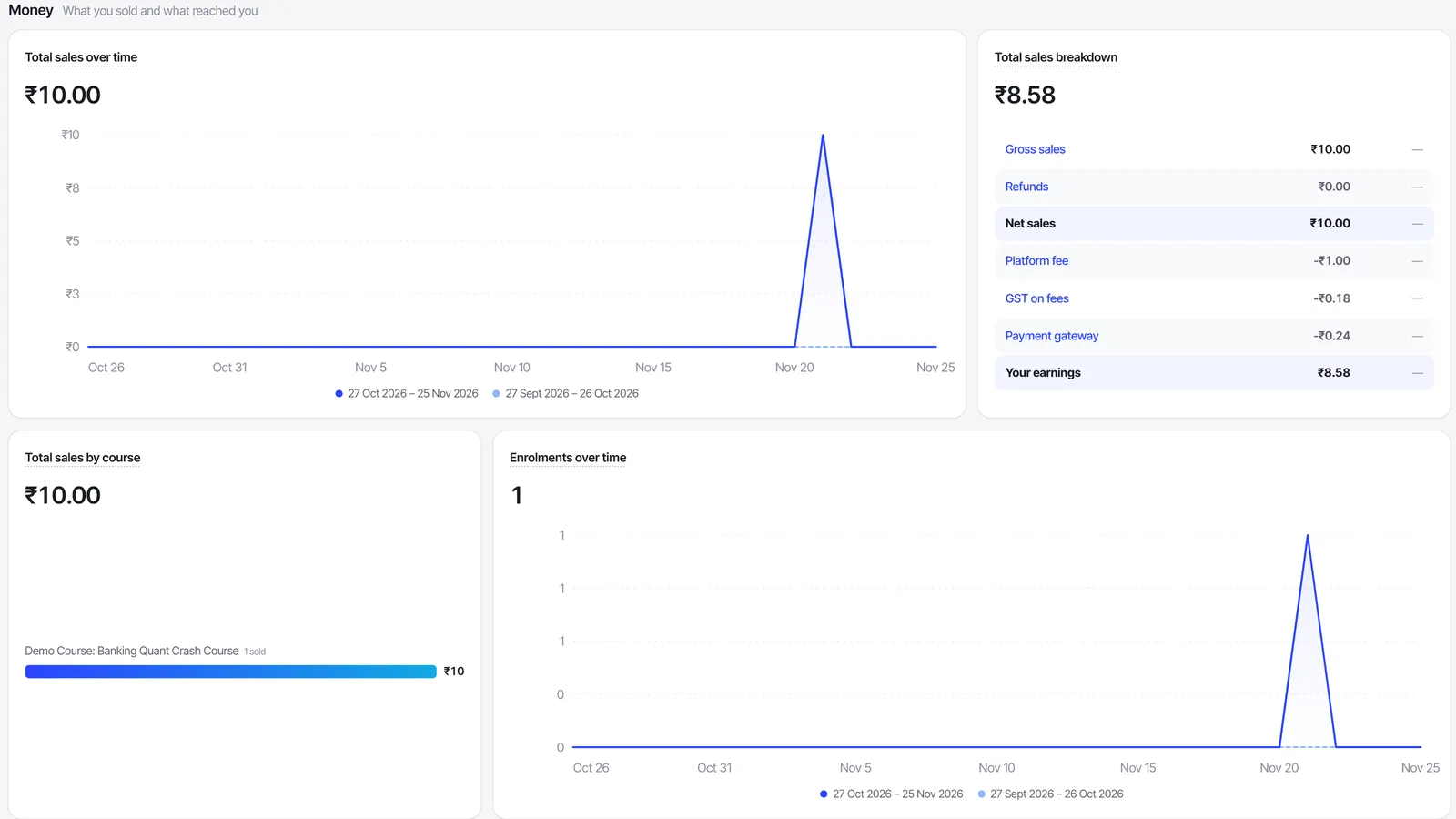
What you sold, and what reached you.

Pick the last 30 days or any dates you like, compared with the period before. Money shows total sales over time and a breakdown that accounts for every rupee, from gross sales to your earnings after refunds, fees and GST. Below, sales by course and enrolments day by day.

  • Total sales, sales today, students, enrolments, courses, live classes and your best-selling course
  • Gross sales and your earnings, side by side
  • Monthly sales statement, sales register and refunds, each exported to a spreadsheet
  • Every order, with its fee and GST, in Transactions

Who buys, and who keeps studying.

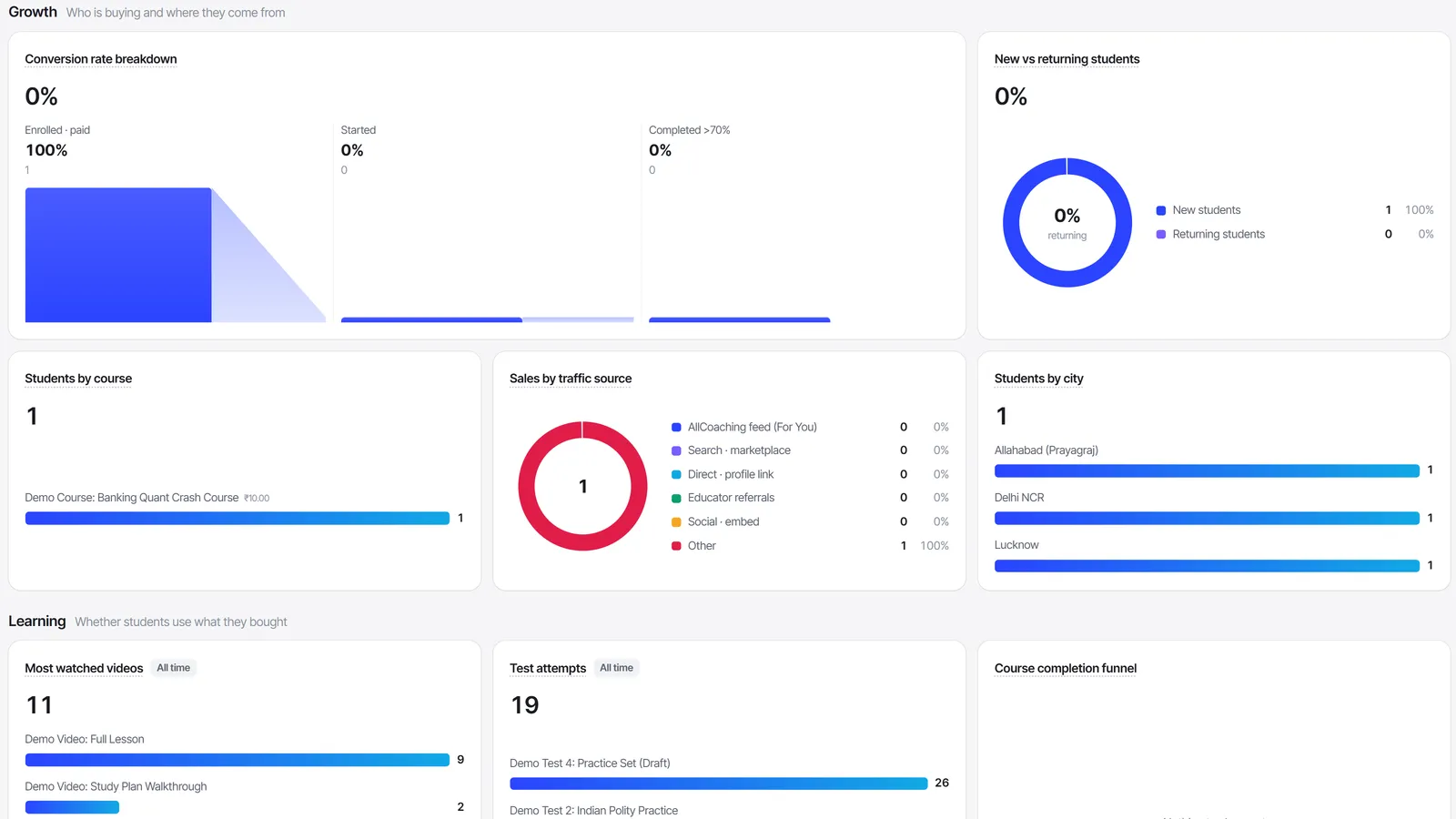
Growth shows how many students bought, started and finished a course, and how many are new or returning. You also see students by course, where sales came from and which city they are in. Learning shows the most watched videos, the most attempted tests and which PDFs were opened.

  • Conversion from enrolled to started to completed
  • New and returning students
  • Sales by traffic source and students by city
  • Most watched videos, test attempts and document reads

Right now, and in 29 reports.

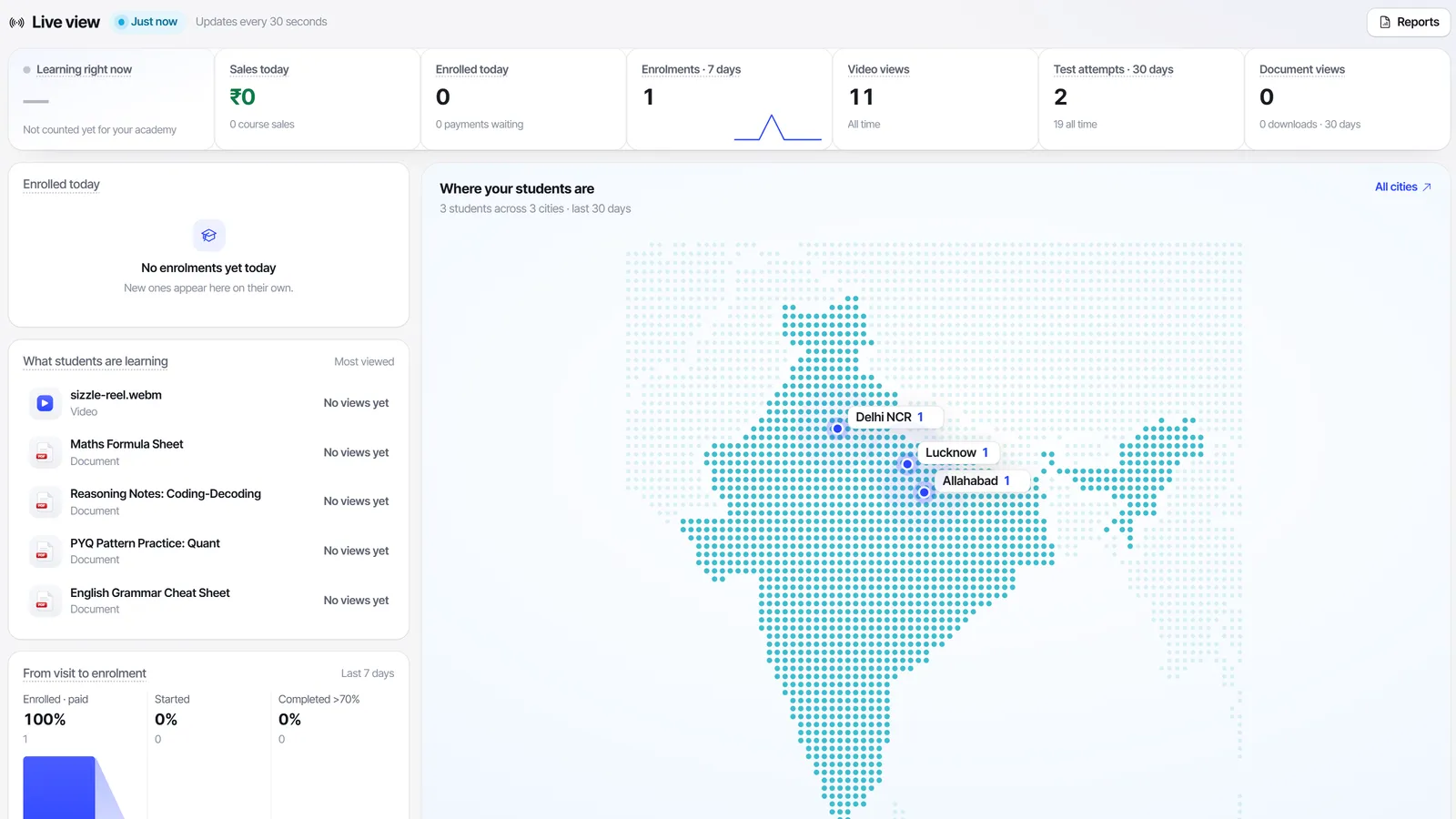
Live view shows today’s sales, today’s enrolments and, on a map of India, where your students are. It updates by itself every 30 seconds. Reports holds 29 ready-made reports across sales, tax, students and learning.

  • Today’s sales and enrolments
  • A map of where your students are
  • What students are learning right now
  • 29 reports, open whichever you need
studio.allcoaching.in
Money section of Analytics with a sales chart, a sales breakdown, sales by course and enrolments over time (demo academy data)Growth and Learning sections of Analytics: conversion, new vs returning students, traffic source, city, videos and tests (demo academy data)Live view in the studio with today’s numbers, what students are learning and a map of India showing student cities (demo academy data)
Step 13 / 14

Team

Separate logins for teachers and staff, with Owner, Editor and Analyst roles.

Three roles. Clear limits.

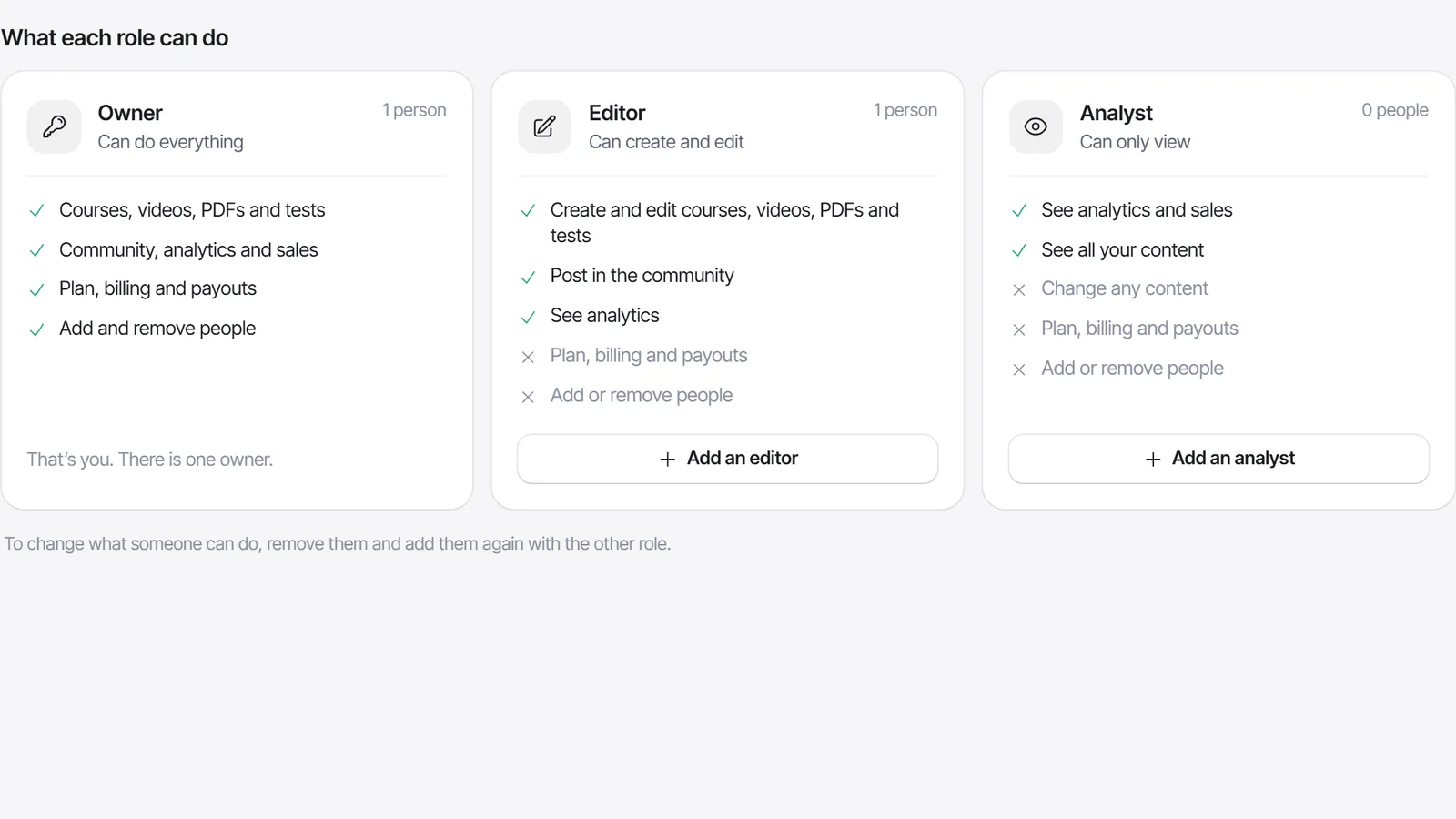
The Owner, that is you, can do everything, and there is only one. An Editor can create and edit courses, videos, PDFs and tests, post in the community and see analytics. An Analyst can see analytics, sales and your content, and cannot change anything.

  • Owner: plan, billing, payouts, and adding or removing people
  • Editor: courses, videos, PDFs, tests, community posts and analytics
  • Analyst: view analytics, sales and content only
  • The Team page shows how many of your plan's seats are in use
A phone number is all it takes.
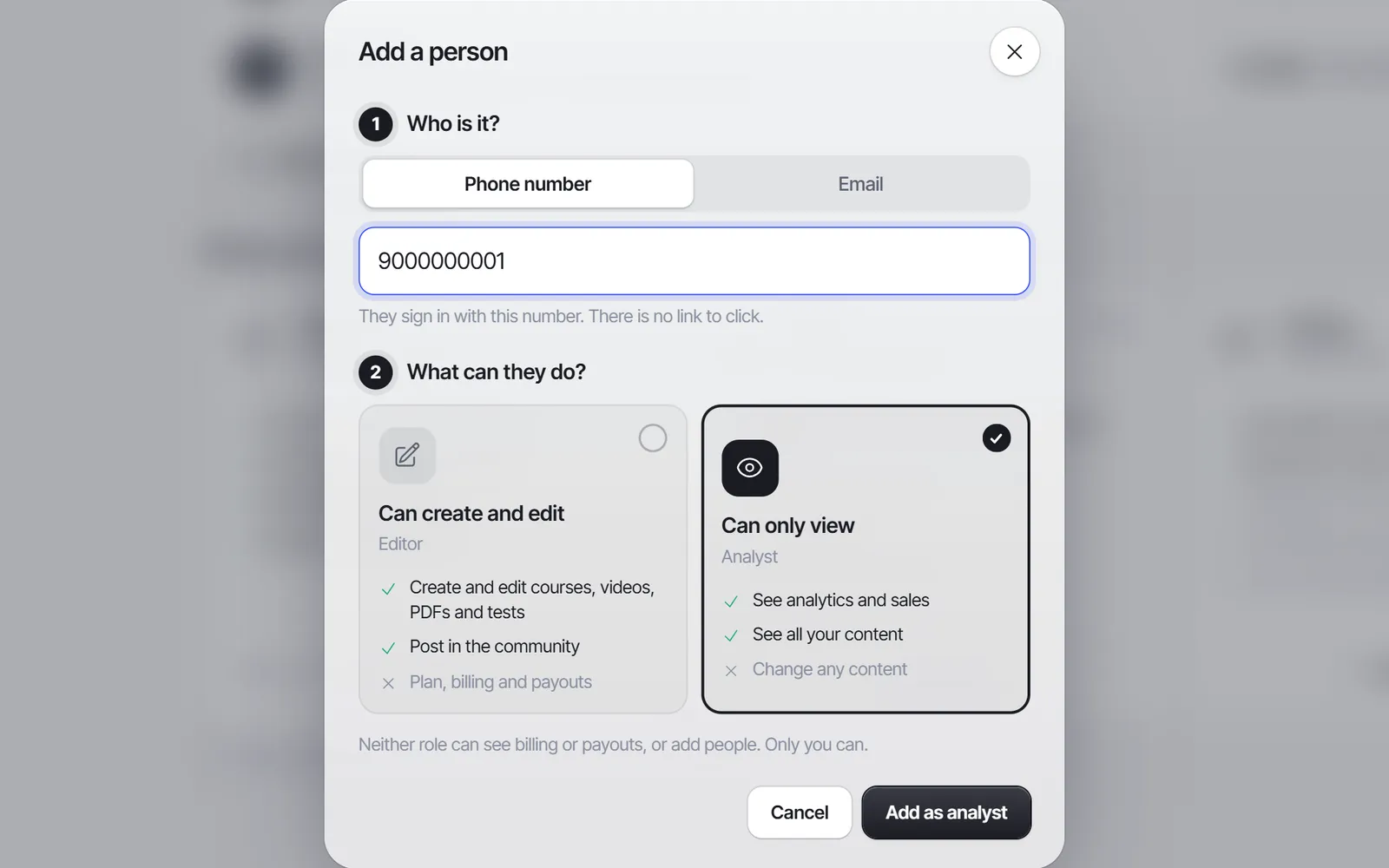
Press Add a person and answer two questions. Who is it: enter their phone number, and they sign in with that same number, with no link to click and no password. What can they do: Can create and edit for a teacher, Can only view for an accountant or partner.

  • Add by phone number, or by email with a join link
  • Pick the role before you add them
  • Neither role can see billing or payouts, or add people
  • Only you can add people to the team

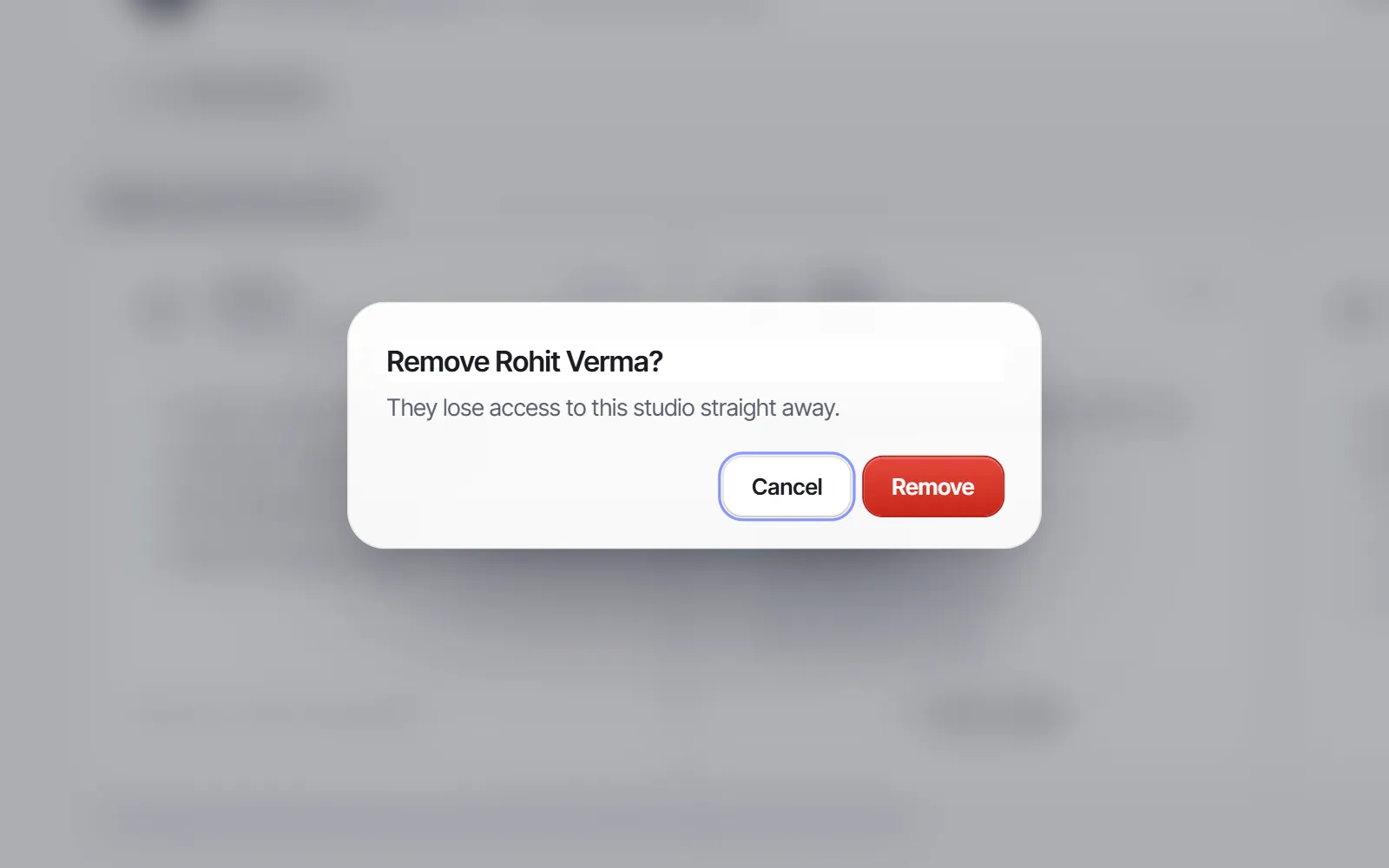
Access ends the moment you say so.

To change what someone can do, remove them and add them again with the other role. The moment you remove someone, their access to your studio ends.

  • Remove ends studio access straight away
  • Add them again with a new role to change permissions
  • Your plan, billing and payouts never leave the Owner account
studio.allcoaching.in
What each role can do: Owner, Editor and Analyst cards with their permissionsAdd a person dialog with a phone number and the Can only view Analyst role selectedRemove a team member confirmation saying they lose access to the studio straight away
Step 14 / 14

Integrations

Connect YouTube, Zoom, Razorpay, your domain, marketing tags and a WhatsApp button.

Everything in one place, by category.

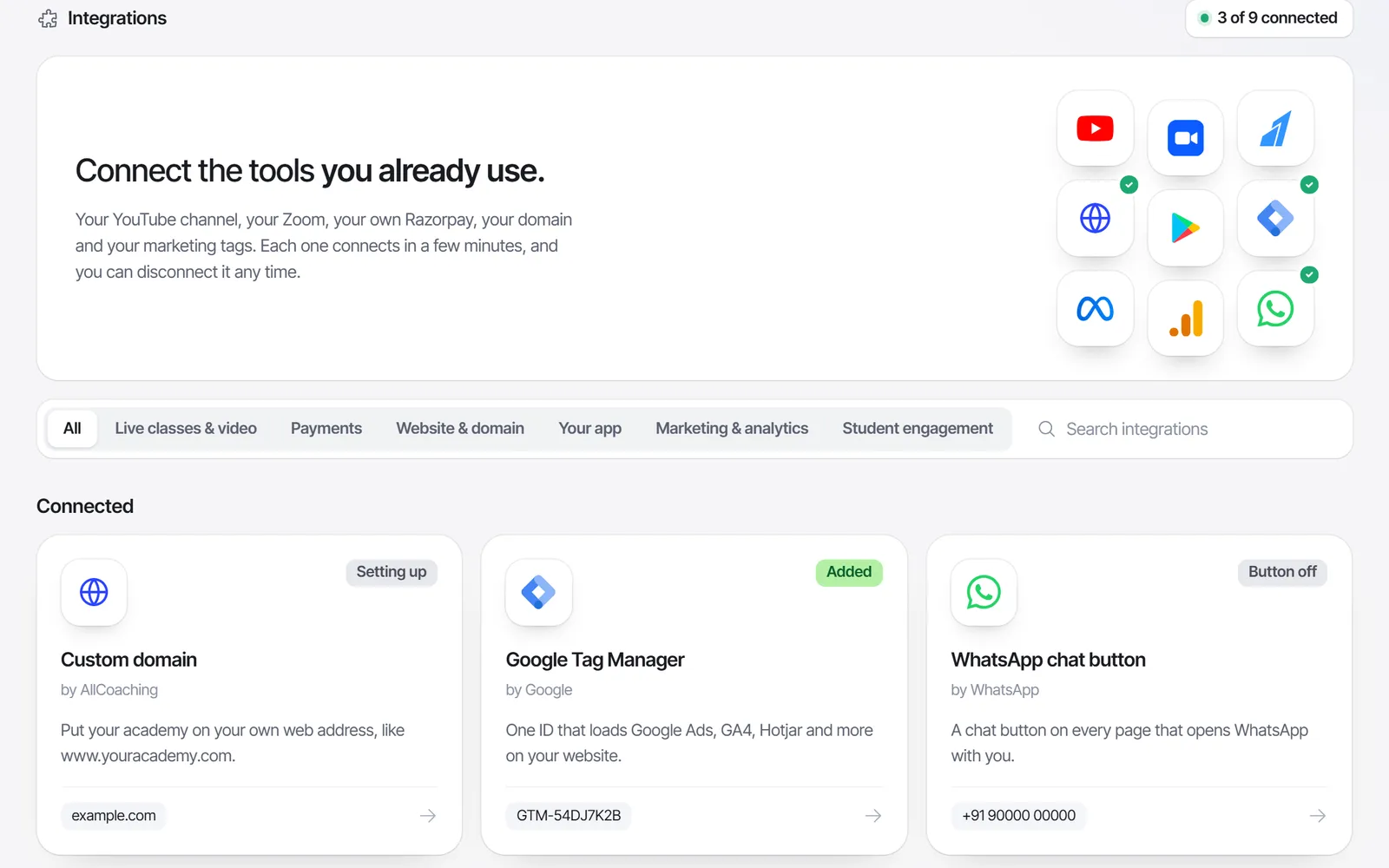
Integrations shows the tools you can connect and how many are already connected. Filter by Live classes and video, Payments, Website and domain, Your app, Marketing and analytics, or Student engagement. The ones already connected sit at the top.

  • Razorpay: course money goes straight into your own Razorpay, and from there to your bank
  • Custom domain: put your academy on your own web address, like www.youracademy.com
  • Each tool shows its status, like Added or Setting up
  • Disconnect any tool when you like

Your YouTube channel, inside your academy.

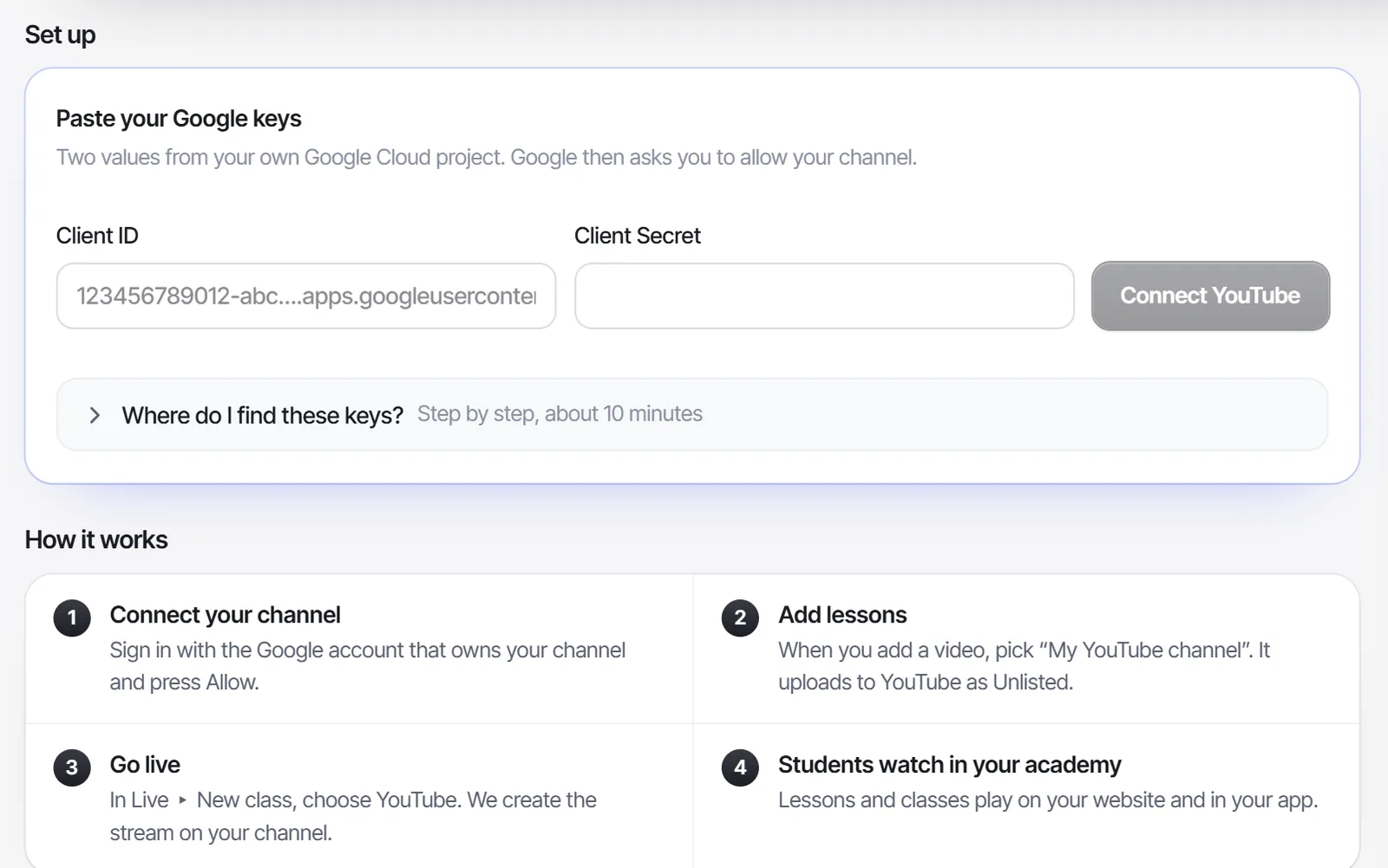
Connect your YouTube channel and lessons upload to it as Unlisted. Live classes stream from your channel, and students watch them on your website and in your app. Zoom sits alongside, for live classes in your own Zoom account.

  • Paste the Client ID and Client Secret from your own Google Cloud project, then allow your channel
  • When you add a video, pick My YouTube channel
  • In Live, choose YouTube for a new class and the stream is created on your channel
  • Lessons and classes play on your website and in your app

Measure your ads, let students message you.

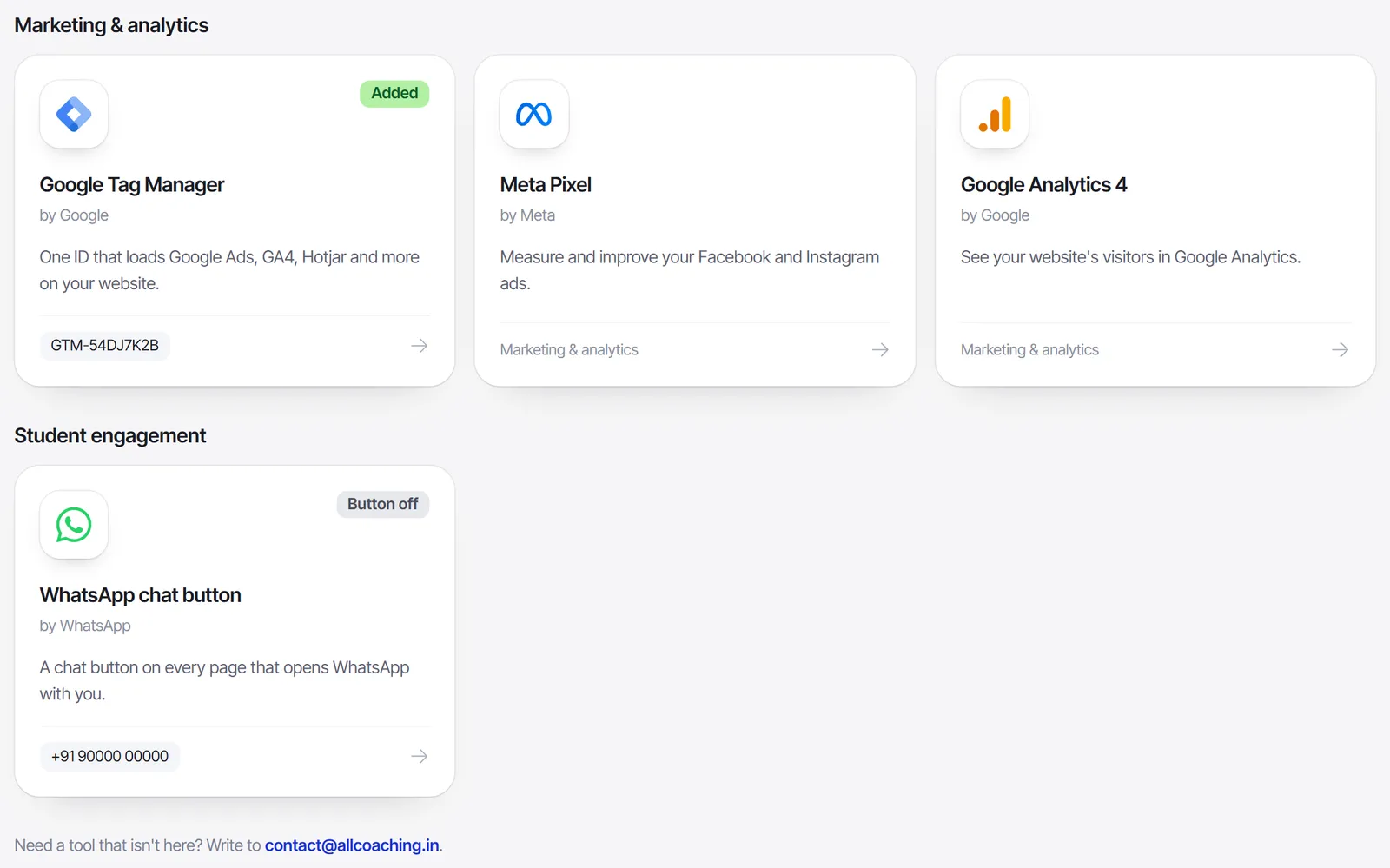
In Marketing and analytics, add Google Tag Manager, Meta Pixel and Google Analytics 4 for the full picture of your ads and visitors. In Student engagement, the WhatsApp chat button puts a button on every page of your website that opens a chat with your number.

  • Google Tag Manager: one ID that loads Google Ads, GA4 and more
  • Meta Pixel for your Facebook and Instagram ads
  • Google Analytics 4 for your website’s visitors
  • WhatsApp: add your number with its country code, then turn the button on
studio.allcoaching.in
Integrations page in the studio with category tabs and connected tools: custom domain, Google Tag Manager and the WhatsApp chat buttonYouTube integration set-up: Google keys and the four steps from connecting your channel to students watching in your academyMarketing and analytics integrations (Google Tag Manager, Meta Pixel, Google Analytics 4) and the WhatsApp chat button
Last stepPick your plan

Your journey, free for 7 days.

Do every step above in your own studio before you pay anything. No card, no developer, no sales call.

Yearly plans from ₹6,999 · Monthly plans with 0% commission · Prices exclude GST