



Share the work, keep the keys.
As your academy grows, bring your teachers and staff into the studio with their own logins. Each person gets a role: Editors create and edit content, Analysts only view, and plan, billing and payouts stay with you as the Owner.
Three roles. Clear limits.
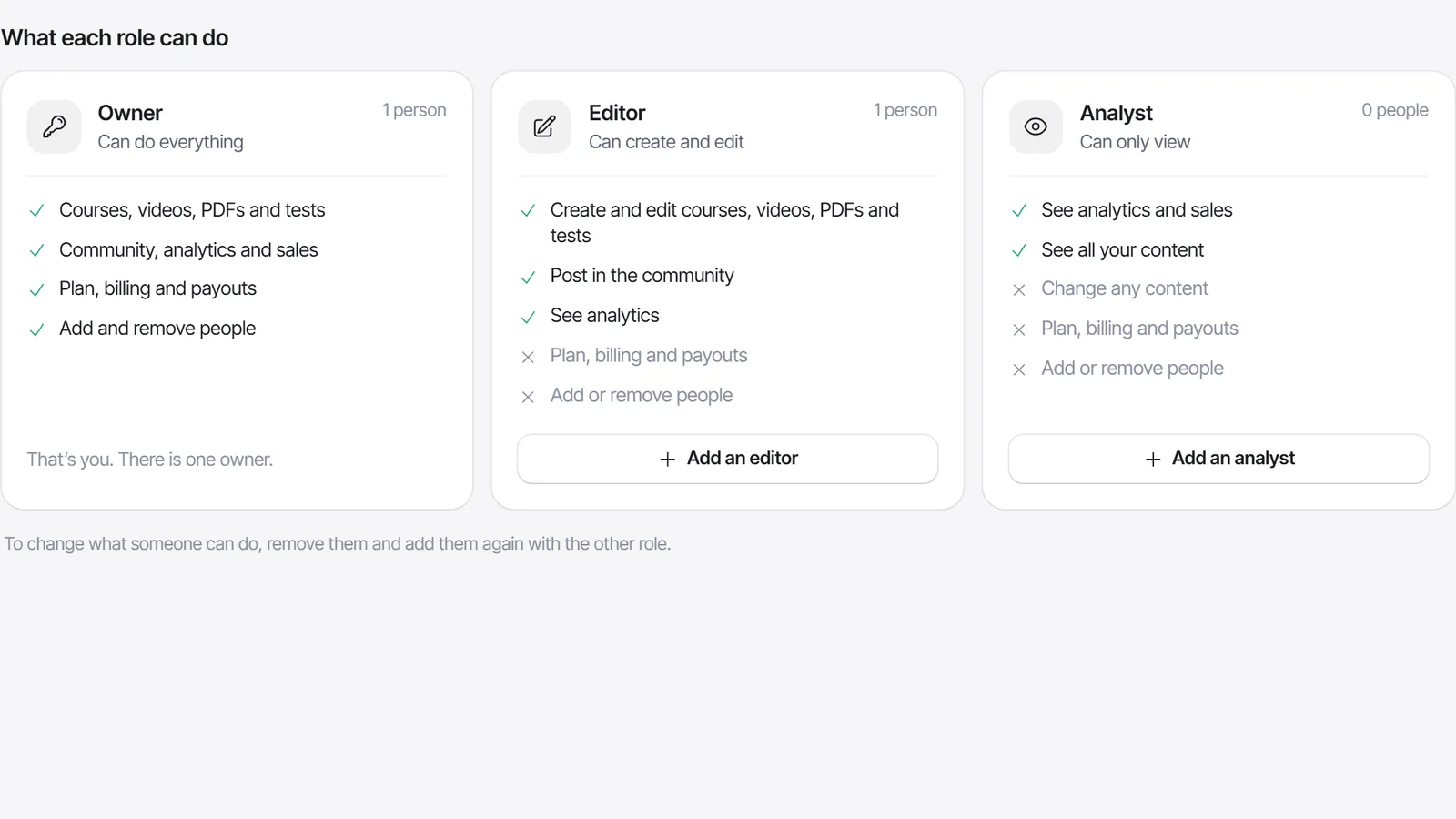
The Owner, that is you, can do everything, and there is only one. An Editor can create and edit courses, videos, PDFs and tests, post in the community and see analytics. An Analyst can see analytics, sales and your content, and cannot change anything.
- Owner: plan, billing, payouts, and adding or removing people
- Editor: courses, videos, PDFs, tests, community posts and analytics
- Analyst: view analytics, sales and content only
- The Team page shows how many of your plan's seats are in use
A phone number is all it takes.
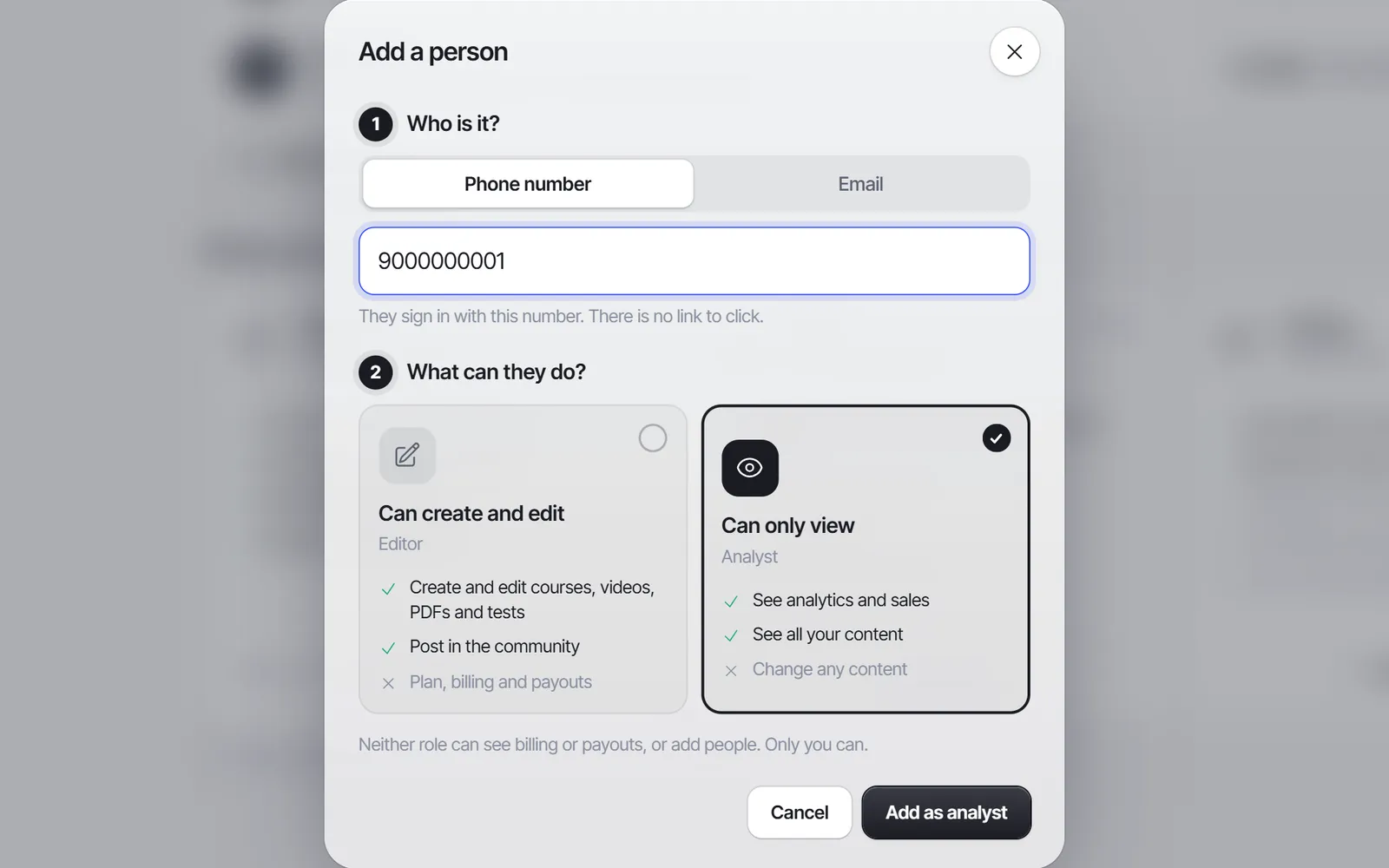
Press Add a person and answer two questions. Who is it: enter their phone number, and they sign in with that same number, with no link to click and no password. What can they do: Can create and edit for a teacher, Can only view for an accountant or partner.
- Add by phone number, or by email with a join link
- Pick the role before you add them
- Neither role can see billing or payouts, or add people
- Only you can add people to the team
Access ends the moment you say so.
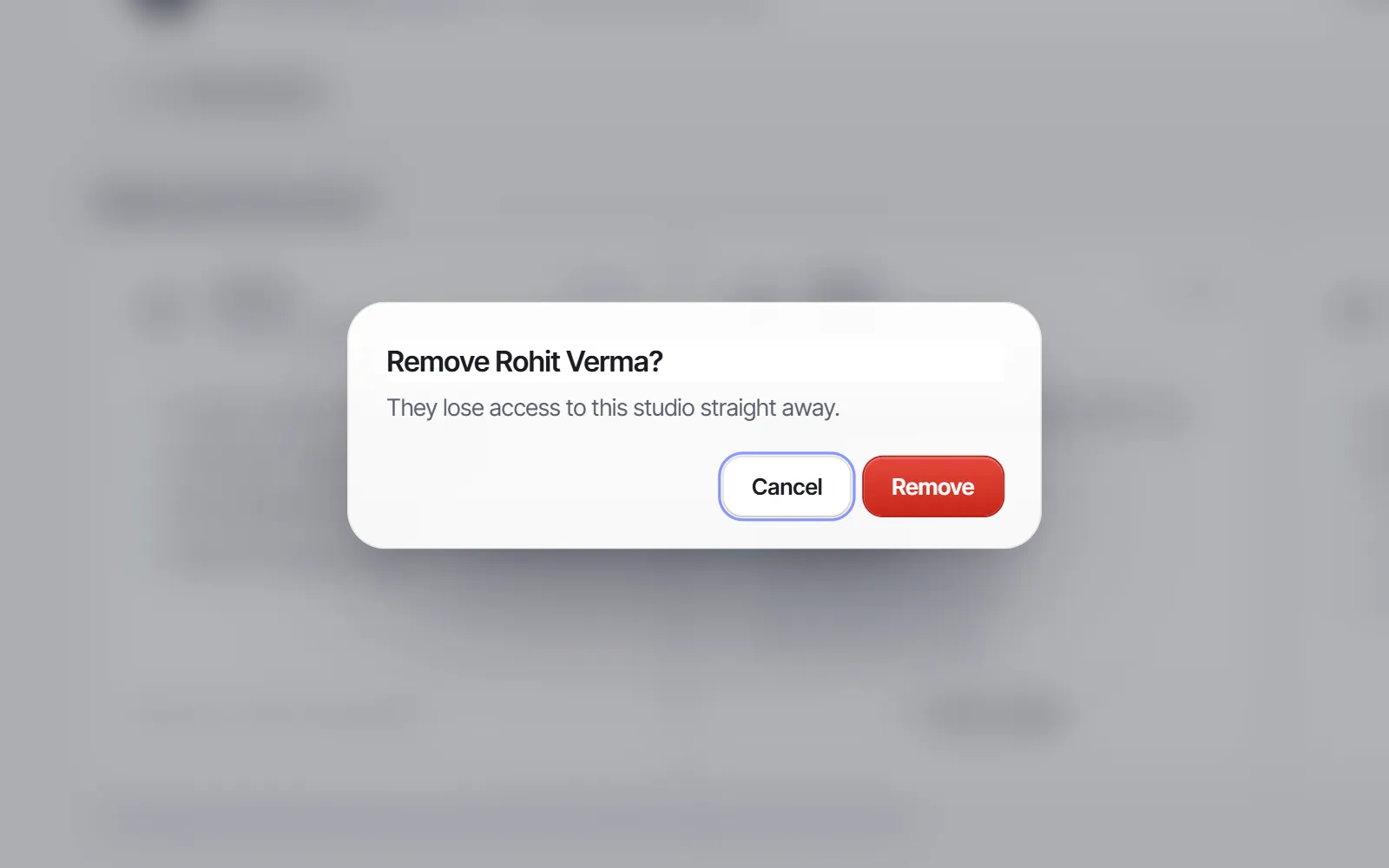
To change what someone can do, remove them and add them again with the other role. The moment you remove someone, their access to your studio ends.
- Remove ends studio access straight away
- Add them again with a new role to change permissions
- Your plan, billing and payouts never leave the Owner account
Team, step by step.
The same steps as the studio tutorial at the top of this page.
- Open TeamGo to Settings, then Team, to see everyone and their roles.
- Add a personEnter their phone number, or an email to send a join link.
- Pick a roleChoose Can create and edit for a teacher, or Can only view for staff who need the numbers.
- Change or removeRemove someone to end access, and add them again to give a new role.
What educators ask about team.
How do I add a teacher to my coaching app?
In Settings, then Team, press Add a person, enter their phone number and pick a role. They sign in with that number.
How do I give staff limited access?
Give them the Analyst role; they can view analytics, sales and content but change nothing.
How do I keep billing private from my team?
Billing, payouts and adding people stay with the Owner; Editors and Analysts cannot see them.
How do I change someone's role?
Remove them, then add them again with the new role. Removing someone ends their studio access straight away.
More from your studio.

Team, free for 7 days.
Set it up in your own studio, under your own brand. No card, no developer, no sales call.
7 days free, no card needed · Monthly plans from ₹3,999 with 0% commission · Prices exclude GST