


You sell the course. You teach in batches.
A course is what you sell: videos, notes and tests. A batch is a group of that course's students who study together on one timetable, with attendance taken. Students buy the course, not the batch, and one course can run many batches.
Every batch belongs to one course.
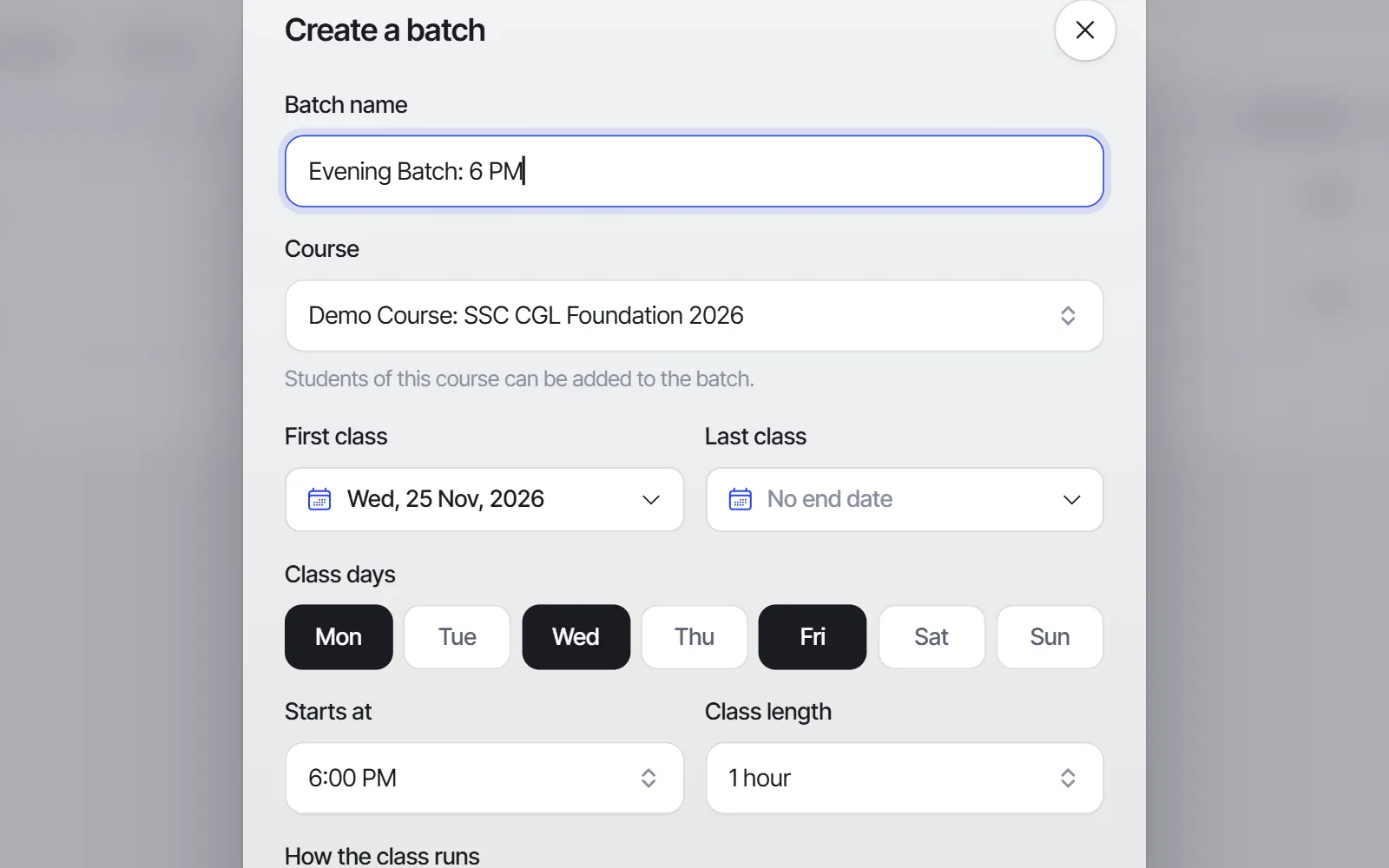
When you create a batch, the Course field is what links it to a course, and only that course's students can be added to it. Once the batch is made, its course cannot be changed. One course can have many batches, such as Morning, Evening and Weekend.
- Name, course, first and last class, class days and time
- Online, in a classroom, or both; teacher and seats
- The timetable is made for you when you press Create batch
- Add students lists only those enrolled in the course and not yet in the batch
Take the register in one click.
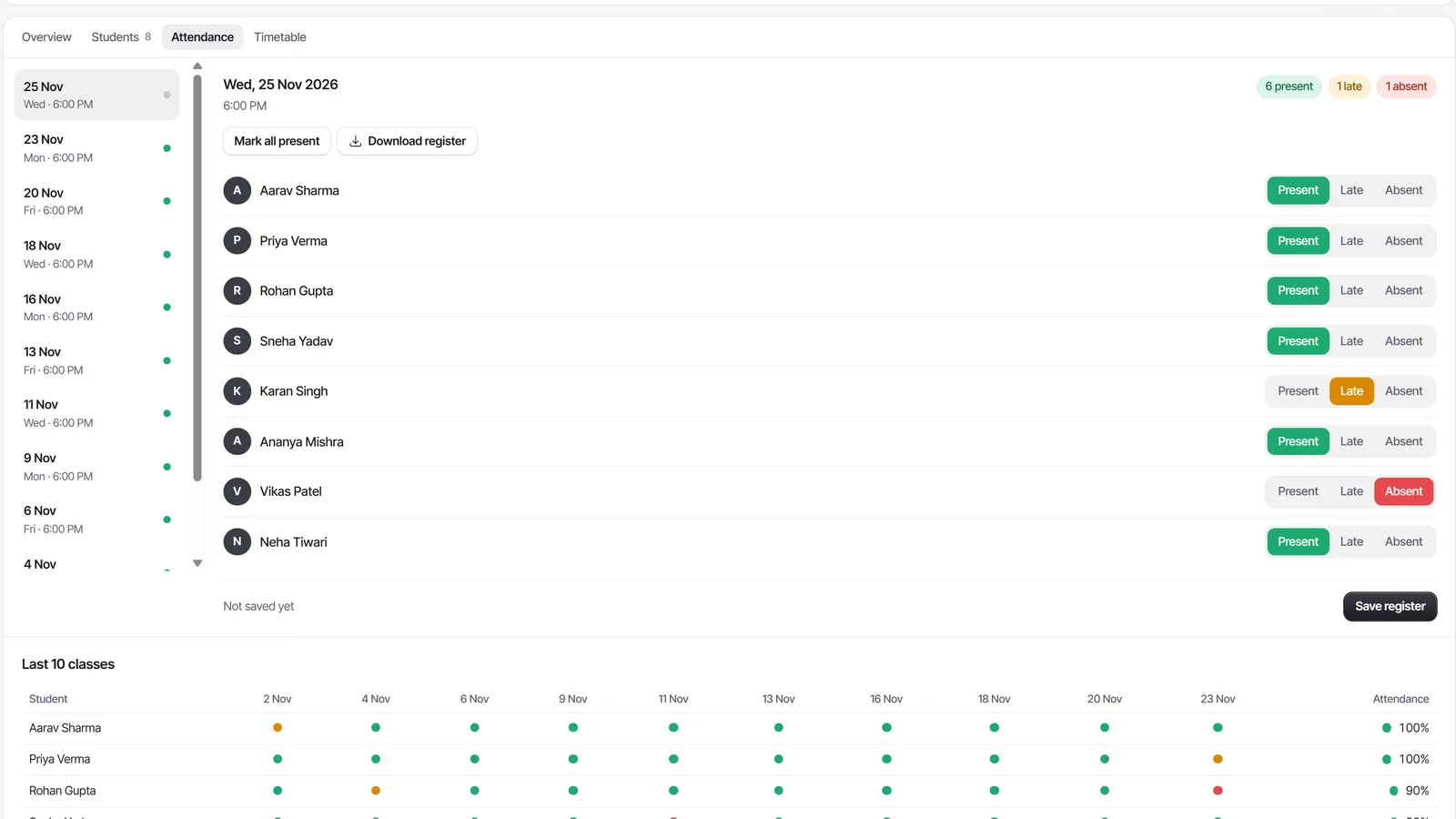
On the day of the class, press Take attendance, mark everyone present in one click, change whoever was late or absent, and save the register. Attendance comes from the batch and progress comes from the course, and you see both side by side.
- Present, late or absent for each student
- Download the register, and see the last ten classes at a glance
- Students tab: attendance beside lessons finished and last active
- Timetable: add a topic, cancel a class or add an extra class
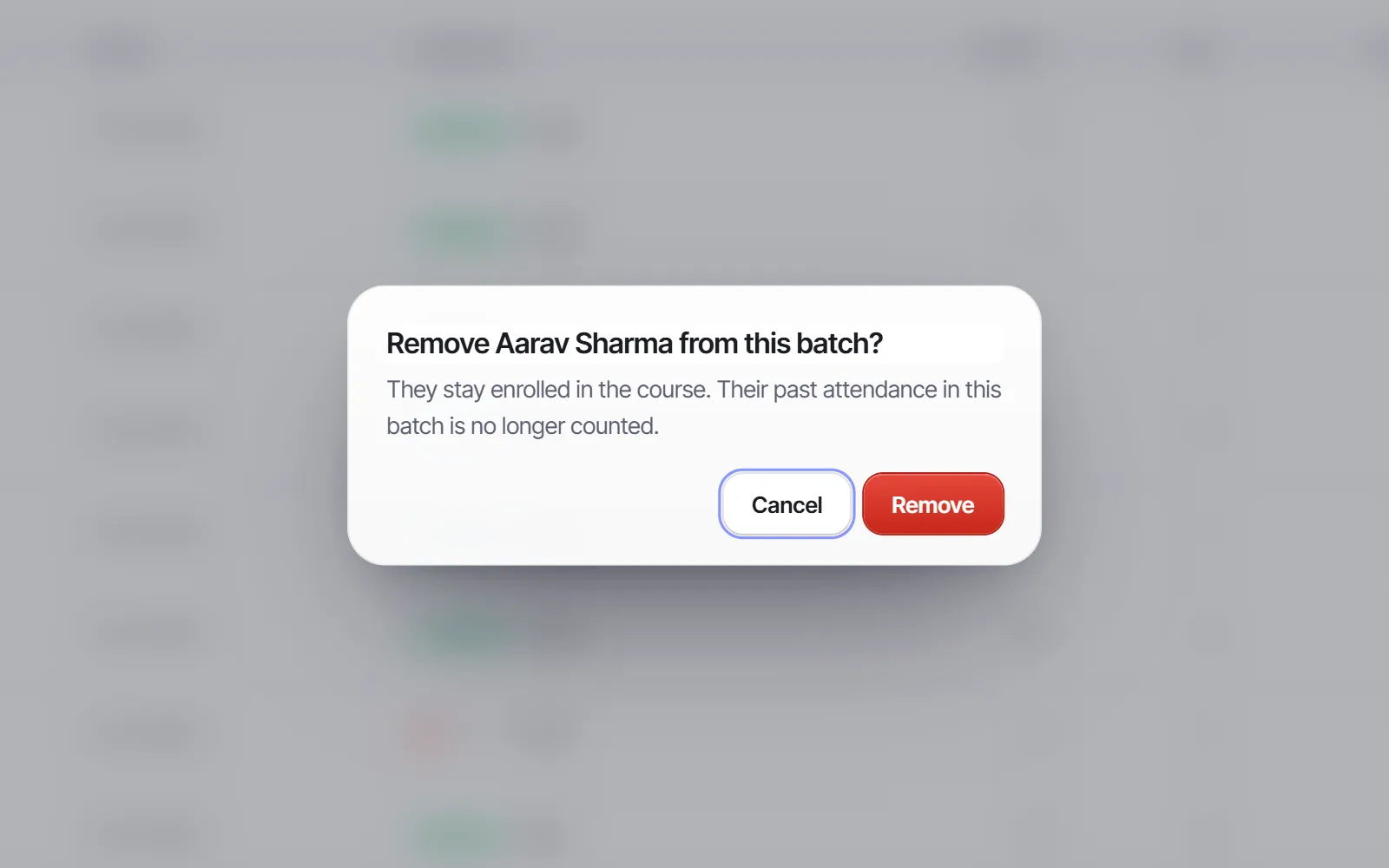
Remove from a batch. The course stays.
Remove a student from a batch, or delete the whole batch, and the student is not removed from the course. Their course carries on exactly as before; only that batch's attendance stops counting. The order is always the same: a student takes the course first, then you place them in a batch.
- Removing a student keeps them enrolled in the course
- Deleting a batch never touches course enrolments
- Fixed batch dates in a course's Settings are only the course's own dates, not a batch
- Timetable, students and attendance all live in Batches
Students and batches, step by step.
The same steps as the studio tutorial at the top of this page.
- Create batchOpen Batches, press Create batch, give it a name and pick its course.
- Set the scheduleChoose the first class, class days, time, length, mode and seats.
- Add studentsTick the course's enrolled students who should study in this batch.
- Take attendanceOn class day, mark everyone present, change who was late or absent, and save the register.
What educators ask about students and batches.
What is the difference between a course and a batch?
A course is what you sell: videos, notes and tests. A batch is a group of that course's students who study together on a timetable, with attendance. Students buy the course, not the batch.
How do I create a batch for my coaching?
In Batches, press Create batch and fill in the name, course, days, time and seats. The timetable is made for you.
How do I take student attendance online?
Open the batch, press Take attendance, Mark all present, change who was late or absent, and Save register.
How do I run morning and evening batches of one course?
Create two batches of the same course, like Morning and Evening, and add that course's students to each.
If I remove a student from a batch, do they lose the course?
No. Removing a student from a batch, or deleting the batch, keeps their course enrolment. Only that batch's attendance stops counting.
More from your studio.
Students and batches, free for 7 days.
Set it up in your own studio, under your own brand. No card, no developer, no sales call.
7 days free, no card needed · Monthly plans from ₹3,999 with 0% commission · Prices exclude GST