



Your notes, stamped with your name.
Upload notes, formula sheets and previous-year papers as PDFs, and your logo goes on every page before upload. Each student sees their own name as a watermark, so a copy passed on still carries the name of the student it came from.
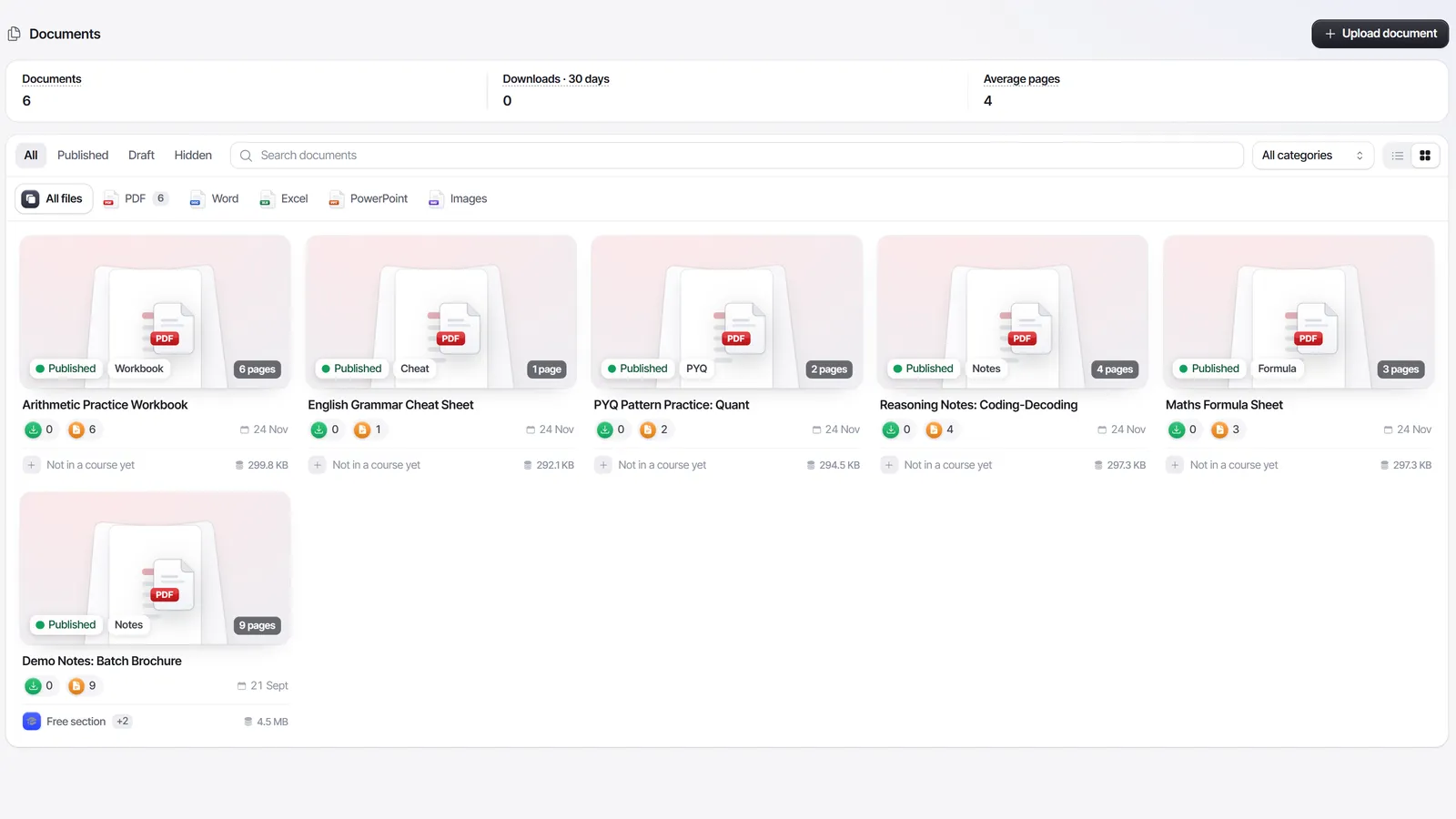
Every document, in one place.
Documents shows how many you have, downloads in the last 30 days and average pages. Filter by status, category or file type, and see each document as a card or in a list.
- Published, Draft and Hidden filters
- Categories such as notes, formula sheet, PYQ, cheat sheet and workbook
- Pages, downloads and file size on every card
- Edit, copy link or delete from the card menu
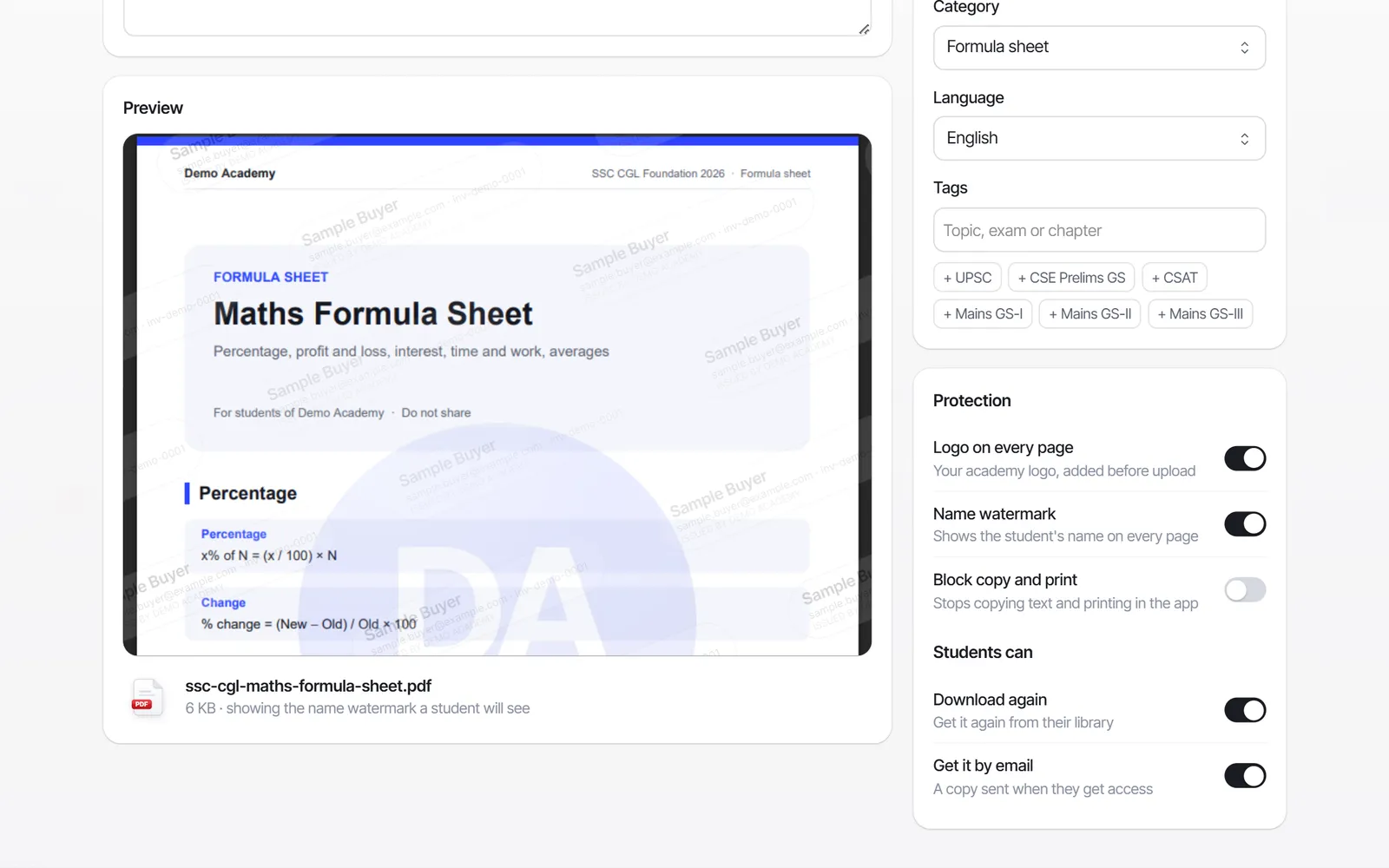
What you preview is what the student sees.
Pick a file and the form opens with a live preview. Your logo is on every page and the student’s name runs across it as a watermark, so if a PDF travels, that student’s name goes with it.
- Logo on every page, added before upload
- Name watermark with the student’s name on every page
- Block copy and print stops copying text and printing in the app
- Let students download again or get a copy by email
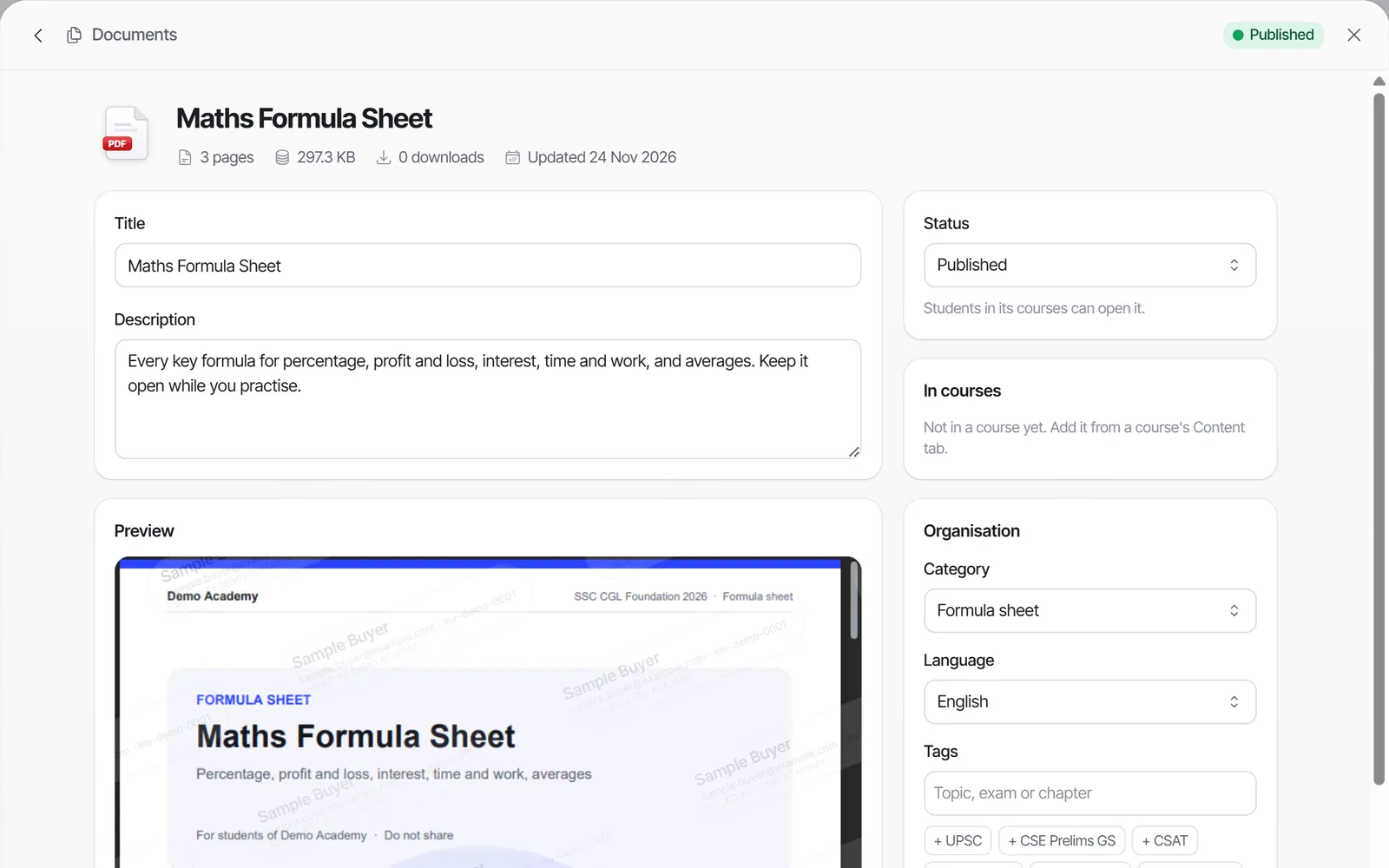
Edit any time. Add it to any course.
Press Edit on any card to change the same settings, with pages, size and downloads at the top. Add the document to any module from a course’s Content tab, and see downloads over the last 14 days in a graph.
- Status: Published, Draft or Hidden
- In courses shows where the document is used
- Category, language and tags for organising
- Downloads graph for the last 14 days
Notes and PDFs, step by step.
The same steps as the studio tutorial at the top of this page.
- Upload a documentIn Content › Documents, press Upload document and choose a PDF up to 100 MB.
- Fill in the detailsAdd a title and description, then set status, category, language and tags.
- Set protectionTurn on logo on every page, name watermark and, if you want, block copy and print.
- Upload and publishChoose what students can do, then press Upload and publish.
- Add it to a courseFrom a course’s Content tab, add the document to any module.
What educators ask about notes and PDFs.
How do I sell PDF notes online?
Upload the PDF in Content › Documents, set its protection and publish it. Then add it to a module from any course’s Content tab, so students who buy the course can open it.
How do I watermark my PDFs?
Your academy logo is added to every page before upload, and the name watermark shows each student’s name on every page. If a PDF is passed on, it still carries that student’s name.
How do I stop copying and printing of notes?
Turn on Block copy and print in the document’s Protection settings. It stops copying text and printing in the app.
Can students download the notes again?
Yes, if you allow it. Under Students can, let students download again from their library and receive a copy by email when they get access.
More from your studio.



Notes and PDFs, free for 7 days.
Set it up in your own studio, under your own brand. No card, no developer, no sales call.
7 days free, no card needed · Monthly plans from ₹3,999 with 0% commission · Prices exclude GST