



The tools you already use, connected to your academy.
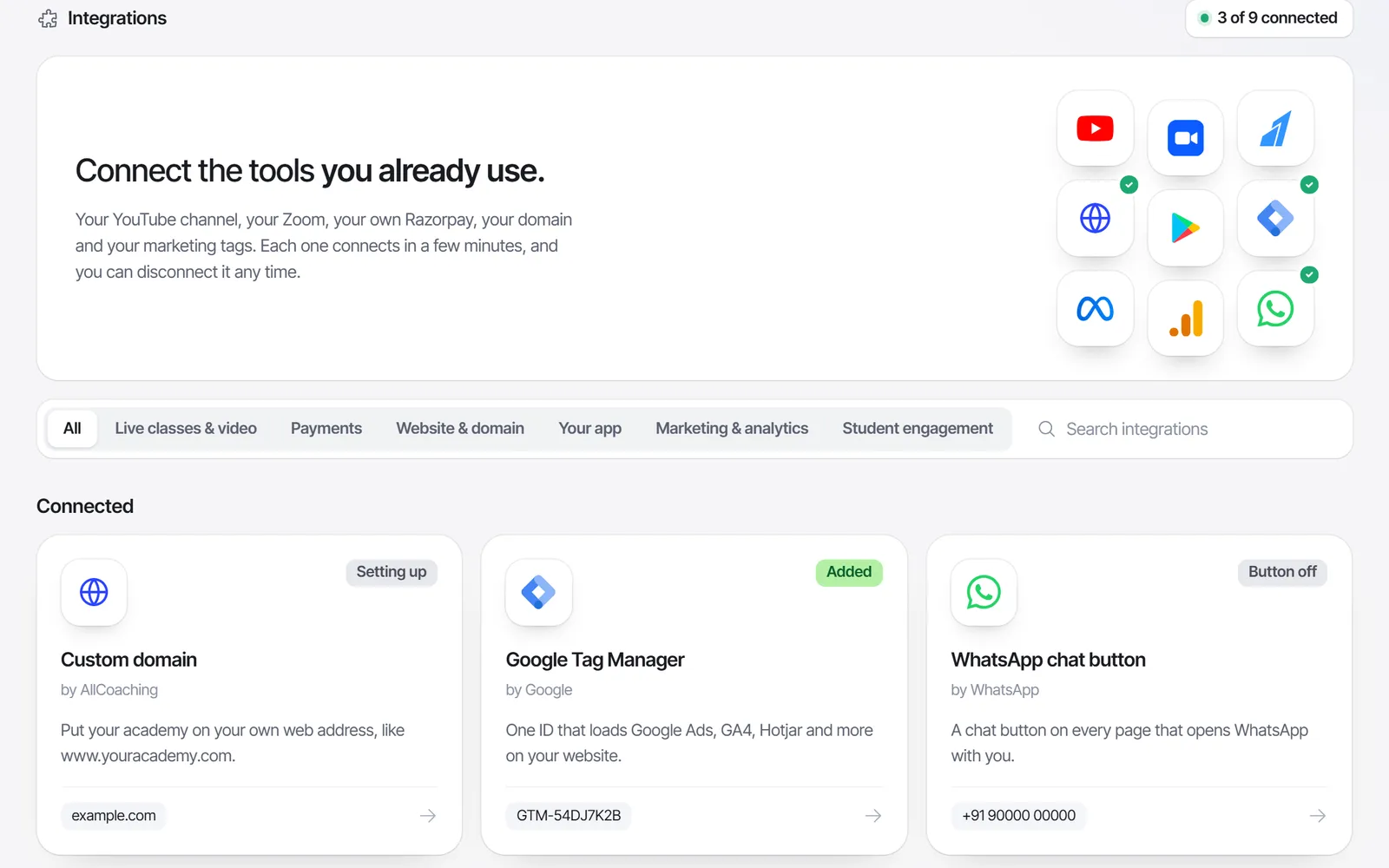
Integrations brings your YouTube channel, Zoom, your own Razorpay, your domain and your marketing tags into one place in the studio. Each one connects in a few minutes, and you can disconnect it any time.
Everything in one place, by category.
Integrations shows the tools you can connect and how many are already connected. Filter by Live classes and video, Payments, Website and domain, Your app, Marketing and analytics, or Student engagement. The ones already connected sit at the top.
- Razorpay: course money goes straight into your own Razorpay, and from there to your bank
- Custom domain: put your academy on your own web address, like www.youracademy.com
- Each tool shows its status, like Added or Setting up
- Disconnect any tool when you like
Your YouTube channel, inside your academy.
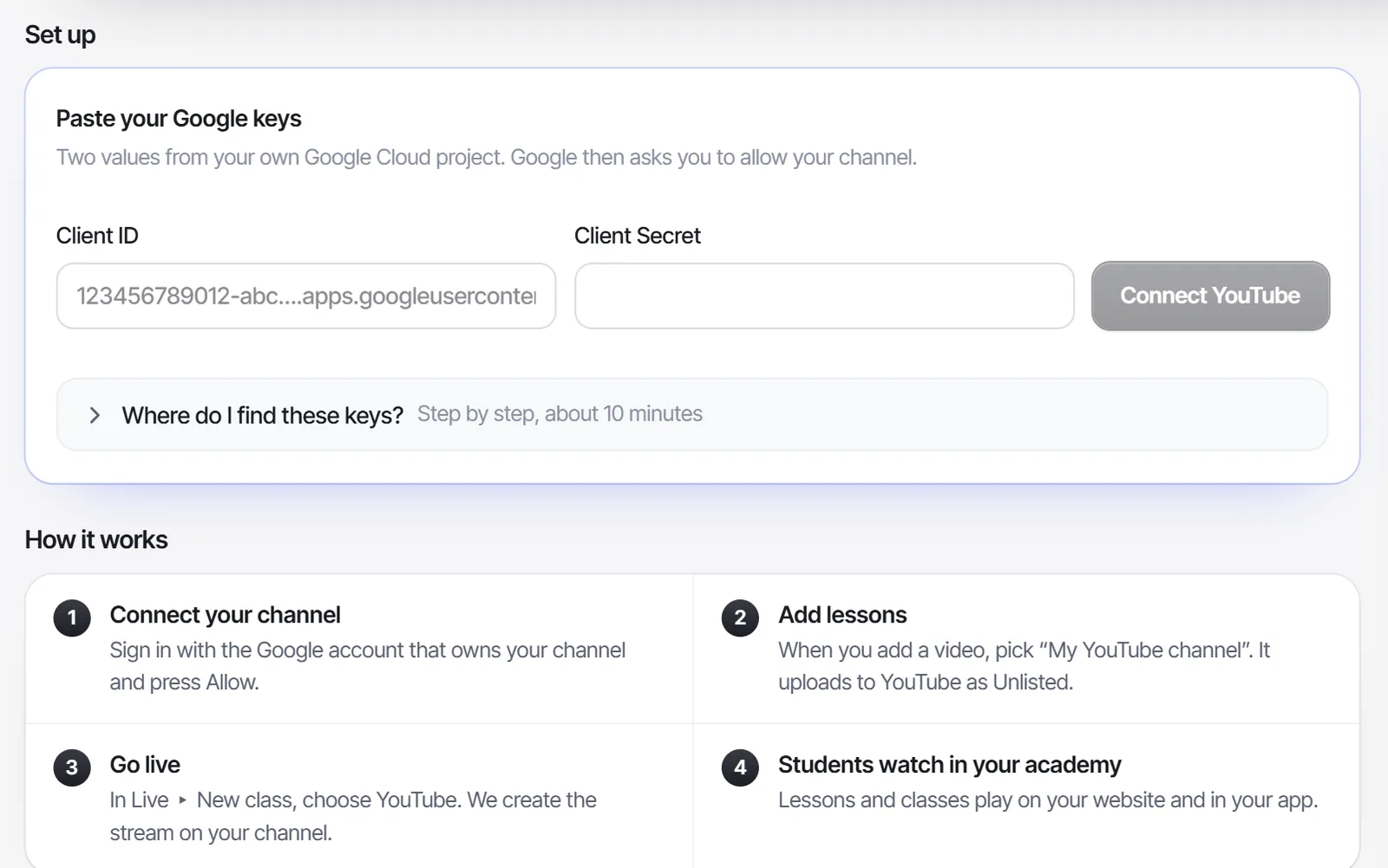
Connect your YouTube channel and lessons upload to it as Unlisted. Live classes stream from your channel, and students watch them on your website and in your app. Zoom sits alongside, for live classes in your own Zoom account.
- Paste the Client ID and Client Secret from your own Google Cloud project, then allow your channel
- When you add a video, pick My YouTube channel
- In Live, choose YouTube for a new class and the stream is created on your channel
- Lessons and classes play on your website and in your app
Measure your ads, let students message you.
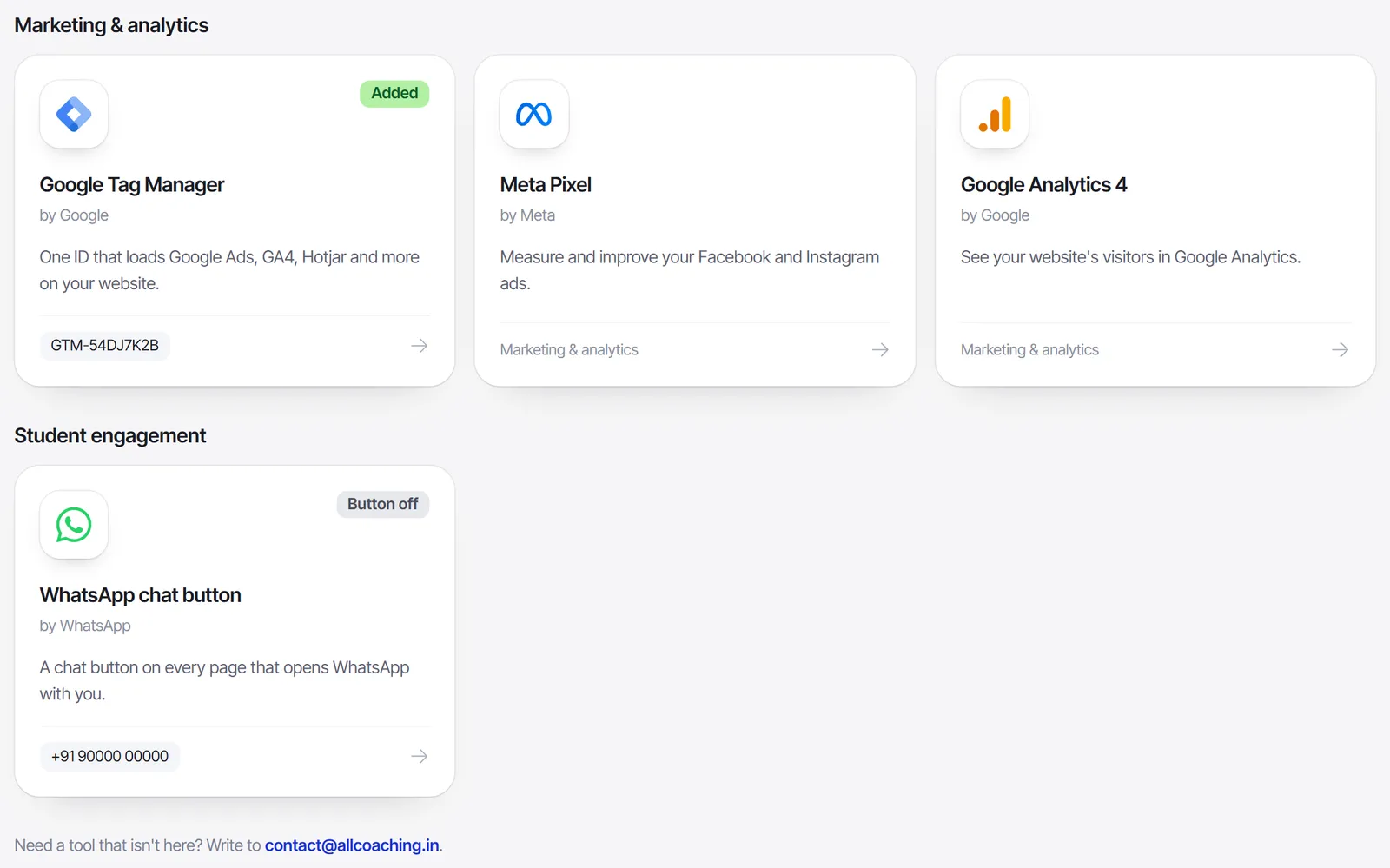
In Marketing and analytics, add Google Tag Manager, Meta Pixel and Google Analytics 4 for the full picture of your ads and visitors. In Student engagement, the WhatsApp chat button puts a button on every page of your website that opens a chat with your number.
- Google Tag Manager: one ID that loads Google Ads, GA4 and more
- Meta Pixel for your Facebook and Instagram ads
- Google Analytics 4 for your website’s visitors
- WhatsApp: add your number with its country code, then turn the button on
Integrations, step by step.
The same steps as the studio tutorial at the top of this page.
- Open IntegrationsIn your studio, open Integrations to see every tool and how many are connected.
- Pick a categoryFilter by live classes, payments, website, app, marketing or student engagement.
- Connect a toolOpen it and follow its set-up, like connecting your YouTube channel or Razorpay.
- Check it is connectedConnected tools move to the top, and you can disconnect any of them later.
What educators ask about integrations.
How do I connect my YouTube channel?
In Integrations, open YouTube, paste the Client ID and Client Secret from your own Google Cloud project, and allow your channel when Google asks. Lessons then upload to your channel as Unlisted.
How do I connect Razorpay?
In Integrations, open Razorpay, press Connect Razorpay and approve AllCoaching on Razorpay’s page. Once Razorpay has activated your account, course payments go straight into your own Razorpay and settle to your bank.
How do I add a WhatsApp button to my website?
In Integrations, open the WhatsApp chat button, add your number with its country code and turn the button on. It appears on every page of your website.
Can I use my own domain?
Yes. In Integrations, Website and domain lets you put your academy on your own web address, like www.youracademy.com.
Which marketing tags can I add?
Google Tag Manager, Meta Pixel and Google Analytics 4, all from Marketing and analytics in Integrations.
More from your studio.
Integrations, free for 7 days.
Set it up in your own studio, under your own brand. No card, no developer, no sales call.
7 days free, no card needed · Monthly plans from ₹3,999 with 0% commission · Prices exclude GST